 CartVisual
Product images / PUBLISHING WORKFLOW
Why does the same selected product show different details on my phone and laptop?
Compare the image the browser selected with the product variant shown on the page. A phone and laptop may request different files even when the main image setting looks identical. Both files can be sharp yet disagree about color, included parts or packaging. Fix the source-to-product mapping before increasing resolution.
Separate identity from image quality
Begin with the exact variant and gallery view, not just the product URL. Record the visible option name, thumbnail choice and a distinctive approved landmark. A missing lid or different strap is an identity mismatch; soft lettering is a separate rendition-quality issue. Take comparison screenshots under the same selected product state.
MDN documents currentSrc as the source selected by the browser, including a srcset choice. It does not prove a successful download. Ask the maintainer to inspect the selected source and whether it actually loaded before attributing the difference to responsive selection.
currentSrc reports the selected URL. A nonempty value does not prove successful loading, and even a successfully loaded URL does not certify the depicted SKU. Record the load result and inspect the actual delivered image against the approved product. The same URL can serve a replaced or transformed rendition; different URLs can legitimately show approved crops of the same item.
Build a source-state comparison
In this fictional example, a charcoal lunch container is selected on both devices. The laptop shows the approved charcoal body with its matching lid. The phone’s sharp narrow-layout image shows the earlier blue version. The seller’s main upload is correct, but a separate mobile source still points to a retired asset.
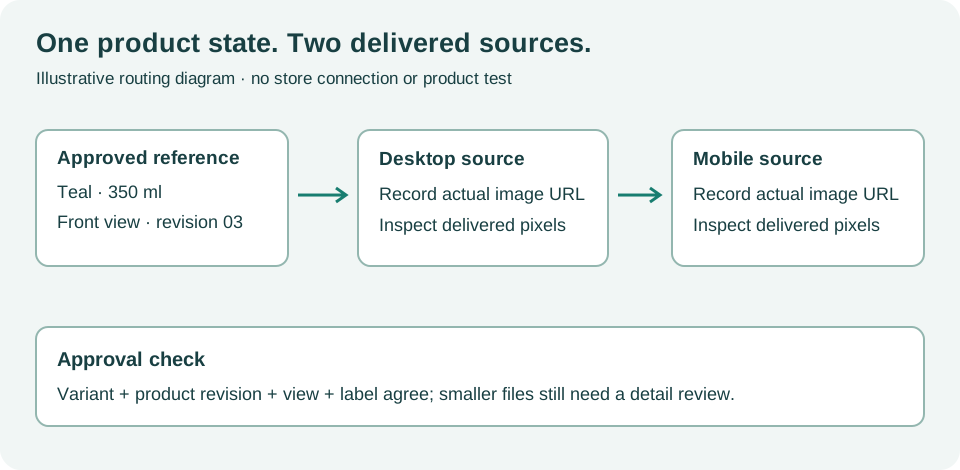 This illustrative state-routing diagram explains the inspection path; it is not an actual product result or a measurement from your store.
Hand over the smallest conflicting pair
Send the theme owner the selected variant, gallery view, desktop source, phone source and approved asset version. They should inspect the relevant picture, srcset or application mapping and correct the conflicting reference. Avoid replacing unrelated images or removing responsive delivery everywhere; the defect is the association between this state and this source.
If the sources intentionally use different crops, confirm that both still describe the same merchandise. A crop may change composition, but it must not silently substitute another lid, color or bundle. Review language and market-specific mappings separately when those also affect media.
Keep four fields together: selected option/view, selected currentSrc URL, successful-load evidence and the actual visible product landmark. If identity differs, preserve the conflicting files or observations and record response/cache context as available. Do not diagnose a CDN or responsive rule solely from a filename. The mismatch is established first; its cause requires the maintainer’s implementation evidence.
Approve every affected route
Repeat the same state at the relevant widths, then switch away and back to the variant. Check initial arrival and subsequent selection; a corrected first image can still be overwritten by older variant-update logic. Record the observed loaded source and product landmark rather than declaring success from a settings screenshot.
Use the gallery interaction review as a manual review record. Sample rows are fictional. It does not connect to, import into or modify an external store or production machine.
CartVisual can help create and review product-consistent assets. It does not inspect your live currentSrc values or update external responsive mappings. The store maintainer must deploy and verify that repair.
The teal-mug diagram illustrates the source-state relationship; the fictional lunch-container example above is a separate exercise. Neither is an observation from your store. For a correct but soft rendition, use the density/pixel-budget check. For stale variant updates, use the update sequence review.
The shared gallery CSV currently contains only two fictional pending examples: keyboard-dialog return and mobile-source selection. It is a reusable column template, not coverage of every test here. Copy a row, replace its page/variant/view and test_condition with your actual case, and use observed_result for the selected URL, load observation and actual matching or conflicting product detail. Keep review_status pending until the actual check is performed.
Sources and further reading
Recorded source-review dates are listed individually below. An undated source does not inherit the article’s publication date. Software and platform rules can change; check the current original before acting.
- CartVisual: editorial scope and evidence policy · Review date not separately recorded
- MDN: the image source actually selected by the browser · Reviewed
- MDN: responsive image sources and art direction · Reviewed
Frequently asked questions
Will a larger file fix the wrong lid?
No. Correct product identity and source association before investigating sharpness.
Is the src attribute enough evidence?
Not always. Ask which responsive source the browser selected and whether it loaded.
Must desktop and phone use identical crops?
No, but approved crops must retain the same merchandise and selected variant.
PREPARE ASSETS FOR YOUR NEXT STEP
Create supporting product assets in CartVisual.
Create new product creative assets in the workspace, then continue in your chosen tools. Third-party software procedures described in this guide take place in those applications; this workspace link does not imply an integration. Check current capabilities, account access and credit quotes.
Explore asset creation tools Check pricing and credits