 CartVisual
FREE PRODUCT PHOTOGRAPHY PLANNER
Product photography shot list template: build and download a CSV
A product photography shot list records the required images for each SKU and variant: the view, purpose, reference and conditions for approval. Use this free planner to build one row per planned output, add a source file and decision, and download an editable CSV without signing in.
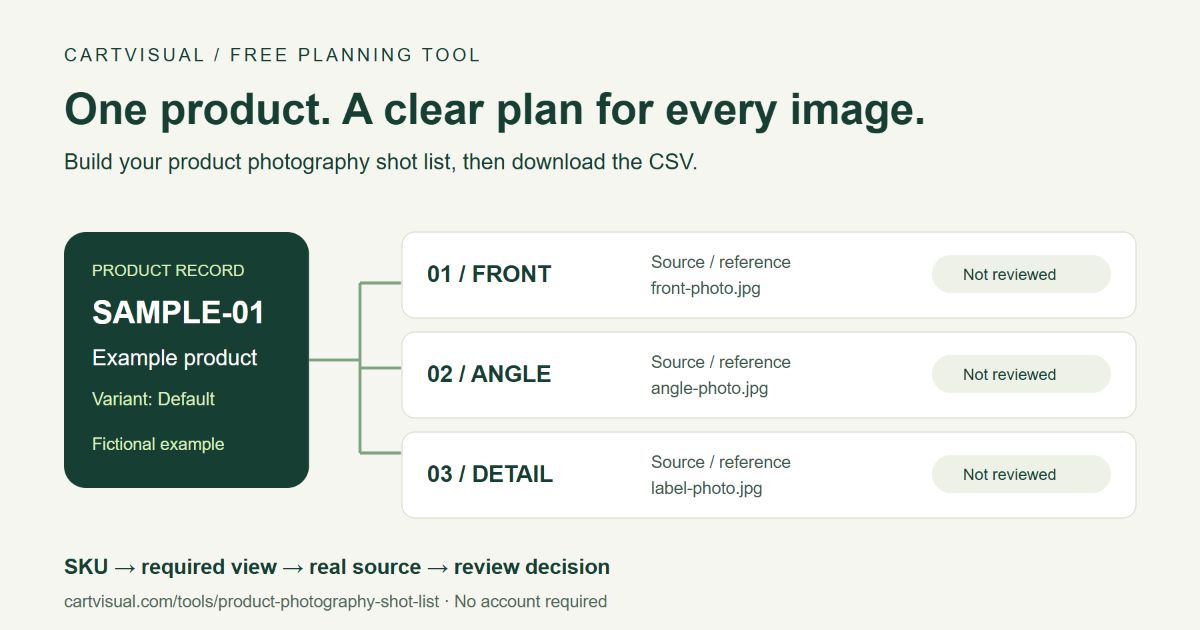
Build your product photography shot list
Plan the outputs before you start shooting or generating. Begin with a sample SKU, select the views your buyer needs, and add up to five variants. Nothing entered in this planner is uploaded or saved by the tool.
Enable JavaScript to build, edit and download a list. The example and blank CSV below remain available.
Example product · SKU SAMPLE-01 · Neutral background
3 sample shots · 1 variant · 1:1
CartVisual product photography shot list · A planned shot is not an approved result.
| Shot | Variant | View | Purpose | Source / reference | Acceptance check | Planned filename | Decision | Reviewer / date |
|---|---|---|---|---|---|---|---|---|
| 1-1 | Default | Front / hero | Identify the exact item and variant | Add a real source file | Compare silhouette, color, visible label and item count. | sample-01-default-front-1-1.jpg | Not reviewed | Not assigned |
| 1-2 | Default | Three-quarter angle | Explain visible depth and shape | Add a real source file | Use a real reference for this angle; do not invent the unseen side. | sample-01-default-angle-1-2.jpg | Not reviewed | Not assigned |
| 1-3 | Default | Label / control detail | Make a visible detail legible | Add a real source file | Read every label or symbol; exact text must match the source. | sample-01-default-label-1-3.jpg | Not reviewed | Not assigned |
CSV includes SKU, product, background and ratio as well as all review columns. Formula-like text receives a prefix to reduce formula interpretation. Check the imported file in your chosen spreadsheet app.
Download a blank CSV without JavaScript · Download the worked sample
What belongs in a product photography shot list?
Write a separate row when a variant or required view needs its own source, crop or review. The SKU identifies the item; the view describes the photograph; the reference records the source you can check. Keep the planned filename with the decision so an approved image cannot be confused with a rejected option.
For example, one headphone variant might need a front image, a three-quarter image and a cushion detail. A second color needs its own rows and source photographs. The sample above illustrates the record format; it is not a claim that every product needs exactly three views.
Choose views by the question they answer
| View | What it explains | What to check |
|---|---|---|
| Front / hero | Identify the exact item and variant | Compare silhouette, color, visible label and item count. |
| Three-quarter angle | Explain visible depth and shape | Use a real reference for this angle; do not invent the unseen side. |
| Back view | Show information on the actual reverse | Photograph the back; do not reconstruct label text from a front photo. |
| Side view | Explain the actual profile | Check openings, closures, thickness and protruding parts against the item. |
| Label / control detail | Make a visible detail legible | Read every label or symbol; exact text must match the source. |
| Material / finish detail | Show an observed surface | Use the actual finish; appearance alone does not prove composition. |
| Context / in use | Explain a relevant use or setting | Review scale and contact; do not imply props are included. |
| Packaging / included set | Explain what arrives | Count actual included items; keep optional props separate. |
A shot list and a creative brief do different jobs
The brief sets the overall direction: audience, scene, lighting, copy space and product facts. The shot list turns that direction into individually named outputs. Use the free product creative brief builder first when you are still deciding what the image should communicate.
For a lifestyle scene, record which objects are props and which items are included in the sale. For a label detail, keep a legible real reference. For an unseen back or side, photograph that view rather than allowing an image generator to invent it.
Prepare, capture or generate, then approve each file
- List the actual variants.Start from the product and SKU record. Give each required view a purpose and a source reference.
- Make the source readable.Photograph the actual item with enough detail to inspect the label, silhouette and finish. Follow the reference-photo preparation guide.
- Create the candidate images.Keep real capture separate from generated scene exploration. A generated image does not establish unseen product features.
- Record a decision.Compare source and result, inspect the destination crop, and mark approved, revise or rejected. Add the reviewer and date.
The documented headphone image example shows a fictional owned reference and selected development outputs. Use it to discuss image roles, not as a guaranteed success rate.
Keep destination requirements separate from planning choices
A ratio in a shot list is a planned delivery format. Check the actual storefront or marketplace requirements before creating final files. Shopify’s product media documentation explains that theme behavior and consistent image ratios affect storefront display; it does not mean one ratio is correct for every placement.
The download is a plain CSV you can edit in a spreadsheet. The planner adds a text prefix to formula-like cell content; no spreadsheet export should be treated as automatic approval. Keep your real product sources and the approved file together.
Privacy, saving and cost
Building, editing and downloading this list is free. The planner runs in this browser page. It does not upload your inputs, store them in browser storage, send them to an AI provider, or save a list to an account. Download before leaving or reloading the page; the tool cannot restore an earlier draft.
Ordinary public-page aggregate measurement is described in our data overview; planner fields are not sent to that measurement. CartVisual’s separate image-generation workflow requires sign-in, enabled account access and available credits. Check current pricing before generating.
Sources and further reading
Sources for this page were checked on . Platform rules can change; verify the current source before publishing. Prompt examples and workflow recommendations are CartVisual editorial guidance, not independently measured results.
Frequently asked questions
Is the product photography shot list template free?
Yes. Build, edit, print and download the planning list without an account or generation credits. It does not include photography or AI media generation.
How many views should each product have?
Choose the views that answer real buyer questions about that item. The planner supports eight optional view types and up to five variants; it does not prescribe one universal image count.
Does the tool inspect my product photos?
No. You can write a source filename or reference in a row, but the tool does not upload or inspect any file. A reviewer must compare the actual source and candidate image.
Can I use the CSV in Excel or Google Sheets?
The download is a UTF-8 CSV with quoted fields and a text prefix for formula-like values. Import it into your chosen spreadsheet and verify the content and layout there. No live spreadsheet connection is created.
Will my draft survive a reload?
No. Inputs stay in this page and are not saved by the tool. Download your CSV before leaving.
BUILD FROM A PRODUCT YOU KNOW
Put this workflow into practice with your own product.
Explore the relevant tool first. AI copy and concept planning are free after sign-in. Image and video generation require available credits and the applicable account access.
Explore the workspace Check pricing and credits