 CartVisual
Assets & tasks / PRACTICAL ANSWER
What goes in an image sitemap when my product photos live on a CDN?
Map the page and its images separately. Use the actual publicly accessible media URLs and review the CDN host as well as the store host.
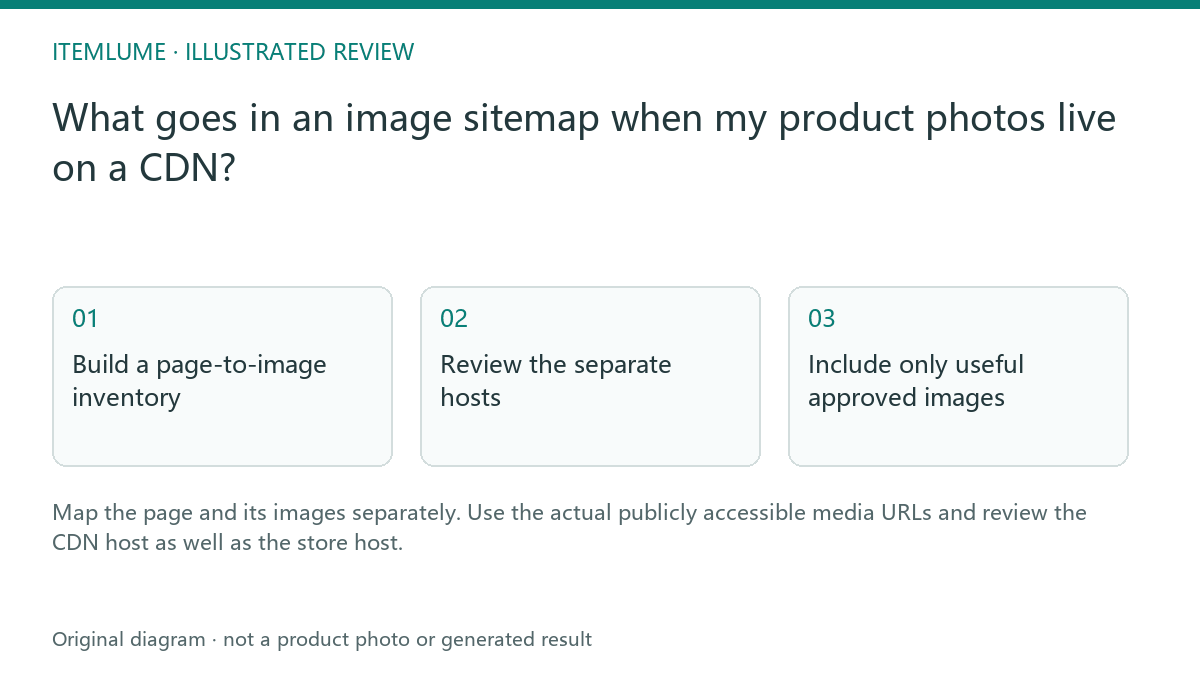
Build a page-to-image inventory
A fictional ceramics store serves pages from its own domain and photos from a CDN. The seller lists only product page URLs in a spreadsheet and assumes the sitemap already describes every image. Build a second column for the exact approved image URL used by each page. Include relevant actual images rather than private generation previews.
Google documents image sitemap extensions and cross-domain image hosting. The ledger here prepares that implementation; it is not a completed XML sitemap and does not submit anything to Search Console.
Review the separate hosts
| Record | Illustrative host | Check |
|---|---|---|
| Product page | store.example | Public intended canonical page |
| Approved image | media.example | Accessible final image |
| Search Console property | Store and image-host domain | Google’s image-sitemap guidance requires both domains verified in Search Console for a cross-domain image URL |
| Host robots policy | Each applicable host | No unintended block on public media |
A successful image request in the owner’s logged-in browser does not establish anonymous crawler access. Ask the implementation team to check public delivery on the actual host. Do not weaken access controls on private material to fill a sitemap.
Include only useful approved images
For the fictional mug, map the intended public page to approved primary and secondary image URLs. A page URL belongs in loc; each image URL belongs inside its own image:image entry as image:loc. The host names below are reserved examples, not real files or a submitted sitemap.
<?xml version="1.0" encoding="UTF-8"?>
<urlset xmlns="http://www.sitemaps.org/schemas/sitemap/0.9"
        xmlns:image="http://www.google.com/schemas/sitemap-image/1.1">
  <url>
    <loc>https://store.example/products/mug-blue</loc>
    <image:image>
      <image:loc>https://media.example/mug-blue-front.jpg</image:loc>
    </image:image>
    <image:image>
      <image:loc>https://media.example/mug-blue-handle.jpg</image:loc>
    </image:image>
  </url>
</urlset>
Google’s image-sitemap reference permits cross-domain image hosting with both domains verified in Search Console and no relevant robots block. Its current image extension uses image:image and image:loc; image:caption, image:geo_location, image:title and image:license were removed from its documentation. Do not revive them from an old template.
Replace each example with the actual public URL. Exclude rejected or private previews. If image URLs change, rebuild the mapping from published assets. If you cannot verify the relevant third-party image host, resolve that implementation requirement with the provider rather than asserting the sitemap is compliant or weakening private access controls.
Validate and monitor the real sitemap
Have the developer validate the XML and inspect the published sitemap response. After submission, read Search Console’s actual processing status and dates. A successful sitemap is a discovery signal, not proof that every image is indexed. Keep the approved asset record so later changes can be reconciled without confusing a new creative with a broken delivery URL. Record separate outcomes: XML accepted, public image fetch succeeds, and actual search/index evidence. None proves the others. For a missing image on an indexed product page, continue with the image-discovery diagnostic.
Sources and further reading
Recorded source-review dates are listed individually below. An undated source does not inherit the article’s publication date. Software and platform rules can change; check the current original before acting.
- CartVisual: editorial scope and evidence · Review date not separately recorded
- Google: image sitemaps · Reviewed
Frequently asked questions
Is this table already an image sitemap?
No. It is a planning inventory for the implementation.
Should private preview links be included?
No. Include approved publicly accessible images.
Does successful processing mean every image is indexed?
No. Monitor discovery and indexing separately.
PREPARE ASSETS FOR YOUR NEXT STEP
Create supporting product assets in CartVisual.
Create new product creative assets in the workspace, then continue in your chosen tools. Third-party software procedures described in this guide take place in those applications; this workspace link does not imply an integration. Check current capabilities, account access and credit quotes.
Explore asset creation tools Check pricing and credits