 CartVisual
Logo studio / PUBLISHING WORKFLOW
Why does my vector logo still need embroidery digitization?
A vector logo describes artwork. Embroidery digitization describes how a machine will reproduce it with thread. Approve both, then check the physical result.
Identify which file your embroiderer actually needs
A fictional seller, Alder Goods, approves a leaf symbol for a tote and later sends the same SVG for a curved cap. The artwork is unchanged, but that does not establish that one production setup suits both products. Ask the selected supplier for the exact product, placement, finished dimensions, accepted artwork format and who prepares the machine file.
Printful explains digitization as conversion into a machine-readable stitch file. Its own-file policy says it prepares those files itself. That is Printful’s workflow, not a universal rule for every embroiderer. Confirm your supplier’s policy before paying an outside digitizer.
Approve adaptations as a separate artwork version
Give the digitizer the selected logo and an annotated list of features that define it: the leaf opening, name spelling and symbol-to-name relationship. Ask which details need adjustment for the chosen fabric and placement. Keep the ordinary brand master alongside an application-specific embroidery version; otherwise a simplified cap mark can accidentally replace the storefront logo.
Printful’s preparation guide describes embroidery-specific design constraints and adjustment approval. Our review method is to request a before-and-after comparison at the intended finished size. Approve each meaningful change explicitly. A proposed merged gap or removed tagline is a brand decision, even when it solves a manufacturing problem.
Make the comparison show the approved brand artwork, the proposed embroidery adaptation and the exact application. For Alder Goods, a leaf opening that closes in a cap adaptation needs an explicit identity decision; do not call that change approved merely because the supplier can digitize it. Keep spelling and symbol-to-name relationship visible in the proof.
Review a sew-out on the intended product
For Alder Goods, commission a sample on the actual tote material and a separate cap sample if that application is planned. Inspect letter readability, open spaces, placement, edge shape and fabric puckering in ordinary viewing conditions. Compare the physical item with the approved adaptation rather than an enlarged screenshot of the original concept.
Record the artwork version, product, placement, supplier process-file reference and sample decision together. If the sample changes, ask the supplier which corresponding file was revised. Do not authorize a larger order from a thread simulation alone. This article supplies a review method, not measured stitch settings or a tested sample.
| Fictional change after a tote sample | Evidence to revisit | Approval boundary |
|---|---|---|
| Same artwork placed on a curved cap | Cap product/placement, actual material and suitable process file. | The tote observation does not approve the cap. |
| Leaf opening enlarged during adaptation | Brand comparison and corresponding stitch version. | The old artwork approval does not automatically approve the new shape. |
| Supplier provides only a thread-effect preview | Actual sew-out on the intended material and application. | No physical-sample pass has been observed. |
| Process file revised after a failed sample | Revised file reference and a corresponding new proof. | Do not bind an older acceptable sample to an unseen new process. |
These are proposed approval relationships, not measured settings. Use the selected supplier’s current guidance and product template. Printful’s refusal of customer-supplied stitch files is its own machine workflow; it is not a rule that another embroiderer must use the same arrangement.
Keep concept, process file and proof visibly separate
Use Logo studio to explore the visual concept, then have a production designer and embroiderer prepare the appropriate deliverables. CartVisual does not digitize needle paths or operate an embroidery machine. Its generated image cannot establish thread density, production feasibility or sample quality.
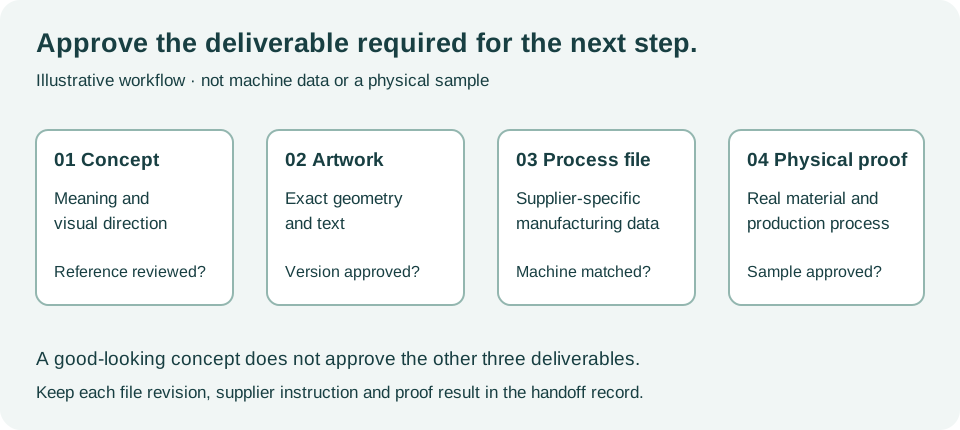
The original diagram illustrates approval stages; it is neither a machine file nor a photograph of an actual sew-out.
Use the production artwork handoff worksheet as a manual review record. Sample rows are fictional. It does not connect to, import into or modify an external store or production machine.
The shared handoff worksheet contains two fictional pending rows: a roll-label application and a cap-embroidery case. The cap process-parameter wording describes a target to confirm; not-tested and pending mean no needle path or sew-out has been approved. Add the actual artwork revision, product/placement and sample observation to a copy. Never treat the unrelated roll-label row as embroidery evidence. For file geometry, keep live type versus outlines as a separate delivery review.
Sources and further reading
Recorded source-review dates are listed individually below. An undated source does not inherit the article’s publication date. Software and platform rules can change; check the current original before acting.
- CartVisual: editorial scope and evidence policy · Review date not separately recorded
- Printful Help: what embroidery digitization means · Reviewed
- Printful Help: preparing an embroidery design · Reviewed
- Printful Help: its policy on supplied stitch files · Reviewed
Frequently asked questions
Is an SVG already an embroidery file?
No. It can provide artwork for digitization; the supplier must confirm the machine-compatible process file and application.
Can the same logo work on a cap and a tote?
The same identity can be retained, but confirm each product, placement and supplier setup rather than assuming one stitch file transfers.
Does CartVisual provide a tested embroidery sample?
No. Obtain and inspect a physical sample from the supplier you intend to use.
PREPARE ASSETS FOR YOUR NEXT STEP
Create supporting product assets in CartVisual.
Create new product creative assets in the workspace, then continue in your chosen tools. Third-party software procedures described in this guide take place in those applications; this workspace link does not imply an integration. Check current capabilities, account access and credit quotes.
Explore asset creation tools Check pricing and credits