 CartVisual
PRACTICAL ANSWER / Logo studio
Are the gray pixels around my black logo a design error?
Usually, no. Antialiasing smooths a raster logo by giving boundary pixels partial coverage. A black edge can therefore appear gray against white even when its stored color is black. Judge the file at its intended display size and on different backgrounds before deciding whether the artwork or export needs repair.
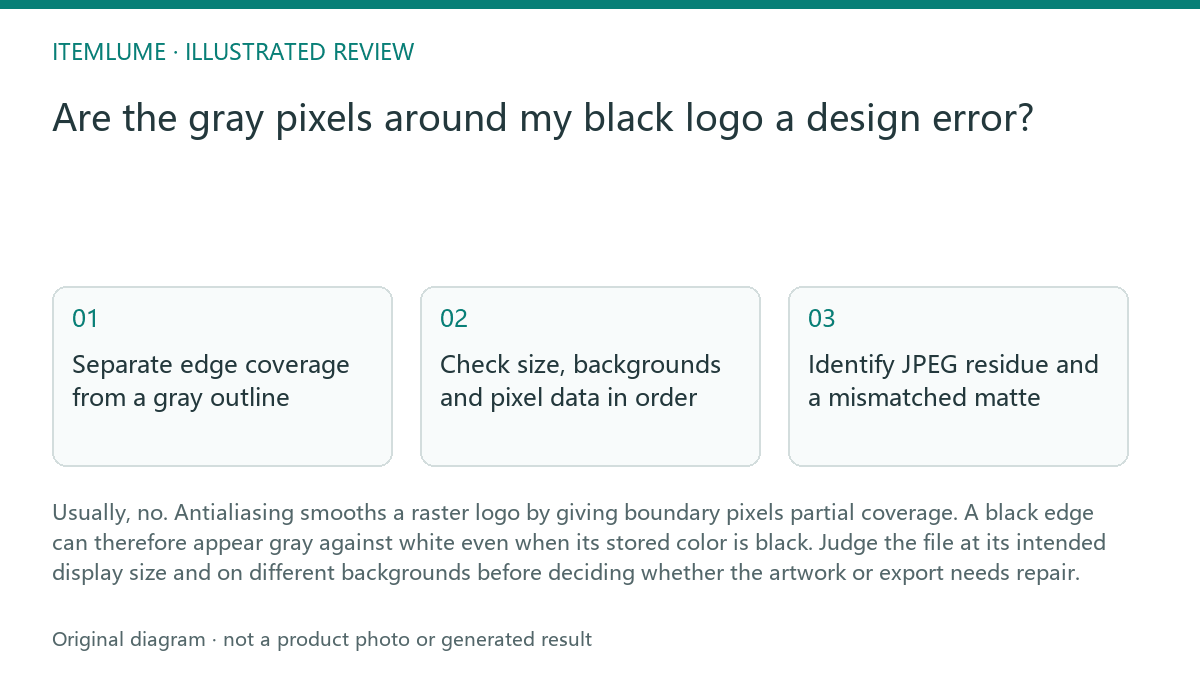
Separate edge coverage from a gray outline
A raster image represents curved or diagonal boundaries with square pixels. In a transparent export, a boundary can retain black source RGB while alpha controls partial contribution to the background. The W3C simple-alpha model describes the source and backdrop contributions. A gray appearance over white therefore does not by itself prove that the logo contains a separate gray stroke. Inspect stored RGB, alpha and the viewing background together.
Actual gray RGB values need a different interpretation. They may be intentional shading, pixels flattened against a background, or residue from an earlier export. Inspect color and alpha together: a visible gray pixel alone cannot tell you which process created it. Enlargement reveals pixel structure but does not establish a defect.
Check size, backgrounds and pixel data in order
Start with the original export rather than a screenshot, messaging preview or downloaded thumbnail. Those copies may have been resized or recompressed. Use an editor that exposes alpha and RGB values, and make sure its pixel inspector reports source values rather than only the color composited over the preview background.
Follow the sequence below. A clean result has edge transitions that follow the contour without a separate pale rim. If softness appears only after resizing, investigate the scaling step before editing the logo. Repeatedly sharpening the file can introduce ringing and damage small gaps.
- Open the original file at 100% zoom, then view it at the intended display size; note whether the application applies scaling.
- Preview the same file over white, a dark background and a saturated color; watch for a pale fringe that persists across backgrounds.
- Inspect RGB and alpha at an interior pixel, a boundary pixel and an exterior pixel; distinguish partial black coverage from pale stored color.
- Compare with a fresh export from the clean source at the required dimensions; check whether the fringe or block artifacts disappear.
Identify JPEG residue and a mismatched matte
JPEG compression can introduce mottled pixels, block patterns and ringing near a high-contrast logo boundary. Saving that image as PNG preserves those existing artifacts. It does not restore the clean edge. When a clean source is available, export directly from it instead of tracing the contaminated boundary or erasing pixels individually.
A pale matte creates a different symptom: edge colors were blended toward a light background before transparency was applied or exported. On dark backgrounds, those colors can reveal a light halo. Re-export with transparency from the clean source and without a light matte. Keep legitimate partial alpha; converting every boundary pixel to fully opaque black makes curves jagged.
Use matte removal only for a diagnosed matte problem. Adobe describes Remove Black Matte and Remove White Matte for corresponding selection fringes; they are not a general instruction to erase all partially transparent pixels. Recheck the actual contour and backgrounds after any operation.
Work through an approval exercise and stop
Fictional exercise, not a measured file: a 64 × 64 black icon has a boundary pixel with source RGB (0, 0, 0) and 8-bit alpha 128/255, or roughly half contribution. It mixes with the background rather than acting like fully opaque black. The displayed gray value also depends on the compositing color space, so do not expect one universal middle-gray numeric readout. If the edge follows the intended contour and behaves correctly on the target backgrounds, retain that legitimate partial alpha.
In the same fictional exercise, another export has pale RGB values along the boundary and a visible light rim on dark blue. Reject that export and recreate it from the clean source. Stop when the intended-size preview preserves the contour and gaps, background changes reveal no unwanted halo, and the pixel checks explain the remaining softness. These are user review steps, not a claim of automated product validation.
Pass/fail review for gray raster-logo edges
| Observation | Next check | Pass condition |
|---|---|---|
| Gray edge on white | Inspect source RGB and alpha | Pass: partial black coverage explains the gray. Fail: unexplained pale pixels form a rim. |
| Light fringe on dark backgrounds | Compare a transparent export from the clean source | Pass: no unwanted pale halo. Fail: light matte residue remains. |
| Mottling or blocks beside the contour | Check whether the image passed through JPEG | Pass: clean-source export removes artifacts. Fail: contaminated pixels persist. |
| Softness appears after resizing | Compare original and intended-size rendering | Pass: contour and gaps remain clear. Fail: scaling blurs or closes details. |
If the entire canvas is opaque rather than only the edge looking pale, use Why does my “transparent PNG” logo still have a white box? to investigate that separate symptom.
Sources and further reading
Recorded source-review dates are listed individually below. An undated source does not inherit the article’s publication date. Software and platform rules can change; check the current original before acting.
- CartVisual: editorial scope and evidence · Review date not separately recorded
- Canva: logo design thinking process · Review date not separately recorded
- W3C: Compositing and Blending Level 1 · Reviewed
- Adobe Photoshop: Fringe pixels around a selection · Reviewed
- Adobe Photoshop: Remove a matte from a selection · Reviewed
Frequently asked questions
Should I remove every partly transparent pixel?
No. Partial alpha helps represent smooth curves. Removing it can turn a clean contour into a staircase.
Does the PNG extension guarantee clean edges?
No. PNG can preserve artifacts inherited from JPEG or an earlier flattened image. Check the source history.
Is a white box the same problem as a pale edge?
No. A white box concerns the surrounding canvas; a pale edge concerns boundary pixels. For a rectangular background, use the separate transparent-PNG white-box guide.
PREPARE ASSETS FOR YOUR NEXT STEP
Create supporting product assets in CartVisual.
Create new product creative assets in the workspace, then continue in your chosen tools. Third-party software procedures described in this guide take place in those applications; this workspace link does not imply an integration. Check current capabilities, account access and credit quotes.
Explore asset creation tools Check pricing and credits