 CartVisual
DIAGNOSTIC GUIDE / Packaging studio
Why does the printer see two spot inks when my packaging uses one brand color?
Do not judge ink count from screen color alone. Compare the actual spot-color definitions and output separations: two similarly looking objects may use differently named inks or different color types. Ask the printer to confirm the intended production plates before changing artwork. Separate an accidental duplicate brand ink from a deliberately required functional printing plate.
Screen similarity can conceal two ink definitions
A swatch’s visual appearance does not identify a printing plate by itself. Imported graphics can retain their own color definitions. Blindly merging names can be equally unsafe if the printer actually needs separate inks for different functions. The decision depends on the approved job, not on a generic one-color rule.
List the job’s intended brand inks and functional inks separately. A screen sample cannot tell whether two names refer to one production ink or to different purposes. Do not invent a universal maximum ink count to make an unfamiliar separation look acceptable.
Trace the unexpected plate to its source object
Collect the printer’s intended ink list and open output preview on the delivered PDF. Trace each unexpected separation back to its objects and source file. Compare names, color types and usage before making a duplicate working version. Review the revised separations with the printer and check the visible artwork again.
Toggle each separation in the actual output preview and note which objects disappear or remain. Compare the placed logo’s source definitions with the main document’s swatches. The useful question is which object produced the extra plate, not which name looks less tidy.
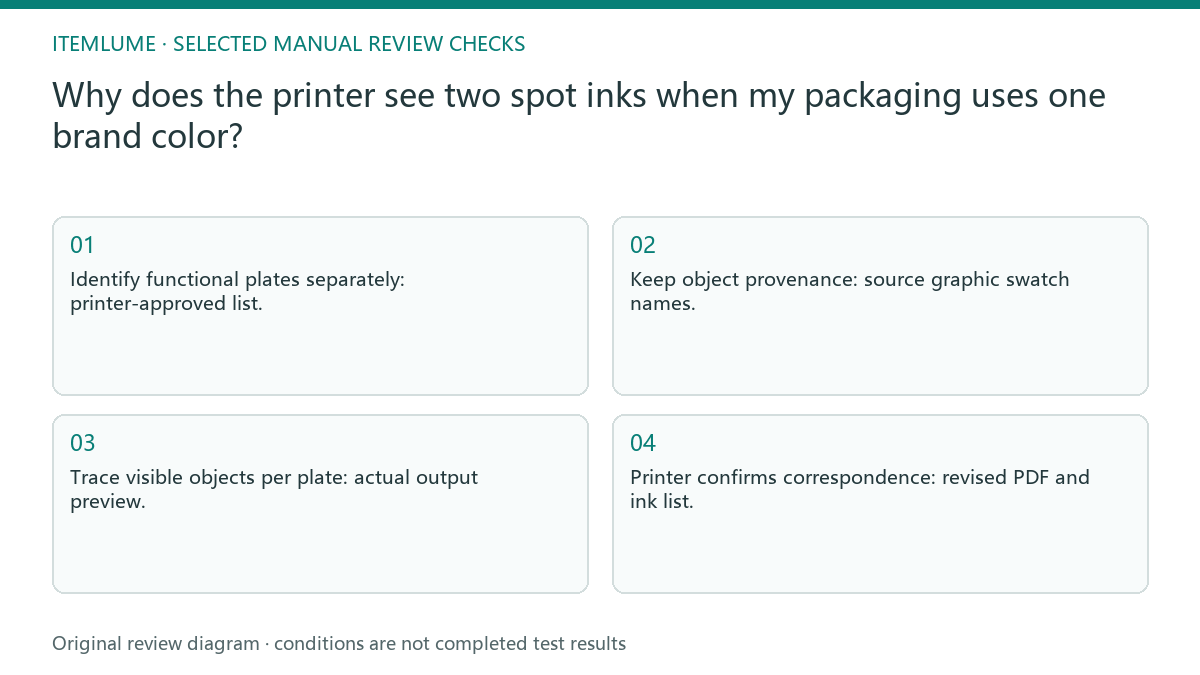
- Identify functional plates separately: printer-approved list.
- Keep object provenance: source graphic swatch names.
- Trace visible objects per plate: actual output preview.
- Printer confirms correspondence: revised PDF and ink list.
A placed tea-box logo brings another spot name
Fictional exercise: a tea box has one approved brand spot ink, but its placed logo introduces another similarly named spot swatch. The operator records both definitions and the objects on each plate. The printer decides whether they represent the same required ink; matching screen previews alone cannot authorize the merge.
After the printer confirms that both names are accidental duplicates of the same actual ink, choose an agreed correction. The source designer may correct the source definitions; in an InDesign output workflow, Adobe documents an Ink Alias that maps the duplicate spot to the primary spot separation without rewriting document color data. Keep the chosen mapping with the delivered PDF and inspect the resulting plate objects and visible artwork. Converting every spot to process CMYK is a different operation, not an equivalent duplicate-name repair. Do not alias white, varnish or cutting/finishing plates into a brand ink.
Protect white ink and other functional plates
Stop if the intended ink list is unknown or if merging affects varnish, white ink or another functional plate. Resolve the production roles before editing swatches.
If a plate’s purpose is unconfirmed, mark it unresolved. Functional production information must remain identifiable until the printer accepts the revised file. The designer and printer jointly approve separations. A packaging mockup can illustrate a brand direction, but it does not specify press plates or approve their production behavior.
Intended inks to approval: decision worksheet
| Check | Evidence to record | Review action |
|---|---|---|
| Intended inks | Printer-approved list | Identify functional plates separately |
| Imported definitions | Source graphic swatch names | Keep object provenance |
| Unexpected plates | Actual output preview | Trace visible objects per plate |
| Approval | Revised PDF and ink list | Printer confirms correspondence |
Use this matrix as a manual review record and add your own real evidence. Its conditions are not completed test results.
Sources and further reading
Recorded source-review dates are listed individually below. An undated source does not inherit the article’s publication date. Software and platform rules can change; check the current original before acting.
- CartVisual: editorial policy and product scope · Review date not separately recorded
- Adobe InDesign: Customize spot color appearance · Reviewed
- Adobe Acrobat: Output Preview · Reviewed
- Adobe InDesign: Manage inks for separation · Reviewed
Frequently asked questions
Can I merge two swatches because they look identical?
Only after the printer confirms they are accidental duplicates of the same actual production ink. Use the agreed source correction or an output ink alias and recheck the exported plates. Do not map functional white, varnish or cut/finishing separations into the brand color, and do not confuse aliasing with spot-to-process conversion.
Where should I look for an extra plate?
Inspect output separations and trace the objects to imported graphics and source swatch definitions.
Does a packaging mockup approve the inks?
No. The designer and printer need the actual production PDF and intended ink list.
PREPARE ASSETS FOR YOUR NEXT STEP
Create supporting product assets in CartVisual.
Create new product creative assets in the workspace, then continue in your chosen tools. Third-party software procedures described in this guide take place in those applications; this workspace link does not imply an integration. Check current capabilities, account access and credit quotes.
Explore asset creation tools Check pricing and credits