 CartVisual
PRACTICAL ANSWER / Packaging studio
Should my online listing show the retail box or the shipping mailer?
Show the retail box when it is part of the item the buyer receives, and show the shipping carton when delivery protection matters. Photograph each in its real state and label its role. If the decorative box sits inside a plain shipping carton, make that relationship clear so shoppers do not mistake the carton for a gift box or assume extra packaging is included.
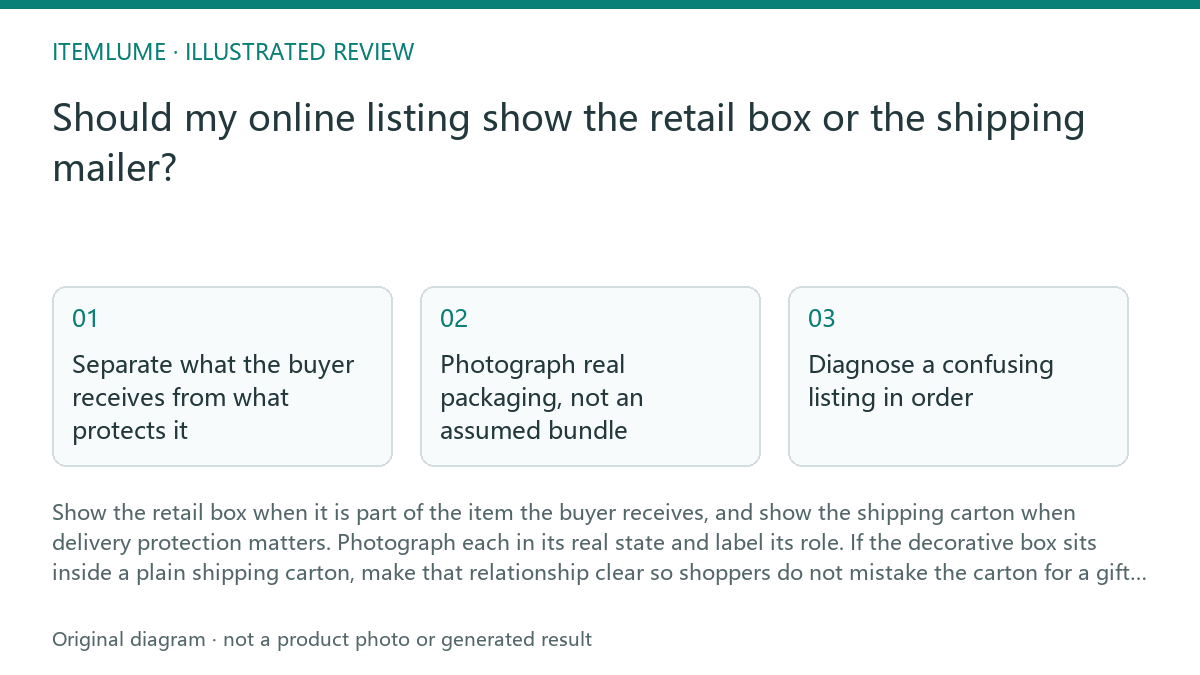
Separate what the buyer receives from what protects it
The retail box presents and contains the gift item. It may carry the product name, finish, or gift-ready appearance that matters to the buyer. The shipping carton or mailer has a different job: it protects the order during delivery. One listing image should not imply that these packages are interchangeable.
Start with the actual packing sequence. If the decorative box is placed inside a plain shipping carton, show the decorative box as the product packaging and the carton as the outer delivery layer. A product-only image can still be appropriate. Use a packaging detail view or nearby description to make included retail packaging clear, and do not depict a plain outer carton as a gift-ready box. Choose the primary image according to the destination’s current rules and the exact item for sale.
- List every package component a typical order includes.
- Write down the packing order, from product to outermost delivery layer.
- Choose a clear photo for each component that affects the buying decision.
- Check that captions identify the retail box and the shipping carton accurately.
Photograph real packaging, not an assumed bundle
Use the packaging supplied with the item. A clean, well-lit photograph can show whether a box is decorative, plain, or visibly protective. If the package changes across variants or fulfillment routes, check the version represented by each listing before reusing the image.
A staged arrangement can help explain the layers, but it should not suggest that all layers are delivered as a gift set. Keep the product and its retail box together in one view; use another image to show the outer carton if that helps explain transit protection. A short caption can resolve ambiguity without adding props that are not included.
Assign each image a role before upload
For Google product feeds, the official image portfolio guidance separates the main product image from supplementary views, including packaging or included accessories. Apply that source only to Google; check other destinations independently.
| Image role | What it should resolve | Fictional gift order |
|---|---|---|
| Main product view | Which exact item or sold set is being offered | The selected gift item, composed for the destination |
| Retail-packaging detail | Whether the decorative box is included | Show and describe the actual included inner box |
| Outer-delivery view | What protects the order and whether appearance varies | Plain outer carton; do not promise a fixed look if fulfillment varies |
Keep captions in the page’s appropriate text fields rather than assuming text overlays are allowed in every image. None of these views proves transit protection or adds an optional gift-wrap service to the order.
Diagnose a confusing listing in order
Review the listing from the buyer’s likely question: “What arrives, and what will it look like?” Compare the first image, captions, variant choices, and packaging description. Conflicting signals can create a false expectation even when each photograph is individually accurate.
For example, a fictional gift listing shows a decorative inner box inside a plain shipping carton. The product photo includes the inner box, while a delivery photo shows the carton. The caption should say that the decorative box is included and the plain carton is the outer shipping package. If the carton varies, avoid promising a particular appearance.
- Identify what the first image makes a shopper expect.
- Compare that expectation with the actual included components.
- Check whether captions and variant details agree with the photographs.
- Replace or relabel any image that implies an unbundled or unprovided package.
Stop when the package representation is accurate
Stop revising once a shopper can distinguish the item’s retail packaging from its delivery protection, tell what is included, and see no promise of a decorative outer box that is not supplied. More package images are not automatically better; include only views that resolve a real question.
This is a listing-review workflow, not proof that packaging will prevent damage or fit a particular carrier process. Confirm physical protection separately through appropriate packing and transit checks. Listing images can communicate the package arrangement, but they cannot establish product performance.
Review the package relationship
| Observation | Next check | Pass condition |
|---|---|---|
| Decorative inner box appears beside the product | Check the included-items description and variant | The listing says whether the decorative box is included |
| Plain carton appears in a delivery image | Compare the caption with the actual packing sequence | It is identified as outer shipping packaging, not a gift box |
| Retail box is absent from the main product photo | Check whether a buyer could infer the item arrives unboxed | An additional view or caption makes included retail packaging clear |
| Outer packaging differs between orders | Check the wording for a fixed color or style promise | The listing describes it without promising an unconfirmed appearance |
Sources and further reading
Recorded source-review dates are listed individually below. An undated source does not inherit the article’s publication date. Software and platform rules can change; check the current original before acting.
- CartVisual: editorial scope and evidence · Review date not separately recorded
- Canva: margins, bleed and crop marks · Review date not separately recorded
- Google Images · Reviewed
Frequently asked questions
Should the first image show the shipping carton?
Choose the primary image for the exact item and destination’s current rules. Use a packaging detail image or nearby copy to explain an included retail box. Add an outer-carton view when it answers a delivery question; it need not be the first image.
Can I use a staged photo of the box inside the carton?
Yes, if it represents the actual arrangement and does not imply extra items or a gift-ready outer carton.
What if the shipping carton changes?
Avoid promising a specific appearance. Show the retail packaging consistently and describe the outer layer by its delivery role.
PREPARE ASSETS FOR YOUR NEXT STEP
Create supporting product assets in CartVisual.
Create new product creative assets in the workspace, then continue in your chosen tools. Third-party software procedures described in this guide take place in those applications; this workspace link does not imply an integration. Check current capabilities, account access and credit quotes.
Explore asset creation tools Check pricing and credits