 CartVisual
DIAGNOSTIC GUIDE / Packaging studio
Why does the printer measure a different page size from my packaging layout?
Ask which PDF page boundary the printer measured. The visible crop, intended trim and bleed can describe different rectangles, so a mismatch is not automatically proof that the design was scaled incorrectly. Compare the job’s finished dimensions with the actual PDF boxes. Name the measured rectangle and unit before deciding which dimensions actually need correction.
Finished size and PDF boxes are different measurements
A screen preview can hide areas without changing the full document boundary. Conversely, adding bleed extends delivery information without enlarging the finished package. Treat units and measurement basis as explicit fields; a screenshot ruler cannot establish which PDF boundary a supplier’s automated system is reading.
Have the supplier name the measured box and unit. A full page boundary can include information outside the finished area, while a viewing crop can conceal it. The discrepancy becomes actionable only when both parties describe the same rectangle.
Ask which boundary the supplier reads
Record the supplier’s finished size, bleed requirement and accepted page-box convention. Inspect the delivered PDF’s box values in a capable editor, keep the unit visible, and compare them with the editable layout. Correct only the agreed boundary on a copy, then send the revised file for the same measurement again.
Make a dimension ledger for the finished size, required bleed and the delivered PDF’s named boxes, such as TrimBox, BleedBox and CropBox where present. Keep the source layout beside it and ask which box the supplier measured. Convert units explicitly before deciding whether artwork or metadata needs correction. Do not assume the visible viewing crop is the accepted finished boundary.
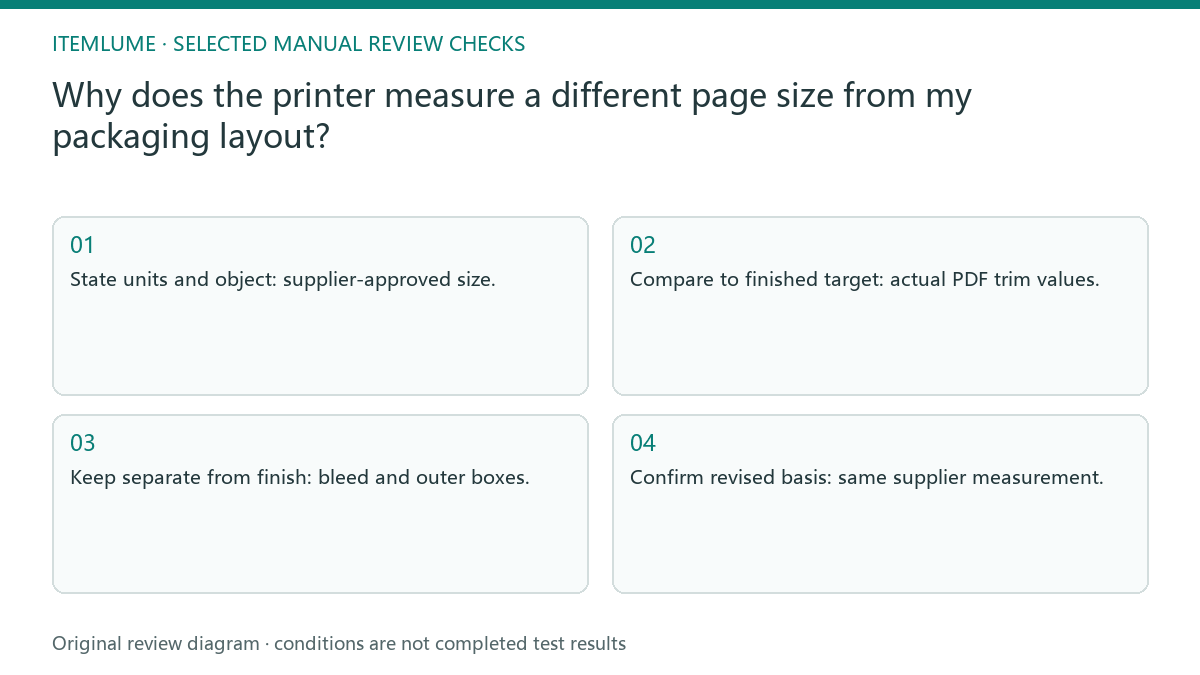
- State units and object: supplier-approved size.
- Compare to finished target: actual PDF trim values.
- Keep separate from finish: bleed and outer boxes.
- Confirm revised basis: same supplier measurement.
Name the page box and the object being measured
Adobe Acrobat’s Set Page Boxes view distinguishes CropBox, ArtBox, TrimBox and BleedBox. Its crop operation hides content; a smaller visible page is not evidence that the original artwork was rescaled. Inspect the boxes on a copy and record the original values before making changes.
| Record | Question to resolve |
|---|---|
| Physical object | One finished panel, whole flat blank, label, or imposed sheet? |
| Named box and page | Which PDF boundary, page number, orientation and unit did each party measure? |
| Expected versus actual | Are both numbers for that same object and boundary? |
| Release evidence | Did the supplier recheck the exact revised PDF under its agreed specification? |
Do not invent a missing box value or remove marks and bleed merely to make the visible page match a panel dimension.
Compare trim, bleed and the editable layout
Fictional exercise: a single flat label has an agreed trim size of 100 × 150 mm and an agreed 3 mm bleed on each edge. Its intended bleed rectangle is therefore 106 × 156 mm. These invented numbers illustrate two different boundaries; 3 mm is not a universal printer requirement. A supplier reading 106 × 156 mm has not necessarily found a scaling error in the 100 × 150 mm trim.
For a folding carton, first distinguish a finished panel, the whole flat dieline, and the PDF page. A 100 mm front panel is not the width of the entire unfolded blank or automatically the PDF TrimBox. Record which physical object each dimension describes. If the named box values agree but the supplier still reports a mismatch, send the exact file revision and measurement endpoints for clarification before resizing anything.
Correct the agreed box without stretching artwork
Stop if the supplier cannot identify the boundary or unit in its report. Resolve that ambiguity before changing dimensions, because an unnecessary scale change can disturb text, marks and folds.
Reject a fix that changes product proportions or clips required bleed. The supplier must confirm the boundary convention; a screenshot alone cannot establish production size. The designer owns PDF boundaries and the printer owns acceptance checks. A rendered packaging concept is not a production document containing verified page-box geometry.
Finished target to retest: decision worksheet
| Check | Evidence to record | Review action |
|---|---|---|
| Finished target | Supplier-approved size | State units and object |
| Trim boundary | Actual PDF trim values | Compare to finished target |
| Delivery extent | Bleed and outer boxes | Keep separate from finish |
| Retest | Same supplier measurement | Confirm revised basis |
Use this matrix as a manual review record and add your own real evidence. Its conditions are not completed test results.
Sources and further reading
Recorded source-review dates are listed individually below. An undated source does not inherit the article’s publication date. Software and platform rules can change; check the current original before acting.
- CartVisual: editorial policy and product scope · Review date not separately recorded
- Adobe Acrobat: Crop pages and page boxes · Reviewed
Frequently asked questions
Should I scale down a PDF reported as too large?
First check the measured box. A bleed or boundary mismatch does not necessarily mean artwork was enlarged.
Which dimensions belong in the worksheet?
Record the finished size, bleed requirement, actual box values and their units separately.
Does an on-screen crop prove print size?
No. Use the actual PDF values and the printer’s agreed receiving measurement.
PREPARE ASSETS FOR YOUR NEXT STEP
Create supporting product assets in CartVisual.
Create new product creative assets in the workspace, then continue in your chosen tools. Third-party software procedures described in this guide take place in those applications; this workspace link does not imply an integration. Check current capabilities, account access and credit quotes.
Explore asset creation tools Check pricing and credits