 CartVisual
DIAGNOSTIC GUIDE / Packaging studio
Will the thin white lines in my packaging PDF actually print?
Thin white or dark lines in a packaging PDF can be display artifacts, but they can also represent real gaps. Acrobat’s smoothing preferences can alter on-screen rendering; their effect is a diagnostic observation, not proof that a production line is absent. Compare the same file at different views and inspect the source before editing every line. When the production consequence remains uncertain, ask the printer to test the specified file and proof.
Observe how the line behaves
Record the page, location, zoom level and viewer. A line that changes or disappears as zoom changes suggests a rendering question, but that observation alone does not approve printing. Keep the same PDF revision throughout the comparison to avoid confusing a re-export with a display change.
Inspect the source artwork for actual object boundaries, uncovered areas and overlapping transparency. A visible source gap needs a source correction; an apparent seam with continuous objects needs further display and output diagnosis. Neither should be decided solely from a phone screenshot.
Test one viewing condition at a time
Use a copy for display-setting experiments and preserve the delivery master. If supported by the viewer, compare the relevant rendering setting and a different zoom. Note what changed rather than declaring the entire PDF safe because one screen hides the seam.
Review the printer’s requested PDF specification before exporting another version. Adobe’s PDF documentation distinguishes workflows with live transparency and flattening, but no preset is automatically correct for every printer. Ask whether the supplier requires a particular treatment instead of changing it by guesswork.
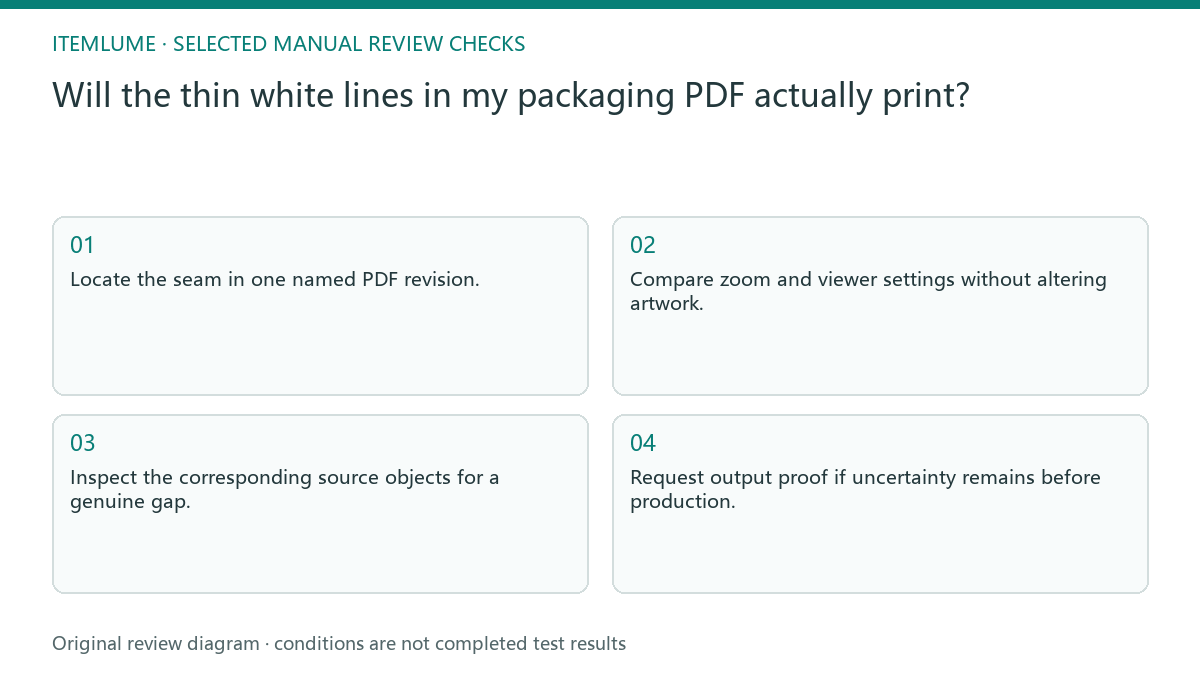
- Locate the seam in one named PDF revision.
- Compare zoom and viewer settings without altering artwork.
- Inspect the corresponding source objects for a genuine gap.
- Confirm the printer’s requested transparency and PDF workflow.
- Request output proof if uncertainty remains before production.
Run a display test without silently changing the PDF
Adobe’s Acrobat viewing-preferences documentation describes Smooth Line Art and Smooth Images as rendering controls. The review here compares display conditions rather than changing the source artwork. Where available in your Acrobat version, compare the same unchanged PDF with Smooth Line Art and Smooth Images display settings enabled and disabled. Record the viewer version, zoom, setting and line location. Restore the review settings afterward. A line disappearing in this display experiment supports a rendering explanation; it does not certify an arbitrary file or printer.
Keep a viewer-only test separate from an export change. Changing PDF compatibility, flattening, spot colors or object opacity changes the delivered artwork or processing route and needs the printer’s specification. Do not apply an old workaround globally to a packaging job.
If the line remains uncertain, identify the exact PDF revision and location for the printer’s agreed output proof. A home-office print, screenshot or disappearance at one zoom is not a substitute for that agreed production check. If the proof shows a line, hold release and investigate that output path.
Fictional exercise: a seam across a gradient
This fictional exercise uses a carton gradient crossed by a hairline at one zoom level. The source shapes touch, and the line changes in a second view. These invented observations support a display-artifact investigation, not a conclusion that every gradient seam is harmless.
The team sends the unchanged named file and its observation record to the printer for output confirmation. If a physical proof shows a real line, they return to source diagnosis. They stop experimenting once the specified deliverable and proof are accepted, avoiding unrelated cosmetic redesign.
Keep the approval narrower than the explanation
Record whether the outcome was a viewer issue, a corrected source gap or an unresolved output question. Preserve any supplier instruction with the exact PDF version. A statement about one tested file must not become a blanket guarantee for every page or later revision.
CartVisual packaging concepts do not include this external PDF diagnosis or print certification. Stop the handoff while a potentially printable defect is unresolved. When the agreed proof is accepted, archive the source, export settings and receipt so a future change can be reviewed against the same condition.
Screen line versus output defect
| Observation | Manual check | Stop or approve |
|---|---|---|
| Line changes with zoom | Compare same PDF revision | Display clue, not approval |
| Gap visible in source | Inspect object boundary | Correct source and re-export |
| Only phone screenshot | Obtain actual file | Hold diagnosis |
| Physical proof line | Ask printer to locate cause | Hold production |
Use this matrix as a manual review record and add your own real evidence. Its conditions are not completed test results.
Sources and further reading
Recorded source-review dates are listed individually below. An undated source does not inherit the article’s publication date. Software and platform rules can change; check the current original before acting.
- CartVisual: editorial policy and product scope · Review date not separately recorded
- Adobe Acrobat: viewing and rendering preferences · Reviewed
- Adobe Illustrator: Creating PDF files · Review date not separately recorded
Frequently asked questions
Can I say the line never prints?
No. Display stitching is one explanation; genuine gaps and output conditions need separate checks.
Should I switch PDF presets?
Only after confirming the supplier’s required workflow, using a clearly named test version.
Is a clean screenshot sufficient?
No. It proves one view looks clean, not that the printer has accepted the production file.
PREPARE ASSETS FOR YOUR NEXT STEP
Create supporting product assets in CartVisual.
Create new product creative assets in the workspace, then continue in your chosen tools. Third-party software procedures described in this guide take place in those applications; this workspace link does not imply an integration. Check current capabilities, account access and credit quotes.
Explore asset creation tools Check pricing and credits