 CartVisual
DIAGNOSTIC GUIDE / Packaging studio
Why does a dark packaging background exceed the printer’s ink limit?
A dark screen preview does not reveal the combined ink coverage of a packaging PDF. Ask the printer for the applicable limit, output condition and file specification, then locate the affected areas with a suitable external prepress tool. Adobe Acrobat Pro documents total-area-coverage inspection in Output Preview. Do not substitute a universal percentage or lighten the entire design without diagnosis.
Obtain the printer’s actual condition
Record who supplied the limit, which substrate and process it applies to, and the revision of the artwork. A threshold copied from another job can be inappropriate. Ask whether the warning concerns process-color coverage or a separate issue involving special inks.
Keep a screenshot of the flagged area with the actual file. “The background is too black” is not enough information for a designer to reproduce the problem. A screen color, a separation reading and a physical proof answer different questions.
Inspect before changing the background
Adobe defines Total Area Coverage as the combined ink percentages and provides a threshold warning in Output Preview. Arithmetic illustration, not a safe recipe: 60% C + 60% M + 60% Y + 100% K totals 280%. It does not establish this job’s allowed limit or final output after conversion. Record the PDF revision, page/region, simulation condition, warning threshold and per-plate readings. Adobe notes that Point Sample versus 3-by-3 or 5-by-5 averaging affects individual-plate readings, not the Total Area Coverage warning. Compare the same settings before and after source revision.
Change the source artwork rather than painting over the exported PDF blindly. Preserve the approved product color, text contrast and special-ink intent. Re-export under the agreed specification, then repeat the same inspection so the before-and-after readings remain comparable.
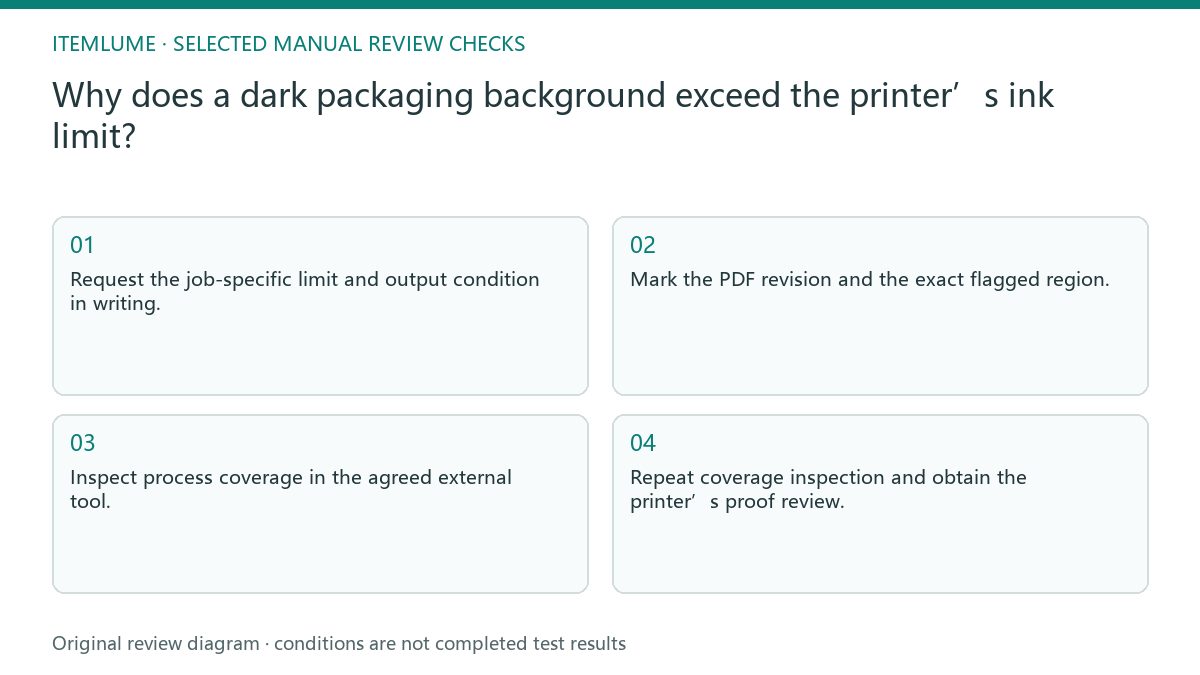
- Request the job-specific limit and output condition in writing.
- Mark the PDF revision and the exact flagged region.
- Inspect process coverage in the agreed external tool.
- Revise one source element and export a new named version.
- Repeat coverage inspection and obtain the printer’s proof review.
Fictional exercise: a shadow rather than a whole box
This fictional exercise uses a navy carton concept. The printer flags the shadow behind a bottle, while the plain navy panel is within the job’s stated condition. The scenario contains no real print measurement and does not establish a safe ink formula.
The designer revises only the shadow’s source treatment. The new PDF is checked with the same supplied condition and compared visually for bottle contrast. If coverage or proof remains unapproved, the team stops the production handoff; it does not invent a passing percentage.
Approve coverage and appearance separately
A technically acceptable coverage reading can still produce an unwanted appearance. Ask the printer to review the physical proof for this job and keep its approval tied to the checked PDF. Any later image or color replacement can invalidate the earlier inspection.
CartVisual packaging output is a visual concept, not a certified press-ready file. External reconstruction, separation checks and supplier approval remain necessary. Stop when the specified file and its proof have explicit acceptance, or retain a hold status with the unresolved production question.
Coverage review by region
| Observation | Manual check | Stop or approve |
|---|---|---|
| Flat background | Read agreed coverage condition | Accept only for this job |
| Dense shadow | Locate source object | Recheck revised area |
| Placed image | Inspect its affected region | Confirm exported revision |
| Physical proof | Ask supplier to compare appearance | Written job approval |
Use this matrix as a manual review record and add your own real evidence. Its conditions are not completed test results.
Sources and further reading
Recorded source-review dates are listed individually below. An undated source does not inherit the article’s publication date. Software and platform rules can change; check the current original before acting.
- CartVisual: editorial policy and product scope · Review date not separately recorded
- Adobe Acrobat: Output Preview · Reviewed
Frequently asked questions
What percentage should I use?
Use the printer’s condition for the specific job; this guide supplies no universal limit.
Can I just lighten the preview?
No. Locate the source region and recheck the actual exported file under the same condition.
Does passing coverage approve the print?
No. The supplier must separately review the required proof and production specification.
PREPARE ASSETS FOR YOUR NEXT STEP
Create supporting product assets in CartVisual.
Create new product creative assets in the workspace, then continue in your chosen tools. Third-party software procedures described in this guide take place in those applications; this workspace link does not imply an integration. Check current capabilities, account access and credit quotes.
Explore asset creation tools Check pricing and credits