 CartVisual
DIAGNOSTIC GUIDE / A+ product pages
How do I explain a package redesign when the visible size changes but quantity may not?
Compare documented contents separately from the container’s new shape. A shorter or wider package can look smaller without proving the sold quantity changed. Conversely, a design change should not hide a genuine quantity difference. Record old and new net amounts on the same basis before explaining the redesign. The approved quantity statement must follow the actual revision and stock being dispatched.
Container shape and sold quantity require separate evidence
External dimensions describe packaging, while the approved quantity field describes contents. Comparing photograph heights without matched scale can add another false signal. Keep the product revision and batch scope visible so shoppers know which packaging and amount they will actually receive.
Record the exact old and new product revisions before comparing them. A height difference in unmatched photographs can reflect camera scale or shape rather than contents. The approved net-quantity field is the relevant evidence; neither container volume guessed from appearance nor a generated cutaway is a measurement.
Compare revisions on the same unit basis
Collect the old and new approved packaging records, net amount and relevant product identity. Compare quantities using the same unit and definition, then examine side-by-side images at an explained scale. Ask the seller which revision is currently dispatched and update the wording and assets together when that changes.
Keep old and new quantity records with the same unit and definition. Explain image scale if displaying both packages side by side. Ask which revision currently ships and whether mixed packaging can occur, using the seller’s actual stock policy rather than inventing a universal transition date.
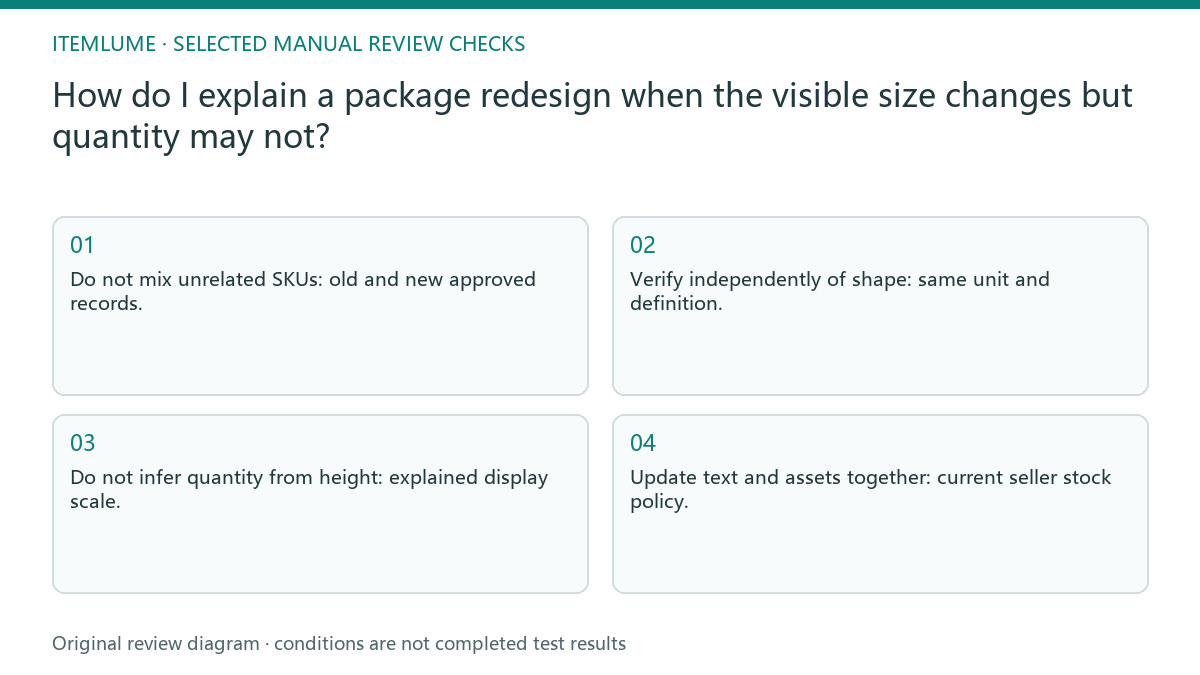
- Do not mix unrelated SKUs: old and new approved records.
- Verify independently of shape: same unit and definition.
- Do not infer quantity from height: explained display scale.
- Update text and assets together: current seller stock policy.
A tall bottle becomes lower and wider
Fictional exercise: a tall container is replaced by a lower, wider one. All numbers below are invented record values for practicing the comparison; they are not measurements of a real product.
| Old approved net amount | New approved net amount | What the records allow |
|---|---|---|
| 500 g | 0.5 kg | Convert to 500 g and 500 g: equal stated mass, if the product and quantity definition also match. |
| 500 g | 450 g | A 50 g lower stated net mass. “Same amount” is unsupported even if the new container looks larger. |
| 500 mL | 500 g | Different quantity dimensions. Do not equate them from the shared number or guess a density. |
For the first row, a draft could say “New container shape; stated net weight remains 500 g” only after the real records are confirmed. It does not claim unchanged ingredients, quality, usable dose, or container capacity. Those are separate facts. For the second and third rows, withhold the same-amount reassurance and obtain the correct comparison.
Add the seller’s actual dispatch rule beside the purchase choice. If old and new packaging can both ship, identify that confirmed scope; do not promise only the new container. Explain photographic scale without resizing the old and new containers to appear physically equal. Retain the source record for each value and revision.
Match the published message to current dispatch
Stop if old and new values use different definitions or if current dispatch revision is unknown. Correct the factual comparison before using a reassurance headline.
Stop reassurance claims when the quantity definition or dispatched revision is unclear. Update text, image and purchase option together after the facts are resolved. The seller approves revision and quantity facts. CartVisual can create a presentation candidate but cannot weigh hidden contents or validate packaging migration across stock.
Revision identity to dispatched version: decision worksheet
| Check | Evidence to record | Review action |
|---|---|---|
| Revision identity | Old and new approved records | Do not mix unrelated SKUs |
| Net amount | Same unit and definition | Verify independently of shape |
| Visual comparison | Explained display scale | Do not infer quantity from height |
| Dispatched version | Current seller stock policy | Update text and assets together |
Use this matrix as a manual review record and add your own real evidence. Its conditions are not completed test results.
Sources and further reading
Sources for this page were checked on . Platform rules can change; verify the current source before publishing. Prompt examples and workflow recommendations are CartVisual editorial guidance, not independently measured results.
Frequently asked questions
Does a shorter bottle prove less product?
No. Compare confirmed net amounts independently of shape and photographic scale.
Can I say “same amount” from the pictures?
Only with matching documentary quantity evidence, not visual similarity alone.
Must every buyer receive the newest package?
Do not assume so. Confirm the current dispatch revision and any mixed-stock policy.
PREPARE ASSETS FOR YOUR NEXT STEP
Create supporting product assets in CartVisual.
Create new product creative assets in the workspace, then continue in your chosen tools. Third-party software procedures described in this guide take place in those applications; this workspace link does not imply an integration. Check current capabilities, account access and credit quotes.
Explore asset creation tools Check pricing and credits