 CartVisual
PRACTICAL ANSWER / Product images
Can I recover the label hidden by a blown-out reflection in my product photo?
Usually, only detail that remains somewhere in the source file can be recovered reliably. First inspect the raw highlight and alternate exposures. If the label area is clipped to featureless white, do not let AI guess the wording. Reshoot the bottle or add text from a separately verified source.
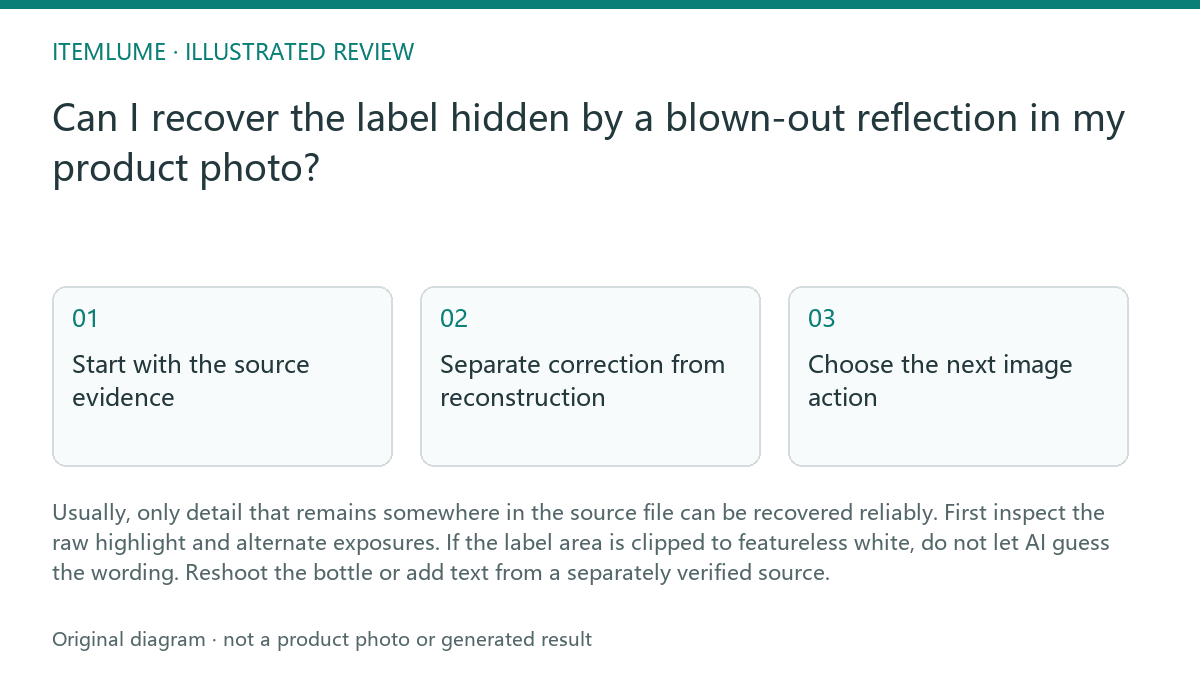
Start with the source evidence
A white reflection is not automatically lost. Open the original file, preferably the raw capture, and inspect the label at full resolution. Lower exposure and highlights, then check individual color channels. If letters, label edges, or ink color reappear, the image may support a careful correction. Keep a copy of the untouched source before making adjustments.
A clipping warning describes the current rendered result; it does not by itself prove that every original capture channel lost the label. Adobe Camera Raw documents RGB values and clipping indicators. First inspect the RAW with its exposure and highlight settings, then compare available alternate frames. If no usable source contains the required letter shapes, sharpening or generation cannot establish their factual wording. Use a verified physical label or another real photograph rather than treating plausible characters as recovered evidence.
- Open the original, not a compressed preview.
- Reduce exposure and highlights, then inspect the RGB channels.
- Compare any alternate frame or angle of the same label.
- Stop recovery when the area is featureless in all available sources.
Separate correction from reconstruction
Exposure correction changes the visibility of information already recorded. It can reveal a faint edge, recover tonal separation, or make partially covered lettering easier to read. Record what changed and compare the result against the source so a correction does not silently become an invented label.
Reconstruction starts when you type or generate characters that the photograph never captured. That can be acceptable for a design mockup only when it is explicitly treated as a fictional or illustrative exercise. For a sellable product image, verify the wording against the physical bottle, approved artwork, or a separately photographed label, and identify the result as a composited text treatment in your review notes.
Choose the next image action
For the serum bottle, first look for another frame in which the glare moved. A small change in camera position may expose the batch label without changing the product identity. If no usable frame exists, reshoot with the bottle rotated slightly, the light source moved away from the camera axis, or a large soft source placed to produce a controlled reflection.
A generated replacement scene should not be used to prove the original batch code. It may help plan a composition, but the final product image needs a verified reference for any exact label content. CartVisual planning is a workflow aid available free after sign-in; image and video media are quoted separately. Treat that planning function as distinct from photographic verification.
Review before publishing
Review the label at the size shoppers will actually see, then enlarge it for a second pass. Check the product name, variant, net contents, warnings, dates, and batch or lot information separately. Do not rely on a single overall impression: a readable front name does not prove that a tiny code is accurate.
Keep the original, adjusted version, verified reference and decision together. If required label information remains ambiguous, use a verified alternate photograph or reshoot it. Cropping an uncertain required word out of view is not evidence that it is correct. Approve exact label content only when the captured detail or separately verified product reference supports it.
Reflective-label review
| Observation | Next check | Pass condition |
|---|---|---|
| Letters return after lowering highlights | Compare the recovered shape with the bottle or approved artwork | Every required character is supported by the source or reference |
| The glare is uniform white in every channel | Search for another frame or angle | A second source shows the exact label detail |
| AI produces a clean-looking batch code | Verify it against the physical bottle or approved record | The code is verified; otherwise the image fails factual review |
| The front label is readable but the small warning is not | Inspect each required information area separately | No required warning, date, quantity, or variant is guessed |
| A replacement text layer is added | Mark the file as composited and retain its reference | The text is verified and the treatment is disclosed internally |
For exact wording that must remain readable after an edit, see How to handle small packaging text in AI product images.
Sources and further reading
Recorded source-review dates are listed individually below. An undated source does not inherit the article’s publication date. Software and platform rules can change; check the current original before acting.
- CartVisual: editorial scope and evidence · Reviewed
- Adobe Lightroom: histogram and highlight clipping · Reviewed
- Photoroom: repeatable product image workflow · Reviewed
- Adobe Camera Raw: Make color and tonal adjustments · Reviewed
Frequently asked questions
Can sharpening recover a completely white glare?
No. It can emphasize recorded edges, but it cannot restore characters absent from every available source.
Is AI-generated label text acceptable in a product listing?
Only as verified text based on a physical or approved reference. Unverified generated wording should not be presented as the actual label.
When should I stop editing and reshoot?
Stop when a required word or code remains unsupported after checking the original, channels, and alternate frames.
PREPARE ASSETS FOR YOUR NEXT STEP
Create supporting product assets in CartVisual.
Create new product creative assets in the workspace, then continue in your chosen tools. Third-party software procedures described in this guide take place in those applications; this workspace link does not imply an integration. Check current capabilities, account access and credit quotes.
Explore asset creation tools Check pricing and credits