 CartVisual
DIAGNOSTIC GUIDE / A+ product pages
How do I identify a real product's demo screen without implying it is the default interface?
A genuine demonstration screen is not necessarily the interface a customer sees at first startup. Record the exact model, software state, and steps needed to reach that screen, then distinguish demonstration imagery from the delivered default. Use real screenshots or photographs. Do not let an attractive display imply features, content, or account access that the buyer does not receive.
Identify the screen’s operating state
Ask the merchant whether the screen is factory default, a store demo mode, a configured user view, or a connected-app state. Record the actual device model and software version where available. A single display photograph does not establish how a new customer reaches that view.
Confirm whether the demonstration uses sample data or real user content. Avoid exposing private account information in the reference. The point is to explain the display’s role, not reproduce another person’s records. Keep a separate note for the default delivered state so the two cannot be accidentally merged in copy.
Link every attractive feature to a confirmed condition
If the screen requires setup, an account, a subscription, a network, or an additional device, obtain those conditions from the merchant’s actual documentation. Do not infer them from icons. A chart on a demo screen can illustrate a view without proving live measurement or an included service.
Use factual language such as demonstration view when that is what the source supports. Do not fabricate a startup interface or replace a real screen with a polished generic dashboard. Review visual content and explanatory text together; a tiny disclaimer cannot cure an entirely invented product function.
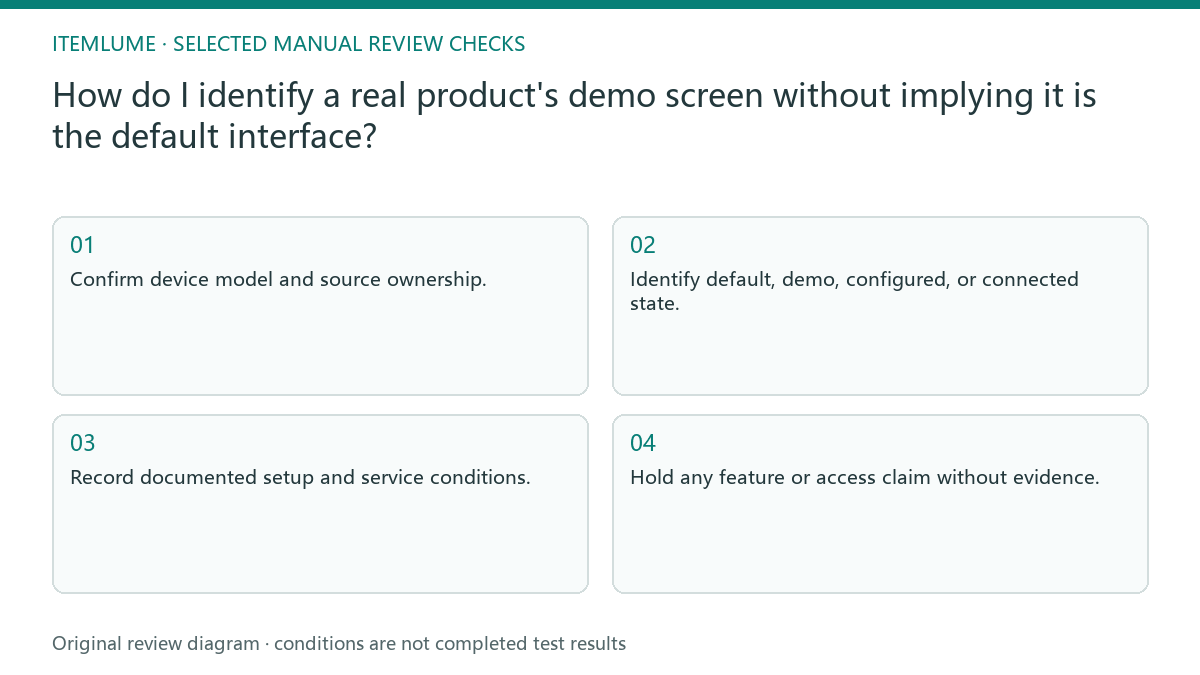
- Confirm device model and source ownership.
- Identify default, demo, configured, or connected state.
- Record documented setup and service conditions.
- Compare the actual screen with the proposed visual and wording.
- Hold any feature or access claim without evidence.
Make a state record for the exact screen being shown
Record the screen source ID, device model, firmware/app version, state name, the documented route to that state, account/service prerequisites and whether values are sample data. Put the delivered default in a separate row. A photograph can be authentic while its state label is wrong.
For the fictional countertop display, the review record might say “showroom demonstration, sample values” for the dashboard and “new-unit setup” for the delivered state, with the source for each. Possible copy is “Demonstration view with sample data,” provided that description has actually been confirmed. Do not label an unknown state a demo merely to rescue the image, and do not imply an unconfirmed subscription or connected device is included.
When inserting a precise screen externally, retain the approved source and compare every label, icon, chart and numerical value after perspective placement and export. Record an edited composite as such. It shows the approved screen representation in that scene; it is not evidence that CartVisual connected to the device or tested the interface.
A fictional countertop display
Fictional exercise: a rechargeable countertop product shows an animated showroom dashboard, while a newly delivered unit starts on a simpler setup screen. The reviewer records both states and labels the demonstration appropriately. No device was powered on or tested for this example.
The final campaign must not describe the dashboard as the out-of-box screen unless the merchant verifies that claim. If the demo data look like actual measurement, clarify the sample status or choose a different real view. Stop when the setup route cannot be documented instead of inventing plausible instructions.
Keep interface truth separate from scene styling
Lighting and background can change for a campaign, but meaningful interface content should remain tied to the actual source. Check visible labels, numerical values, and icons after generation. A faithful body around a false screen still misrepresents the product, even if its physical shape passes review.
CartVisual creates visual assets and text briefs; it does not connect to devices, test screen functions, or validate accounts and subscriptions. Use the merchant’s confirmed records and an external edit if precise interface insertion is needed. Stop approval when the delivered default or demonstration conditions remain unknown.
Screen-state evidence map
| Screen claim | Evidence | Allowed interpretation |
|---|---|---|
| Default startup | Real new-unit source | Default only when confirmed |
| Demo dashboard | Merchant demo-state record | Clearly demonstration |
| Connected service | Documented setup and access | Conditions explained accurately |
| Sample numerical display | Known demo data source | Not claimed as live measurement |
Use this matrix as a manual review record and add your own real evidence. Its conditions are not completed test results.
Sources and further reading
Recorded source-review dates are listed individually below. An undated source does not inherit the article’s publication date. Software and platform rules can change; check the current original before acting.
- CartVisual: editorial policy and product scope · Review date not separately recorded
- Product photography tips(Adobe Express) · Reviewed
- 商品信息发布规范(抖音电商学习中心官方索引) · Review date not separately recorded
Frequently asked questions
Does a real photo prove the default screen?
No. The device may have been configured or placed in demo mode. Confirm its state.
Can I add a nicer interface?
Do not present invented controls or data as the product’s real interface. Keep meaningful content tied to evidence.
Does CartVisual verify the device?
No. Device operation and service access require merchant documentation or appropriate real testing.
PREPARE ASSETS FOR YOUR NEXT STEP
Create supporting product assets in CartVisual.
Create new product creative assets in the workspace, then continue in your chosen tools. Third-party software procedures described in this guide take place in those applications; this workspace link does not imply an integration. Check current capabilities, account access and credit quotes.
Explore asset creation tools Check pricing and credits