 CartVisual
DIAGNOSTIC GUIDE / Product videos
Why can I assign a photo to a Shopify variant but not its product video?
Product media and variant-associated media are different roles. Shopify’s current media help explains that videos and 3D models cannot be assigned as variant media in the same way as a photo. Keep a product-level video clearly identified, and separately inspect any theme customization that claims to switch videos when buyers choose a variant.
Name what the selector actually controls
Inspect the product’s media library and the selected variant’s assigned image separately. A video visible in the gallery belongs to the product; its presence does not show that the currently chosen SKU owns it. Write down the role rather than inferring it from the upload order.
A theme may hide, reveal or reorder gallery items. That behavior can be useful, but it is presentation logic with its own maintenance needs. Ask the store operator whether the behavior is native configuration or customization before promising customers an exact variant demonstration.
Use a variant-playback matrix
Give each video an explicit SKU or family scope. For a shared video, record which details apply to all variants and which visible color belongs only to the filmed item. A neutral gallery caption can explain that scope without making the buyer guess.
For customized switching, test the initial page, every selector and the return to a previous selection. Include mobile playback and a direct variant link. Record whether the video changes, its poster changes, or only a still image changes; those are not equivalent checks.
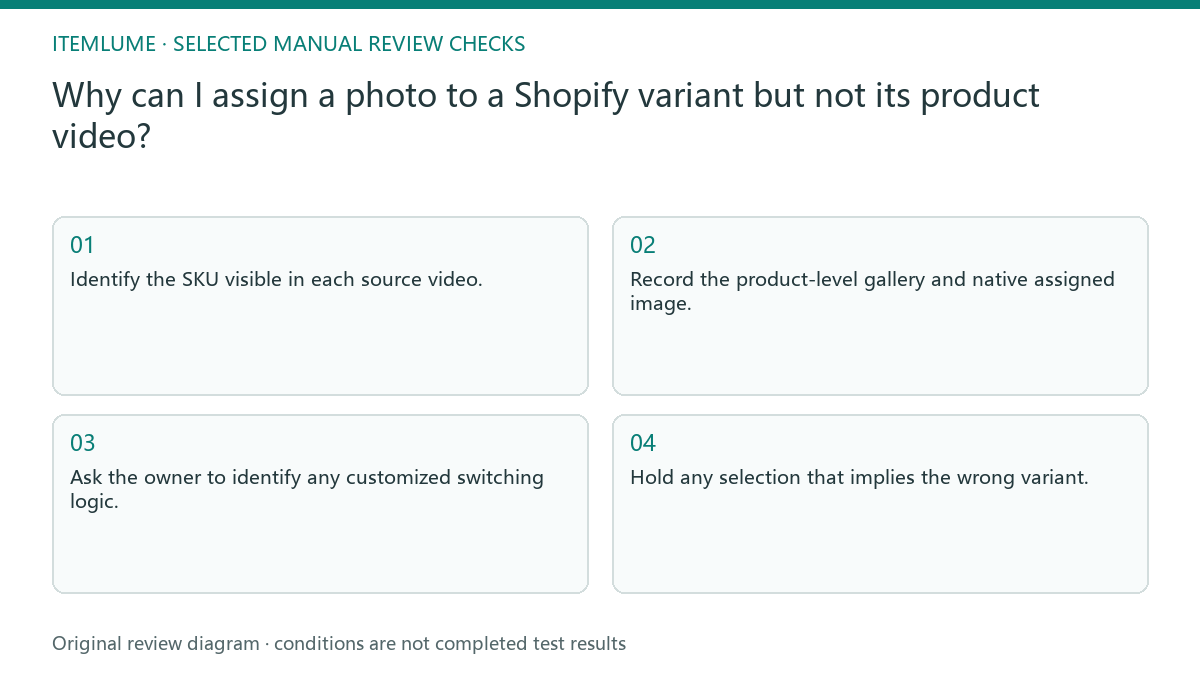
- Identify the SKU visible in each source video.
- Record the product-level gallery and native assigned image.
- Ask the owner to identify any customized switching logic.
- Select every variant and replay from a fresh page load.
- Hold any selection that implies the wrong variant.
Record the initial selection, switch and return
Use the same page session to check the initial selection, a switch and the return. Then open a direct variant link in a fresh session. Keep the filmed SKU and intended scope in the record.
| Journey | Observe separately | Hold when |
|---|---|---|
| Initial load | Selection, poster and playing clip | They imply different sold items without a clear explanation |
| A to B | Still, poster and clip changes | A poster change is mistaken for a video change |
| B back to A | Restored selection and playback | Previous clip or poster remains unexpectedly |
| Direct link, fresh session | Context without selector history | Journey works only after an earlier selection |
A shared family video can remain intentional if its scope is clear. This proposed test does not promise native video assignment, install customization or prove every variant has been tested.
Fictional exercise: one video, two colors
This fictional exercise uses a red kettle demonstration on a product offering red and black. The black photo changes correctly, but the gallery still plays the red kettle. The invented scenario is not a measured theme failure or an CartVisual integration test.
The team first labels the red demonstration and decides whether its actions genuinely apply to both variants. If exact color playback is required, a qualified theme maintainer evaluates the separate implementation. The stop condition is an understandable selection journey, not merely an uploaded black video.
Keep production and store publishing separate
Create a video around an approved variant reference and save its file name with that SKU. Review the actual clip for color, controls and packaging before handing it to the store. A shared family demonstration should not invent details missing from other variants’ records.
CartVisual output does not establish a Shopify media assignment or modify a theme. Uploading, gallery captions and customization are external manual tasks. Approve the creative file and the storefront behavior as two deliverables; reopen either approval if the underlying variant or theme changes.
Variant video acceptance
| Observation | Manual check | Stop or approve |
|---|---|---|
| Photo assigned | Select exact variant | Correct still image |
| Shared video | Identify filmed SKU | Scope understandable |
| Custom switch | Replay each option | Correct intended clip |
| Direct variant URL | Fresh mobile load | No misleading mismatch |
Use this matrix as a manual review record and add your own real evidence. Its conditions are not completed test results.
Sources and further reading
Recorded source-review dates are listed individually below. An undated source does not inherit the article’s publication date. Software and platform rules can change; check the current original before acting.
- CartVisual: editorial policy and product scope · Review date not separately recorded
- Shopify: Adding product media · Reviewed
- Shopify Community: Variant images do not match · Review date not separately recorded
Frequently asked questions
Can I assign a video like a photo?
Shopify’s media help distinguishes the native photo association from product-level videos. Verify custom display separately.
Must every color have a separate clip?
Decide from the buyer’s question and real variant differences, not from an assumed platform requirement.
Will generating a clip fix my selector?
No. Creative generation and theme behavior are independent work.
PREPARE ASSETS FOR YOUR NEXT STEP
Create supporting product assets in CartVisual.
Create new product creative assets in the workspace, then continue in your chosen tools. Third-party software procedures described in this guide take place in those applications; this workspace link does not imply an integration. Check current capabilities, account access and credit quotes.
Explore asset creation tools Check pricing and credits