 CartVisual
DIAGNOSTIC GUIDE / Product videos
Why does the video move my product even though I asked it to stay still?
A still-product instruction can conflict with the image supplied as the first frame. Motion blur, tilted balance, airborne dust, or a running pose may imply movement before the text is read. Inspect those cues and distinguish product displacement from camera motion. Simpler references can reduce ambiguity, but they do not guarantee that a video model will hold the product fixed.
Read the reference as a scene, not just an object
Mark where the product rests and what supports it. Look for blur around its edges, debris trailing behind it, or a pose that suggests ongoing action. A product cut from an action photograph may carry these cues into an otherwise quiet background. Record the cue before adding stronger negative instructions.
Runway’s guide describes input composition and implied movement. This is general reference, not proof of identical MiniMax H3 controls. Evaluate the actual scene and clip instead of promising a universal locked-product setting.
Separate four kinds of apparent movement
A camera push can enlarge a stationary product without changing its position on the surface. A moving highlight can cross a fixed bottle. Actual product movement changes its support or location; identity drift changes the product’s shape. These observations need different corrections, even when a viewer describes all of them as wobbling.
Pick one intended motion for the scene and say what remains constant. Use the actual approved scene image and product evidence. If the image contains unsupported motion cues, replace or edit it externally before paying for another clip, rather than asking the video model to undo every contradiction at once.
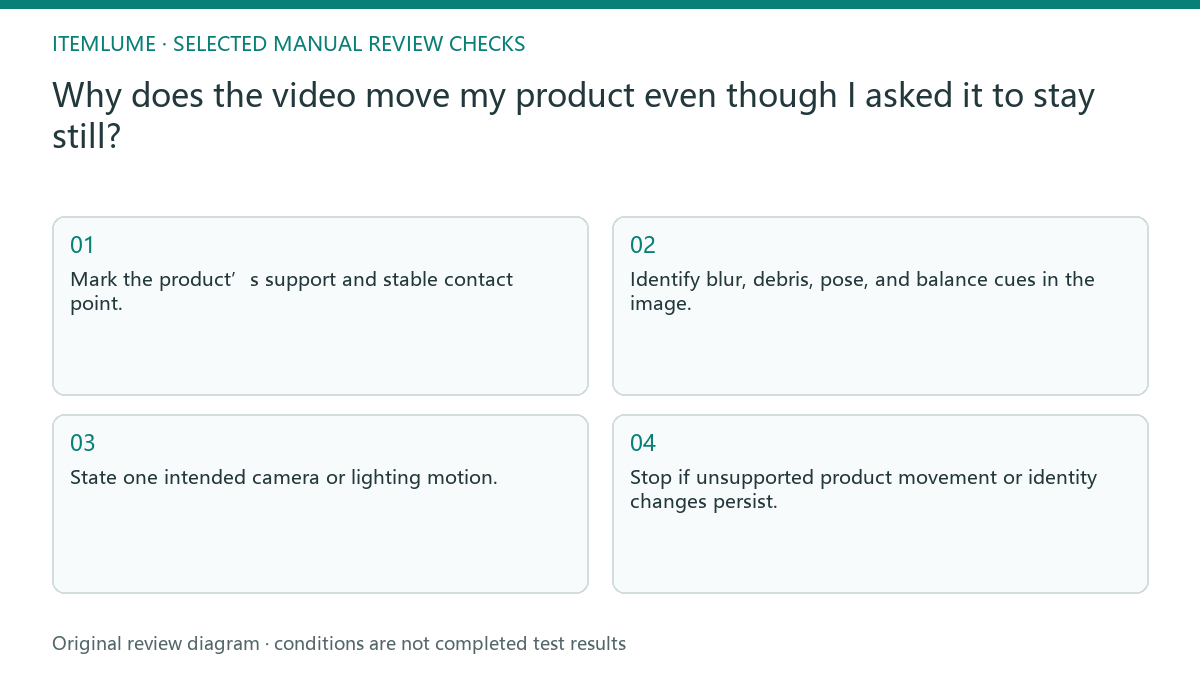
- Mark the product’s support and stable contact point.
- Identify blur, debris, pose, and balance cues in the image.
- State one intended camera or lighting motion.
- Compare beginning, middle, and end for position and shape.
- Stop if unsupported product movement or identity changes persist.
Check movement relative to the scene, then record the retry
A camera move can shift a stationary product across screen pixels. Compare the base against nearby support details and the surrounding scene, allowing for perspective and occlusion; a fixed screen coordinate alone is not a valid stationarity test. If there is no stable support reference, record that limitation instead of declaring the object fixed.
For a proposed retry, keep the reference revision, prompt, model, duration and available settings in a short log. Change the identified cue, such as unsupported dust behind the base, and record the resulting clip separately. A better single output is useful for selecting that clip but does not prove that cue removal caused the improvement or guarantee repeatable model behavior. Check the whole new clip for both movement and product identity before acceptance.
A fictional perfume reveal comparison
Fictional exercise: a perfume bottle stands on a table, but the reference includes a spray of dust behind its base. The brief asks for a slow camera push with the bottle fixed. The reviewer labels the dust as an implied-action cue and prepares a clean, supported reference for a controlled comparison.
Only the reference cue changes; the intended camera push stays the same. A future clip would need inspection of bottle contact, cap shape, and label. No clip was generated for this exercise. If the bottle still lifts or slides, reject it and choose a simpler composition instead of declaring that the model obeyed the instruction.
Approve each scene before the assembled advertisement
In CartVisual’s TVC flow, planning and storyboard selection precede scene and video generation. Check the scene image itself before approving it as video input. A convincing storyboard sheet, whether the selected layout has 9, 16 or 25 panels, is not sufficient evidence that every individual image contains a stable, accurate product suitable for motion.
Review the actual clips before approving the final advertisement. This guide does not add built-in stabilization, motion tracking, or video repair. If a clip changes a product’s structure, stop using that scene. A quieter correct scene is a better factual asset than a dramatic motion that suggests another product.
Reference cues and actual movement
| Observed cue | What to compare | Decision |
|---|---|---|
| Dust trails behind base | Clean reference with same camera brief | Remove unsupported action cue |
| Product grows in frame | Support contact across frames | Distinguish camera push from sliding |
| Highlight travels | Product outline and position | Accept only intended lighting motion |
| Cap shape changes | Real product reference | Reject identity drift |
Use this matrix as a manual review record and add your own real evidence. Its conditions are not completed test results.
Sources and further reading
Recorded source-review dates are listed individually below. An undated source does not inherit the article’s publication date. Software and platform rules can change; check the current original before acting.
- CartVisual: editorial policy and product scope · Review date not separately recorded
- Runway: Image to Video Prompting Guide · Reviewed
Frequently asked questions
Will “do not move” always work?
No. Treat it as a brief, then inspect the result. Conflicting image cues and model behavior can still produce motion.
Can the camera move around a fixed product?
That can be the intended scene, but unseen product sides need real evidence and the clip must preserve structure.
Does the Runway guide prove H3 support?
No. Its advice is a reference from another supplier. H3 capability and each delivered clip require separate verification.
PREPARE ASSETS FOR YOUR NEXT STEP
Create supporting product assets in CartVisual.
Create new product creative assets in the workspace, then continue in your chosen tools. Third-party software procedures described in this guide take place in those applications; this workspace link does not imply an integration. Check current capabilities, account access and credit quotes.
Explore asset creation tools Check pricing and credits