 CartVisual
DIAGNOSTIC GUIDE / Product videos
Why do my overlaid logo titles have dark edges on a light ad background?
Dark fringes around an overlaid title may come from a mismatch between alpha interpretation and the background used during preparation. Inspect the actual asset and test it over light, dark, and campaign backgrounds. Do not recolor the logo to hide the edge before checking straight versus premultiplied alpha in a suitable external editor.
Confirm the fringe belongs to the overlay
View the advertisement without the title, then add the unchanged title. If the ring appears only with the overlay, preserve that asset for inspection. If it is already in the logo’s pixels, the problem may predate video compositing. Keep the two possibilities separate before deciding on a repair.
Check more than one frame, including the title’s entry, full visibility, and exit. A fade can reveal contamination that a fully opaque frame hides. Do not approve a single still image when the actual deliverable is an animation with changing transparency.
Inspect alpha interpretation and matte color
Adobe describes straight and premultiplied alpha interpretation for video footage. Premultiplied material can carry a matte color into edge pixels; interpreting it incorrectly can produce visible borders. Use the appropriate external editor to inspect the export and its documented alpha treatment rather than guessing from the file extension.
Ask the designer for the actual export treatment and original matte color before making the comparison. Adobe’s Premultiplied-Matte interpretation requires the matte used when the source was exported, not whichever campaign background happens to be under the title now. Keep the title, position and test backgrounds fixed while checking the supported interpretation. Do not choose Ignore as an edge fix: it discards alpha and treats the footage as opaque. Compare entry, hold and exit frames and preserve intended fine strokes rather than approving a halo-free but eroded logo.
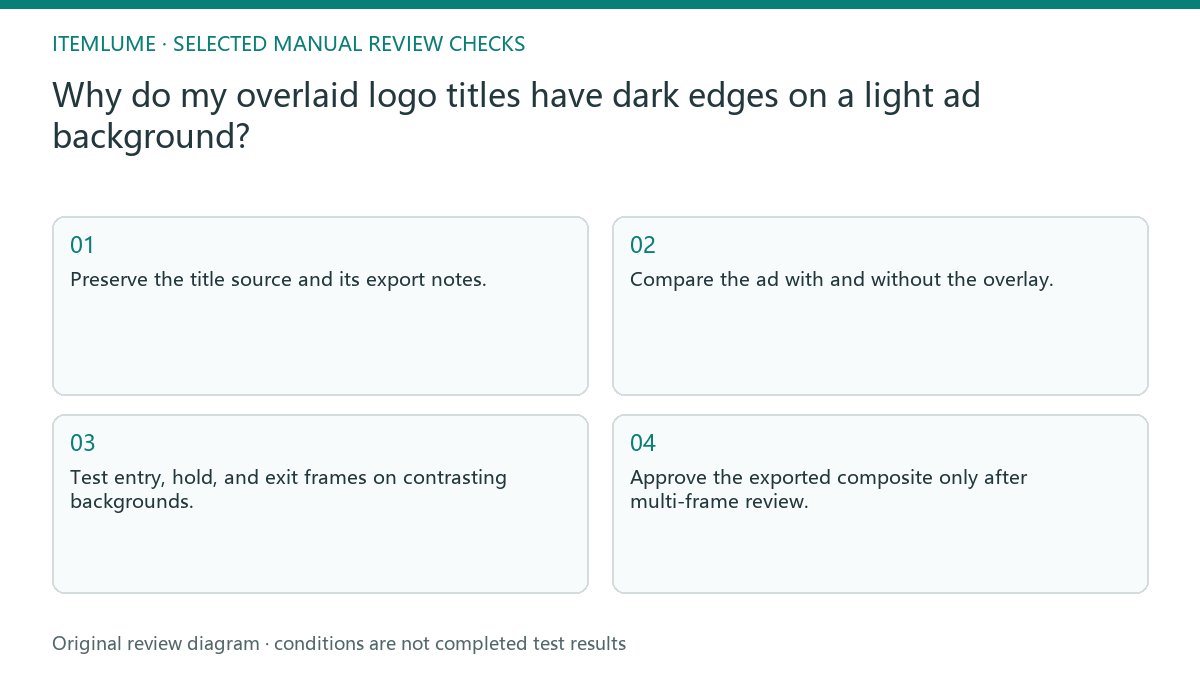
- Preserve the title source and its export notes.
- Compare the ad with and without the overlay.
- Test entry, hold, and exit frames on contrasting backgrounds.
- Inspect actual alpha interpretation in an external editor.
- Approve the exported composite only after multi-frame review.
A fictional logo fade over cream
Fictional exercise: a charcoal wordmark fades over a cream product scene and shows a dark ring during the fade. The fully visible title looks acceptable. The reviewer records the affected frames and asks the designer whether the asset used a dark matte during export. This is not an observed CartVisual defect.
A corrected external interpretation or export would be compared on cream, white, and dark backgrounds. If the ring disappears but fine strokes erode, stop and inspect the source instead of approving a partial fix. The exercise does not claim that one alpha switch successfully repairs every title.
Keep the product video and title responsibilities clear
The approved composite should preserve letter shapes, intended edge softness, timing, and product visibility. Save the actual final file and compare it outside the editor. A timeline preview can conceal a downstream export issue, especially when the recipient uses a different compositing environment.
CartVisual does not provide a built-in alpha interpretation panel or transparent motion-title export. Its current TVC assembly is an opaque silent edit. Additional titles and compositing belong to external production. Stop the handoff when export treatment is unknown; simply adding a thicker logo outline can conceal the symptom while changing the design.
Multi-frame overlay comparison
| Observed fringe | Check | Approval evidence |
|---|---|---|
| Dark ring on pale scene | Alpha and dark matte history | Edges match the approved mark |
| Light ring on dark scene | Source edge pixels and matte | No unwanted light border |
| Only fade frames fail | Entry and exit frame review | Animation retains clean edges |
| Preview right; export wrong | Open final composite separately | Delivery matches approved preview |
Use this matrix as a manual review record and add your own real evidence. Its conditions are not completed test results.
Sources and further reading
Recorded source-review dates are listed individually below. An undated source does not inherit the article’s publication date. Software and platform rules can change; check the current original before acting.
- CartVisual: editorial policy and product scope · Review date not separately recorded
- Adobe Photoshop: Interpret video alpha channels · Reviewed
Frequently asked questions
Is every black edge an alpha mismatch?
No. It can be present in the source artwork. Compare the source and the overlay-free advertisement first.
Should I always choose straight alpha?
No. Match interpretation to how the real asset was exported and review the resulting composite.
Can I approve one clean frame?
Not for an animated overlay. Check changing transparency during entry and exit as well as the fully visible hold.
PREPARE ASSETS FOR YOUR NEXT STEP
Create supporting product assets in CartVisual.
Create new product creative assets in the workspace, then continue in your chosen tools. Third-party software procedures described in this guide take place in those applications; this workspace link does not imply an integration. Check current capabilities, account access and credit quotes.
Explore asset creation tools Check pricing and credits