 CartVisual
DIAGNOSTIC GUIDE / Product videos
Why does the same product video look washed out in one player and rich in another?
Different players and display conditions can make the same video appear different without changing its pixels. Before regrading, compare one named export under controlled viewing conditions and inspect the source, working and output settings in your external editor. Adobe’s viewer-gamma documentation supports checking preview conditions, not choosing one universal gamma for every platform or changing a master to please one unverified player.
Separate file identity from display identity
Confirm that both players opened the exact same export. A compressed messaging preview or platform-transcoded version is a separate file and cannot establish a player-only difference. Record the file name, revision and whether a service produced another copy.
Keep display brightness, viewing environment and enhancement modes stable during comparison. Then note the player and relevant color-management setting. Do not mix a phone in sunlight with a desktop at night and interpret the difference as proof that the product color changed.
Use a declared reference viewing condition
Agree with the editor and destination owner on a reference viewing condition for this delivery. Check the editor’s source interpretation, working setup and export specification independently from viewer gamma. A preview adjustment should not be confused with a creative color change.
Compare the same product region, such as a label’s neutral area or an approved color reference. If only one player differs, document that mismatch before changing the master. If multiple controlled views reveal an export issue, return to the output settings rather than correcting blindly.
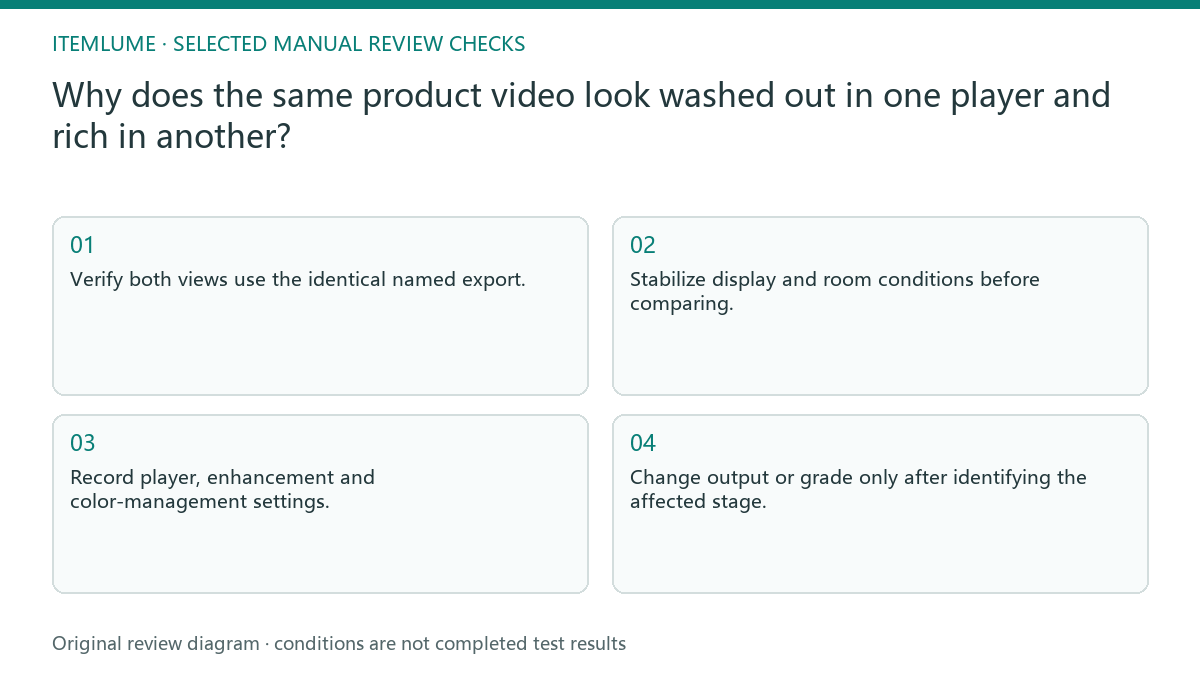
- Verify both views use the identical named export.
- Stabilize display and room conditions before comparing.
- Record player, enhancement and color-management settings.
- Compare one approved product region under the reference condition.
- Change output or grade only after identifying the affected stage.
Separate preview gamma, the export, and a creative grade
Adobe distinguishes Viewer Gamma from export changes: the control changes the display in Premiere. It does not itself rewrite the exported video. Record the application/version and chosen viewing condition; a slider with a similar name in another tool can have a different scope.
| Change | Evidence to retain | What it can establish |
|---|---|---|
| Viewer-only setting | Same unchanged export; before/after display setup | How that preview condition affects appearance |
| Export or destination transcode | New file revision, output settings and comparison frame | Whether the delivery stage changed the result |
| Creative contrast/saturation | New master revision and renewed product-color review | An intentional edit, requiring approval |
File names are a useful label but can be reused. When you can access both local copies, compare their file identity, optionally with a checksum; do not equate differently encoded files just because their names match. For a service preview, record the destination URL and the copy it produced. A checksum difference identifies different bytes, not necessarily different visible color.
Fictional exercise: one gray-looking player
This fictional exercise uses a green-bottle advertisement. One player appears flatter than the editor and a second player on the same display. The team confirms the same export and finds different preview conditions. This is an invented diagnostic result, not a platform color benchmark.
They align the declared viewing condition and compare again before altering creative contrast. If a mismatch persists, they hold the uncertain delivery for the editor to investigate. The interpretation is limited to this file and setup; it does not certify the green bottle on every device.
Approve a delivery, not every screen
Keep the accepted master, export settings and viewing record together. Tell reviewers which condition establishes the reference. A destination transcode can require another comparison, and changing the grade to compensate for it may harm the original delivery.
This guide describes external color and playback work, not an CartVisual grading interface. Stop when the agreed output and reference viewing review are accepted, with unexplained destination differences documented. Do not promise identical appearance across all devices or use screen saturation as evidence of the product’s physical finish.
Playback condition record
| Observation | Manual check | Stop or approve |
|---|---|---|
| Different files | Compare exact export names | Separate transcode issue |
| One player gray | Record preview settings | Investigate display condition |
| All controlled views differ | Inspect output setup | Hold pending correction |
| Master regraded | Compare original delivery again | Renew approval |
Use this matrix as a manual review record and add your own real evidence. Its conditions are not completed test results.
Sources and further reading
Recorded source-review dates are listed individually below. An undated source does not inherit the article’s publication date. Software and platform rules can change; check the current original before acting.
- CartVisual: editorial policy and product scope · Review date not separately recorded
- Adobe Premiere Elements: Color Correction Settings · Reviewed
- Adobe Viewer Gamma · Reviewed
Frequently asked questions
Should I add saturation immediately?
No. First separate an actual file/output problem from a viewing-condition difference.
Which gamma fits all platforms?
This guide gives no universal value; agree on the actual delivery and reference setup.
Is a messaging preview the master?
Not necessarily. Check whether the service compressed or transcoded the upload.
PREPARE ASSETS FOR YOUR NEXT STEP
Create supporting product assets in CartVisual.
Create new product creative assets in the workspace, then continue in your chosen tools. Third-party software procedures described in this guide take place in those applications; this workspace link does not imply an integration. Check current capabilities, account access and credit quotes.
Explore asset creation tools Check pricing and credits