 CartVisual
DIAGNOSTIC GUIDE / Product videos
Why does my product voiceover play in only one ear?
A voiceover heard in one ear can result from a source channel, clip interpretation or routing decision. Diagnose it before rerecording the narration. Compare the source and exported file, inspect left and right meters in an external editor, and establish the intended mono or stereo delivery. CartVisual’s current silent TVC output does not record narration or perform this audio mix.
Confirm whether the file or listener is one-sided
Play a known-good reference on the same listening setup, then play the source narration and the final export. If all files are one-sided, investigate the listening path. If only this export differs, preserve the source and inspect the edit instead of blaming the microphone immediately.
Record which side contains speech, whether the other side has silence or different material, and where the behavior begins. A stereo container may carry useful speech in only one channel. That observation does not prove the voice should be duplicated without checking the intended recording.
Inspect source channels and routing
In Premiere’s documented Breakout to Mono workflow, select the source clip in the Project panel and use Clip > Audio Options > Breakout to Mono. It creates separate mapped source clips and preserves the original file; it does not create new WAV files or directly change clips already placed in the sequence. Inspect each channel, then deliberately use the speech-bearing source and check track pan, output mapping and the actual export. Breaking out alone does not guarantee centered delivery, and raising an empty channel cannot recover missing speech.
Monitor the chosen route in both ears and a mono listening condition. A louder voice does not correct a one-sided route. Keep a labeled test export and compare with the original; do not overwrite the recording while experimenting with interpretation or track configuration.
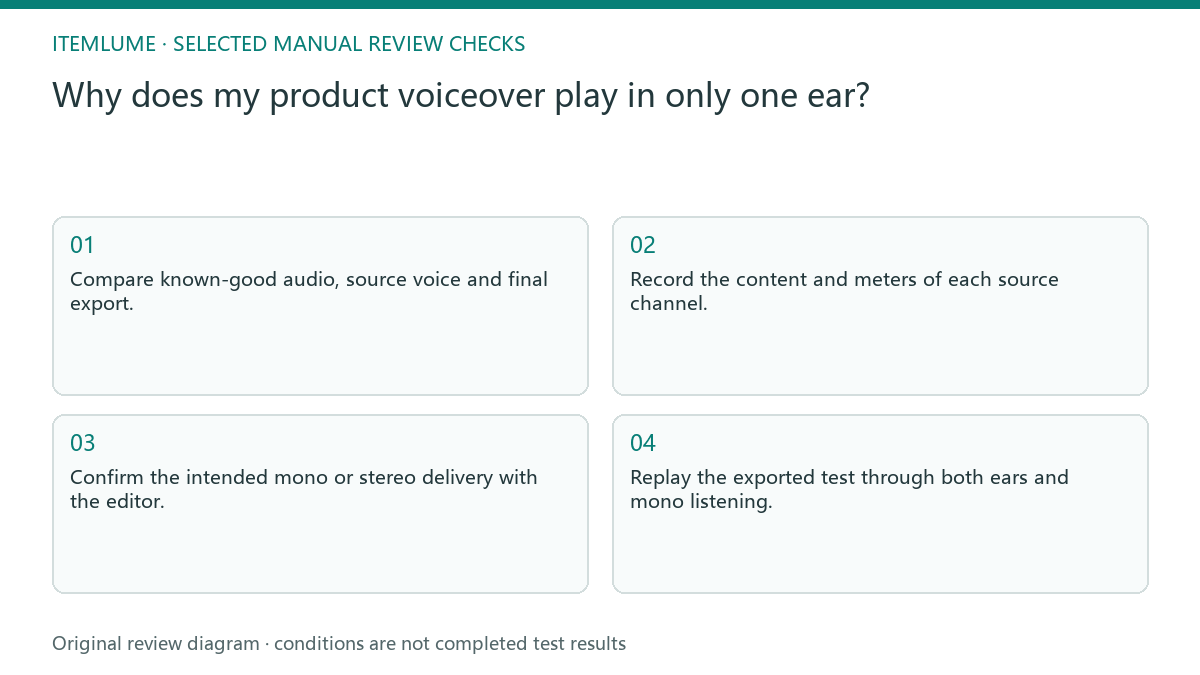
- Compare known-good audio, source voice and final export.
- Record the content and meters of each source channel.
- Confirm the intended mono or stereo delivery with the editor.
- Adjust interpretation and routing in a retained test copy.
- Replay the exported test through both ears and mono listening.
Fictional exercise: recorder speech on the left
This fictional exercise uses a recorder file with narration on the left and an unused right channel. The edit treats it as a stereo bed, so the voice stays left in the export. The scenario is invented and does not describe an CartVisual audio test.
The external editor isolates the speech source and routes it according to the agreed delivery. The reviewer checks both ears and mono compatibility rather than requesting a new script. If channel content or routing remains uncertain, the team holds the mix and asks the recording owner for clarification.
Close the audio and visual approvals separately
Check the final export, not only the timeline meters. Record the narration source, route, delivery file and listening outcome. Verify the spoken product name and timing separately: correct channel placement does not establish that the wording or claims are accurate.
Stop when the agreed channels reproduce the intended narration and the final file passes the separate voice-content review. Keep unexplained behavior on hold. Adding voiceover to CartVisual visuals is an external production task; the presence of a video-generation feature does not mean built-in recording, channel mixing or speaker testing.
One-ear voice diagnosis
| Observation | Manual check | Stop or approve |
|---|---|---|
| All files one-sided | Try known-good reference | Inspect listening setup |
| Source left only | Inspect channel contents | Choose speech source |
| Source correct, export wrong | Check routing and pan | Repair external edit |
| Both ears corrected | Replay actual final export | Separate content approval |
Use this matrix as a manual review record and add your own real evidence. Its conditions are not completed test results.
Sources and further reading
Recorded source-review dates are listed individually below. An undated source does not inherit the article’s publication date. Software and platform rules can change; check the current original before acting.
- CartVisual: editorial policy and product scope · Review date not separately recorded
- Adobe Premiere: Break stereo tracks into mono · Reviewed
Frequently asked questions
Do I need a new narration script?
A channel failure is an audio-routing question; change the script only for a separate content problem.
Should I simply duplicate both channels?
Inspect their contents and intended delivery before combining or copying them.
Does CartVisual mix the voice?
This guide uses external audio editing; the current TVC output is silent.
PREPARE ASSETS FOR YOUR NEXT STEP
Create supporting product assets in CartVisual.
Create new product creative assets in the workspace, then continue in your chosen tools. Third-party software procedures described in this guide take place in those applications; this workspace link does not imply an integration. Check current capabilities, account access and credit quotes.
Explore asset creation tools Check pricing and credits