 CartVisual
Assets & tasks / PRACTICAL ANSWER
Is my product-family ID the same thing as each variant SKU?
A family groups related variants. A variant SKU identifies a particular saleable option. Keep both roles explicit.
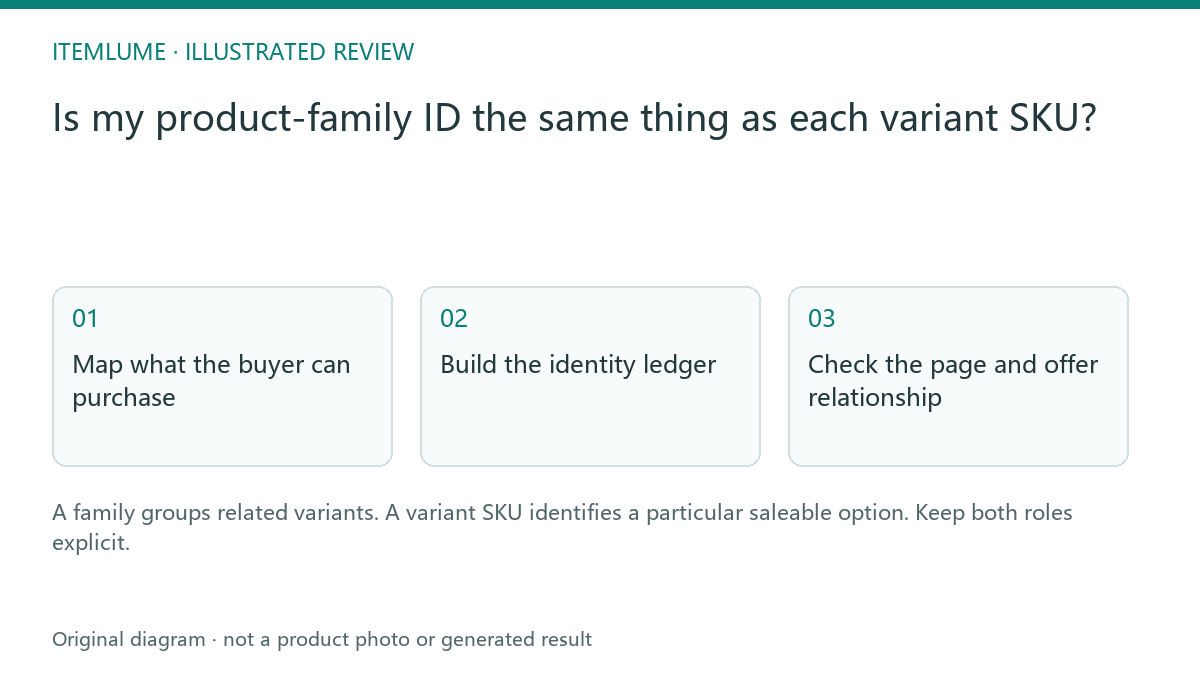
Map what the buyer can purchase
A fictional store sells the same travel cup in blue and sand, each in two capacities. Write four saleable options before creating any image metadata. The travel-cup family can have one group identifier, while each option retains its own SKU and approved picture. Reusing the blue-small SKU for the entire family makes later media and offer mapping ambiguous.
Google documents ProductGroup relationships for product variants. The practical ledger below is our editorial method for preparing those relationships; it is not a feed upload format or a complete structured-data example.
Build the identity ledger
Fictional inventory exercise: family CUP-TRAVEL has blue and sand cups, each at 350 mL and 500 mL. The following four rows are sample local identifiers, not assigned GTINs, a feed upload, or complete structured data.
| Shared family | Distinct variant SKU | Selected option | Approved image reference |
|---|---|---|---|
| CUP-TRAVEL | CUP-BLUE-350 | Blue / 350 mL | blue-350 / revision A |
| CUP-TRAVEL | CUP-BLUE-500 | Blue / 500 mL | blue-500 / revision A |
| CUP-TRAVEL | CUP-SAND-350 | Sand / 350 mL | sand-350 / revision A |
| CUP-TRAVEL | CUP-SAND-500 | Sand / 500 mL | sand-500 / revision A |
In Google’s variant markup model, ProductGroup groups related Product variants using properties such as productGroupID and hasVariant. Every variant needs its own identifier in the markup, for example an actual sku or gtin. This does not mean that the group ID is the GTIN for every member.
Use stable values from the real catalog. An image redesign can change the media revision without changing which inventory option is sold. Conversely, a new saleable configuration may need its own catalog decision; changing an image filename cannot decide that. Keep missing identifiers unresolved until the catalog owner confirms them.
Check the page and offer relationship
Open each intended option from its link and confirm the selected color, capacity, image and offer correspond. A valid group relationship does not excuse an incorrect variant destination. Give the implementation team the actual URL strategy and ask them to validate its markup against Google’s current examples. Theme and feed changes happen in your store, outside CartVisual. For each ledger row record the actual destination URL and open it in a fresh session: the expected color, capacity, image and offer must be selected without a previous shopper’s state. A single page with preselected option URLs and separate variant pages are different supported designs; do not invent a new URL scheme merely to match this example.
Keep shared claims at family level only when they are true of every member. A feature available only on the large cup belongs to that variant’s record.
Use the map during creative approval
Attach the variant SKU to each generated candidate before publication. Compare it with the source photograph and the selected page, not merely the family name. If the image shows a blue 500 ml cup, reject it for the blue 350 ml option even when the style matches. This prevents one attractive family image from silently becoming evidence for all variants. If the missing value is a barcode identifier, use the GTIN provenance check; if the URL selects the wrong image, use the selected-variant alignment check.
Sources and further reading
Recorded source-review dates are listed individually below. An undated source does not inherit the article’s publication date. Software and platform rules can change; check the current original before acting.
- CartVisual: editorial scope and evidence · Review date not separately recorded
- Google Search Central: product variant identification · Reviewed
Frequently asked questions
Should every variant share one SKU?
Use the actual distinct inventory identifiers for saleable options.
Can I infer an ID from the image?
Use verified catalog records rather than image inference.
Does CartVisual install this markup?
No. Apply the reviewed map in your store implementation.
PREPARE ASSETS FOR YOUR NEXT STEP
Create supporting product assets in CartVisual.
Create new product creative assets in the workspace, then continue in your chosen tools. Third-party software procedures described in this guide take place in those applications; this workspace link does not imply an integration. Check current capabilities, account access and credit quotes.
Explore asset creation tools Check pricing and credits