 CartVisual
DIAGNOSTIC GUIDE / Image remix
Which conditions should I check when a coupon price differs from checkout?
A coupon price can differ from checkout because the buyer, order, timing, or stacking conditions do not qualify. Identify the exact coupon and offer rather than blaming currency conversion. Check the current merchant configuration and an authorized preview without paying. Copy should explain the verified conditions; AI cannot invent eligibility or promise a price every buyer will receive.
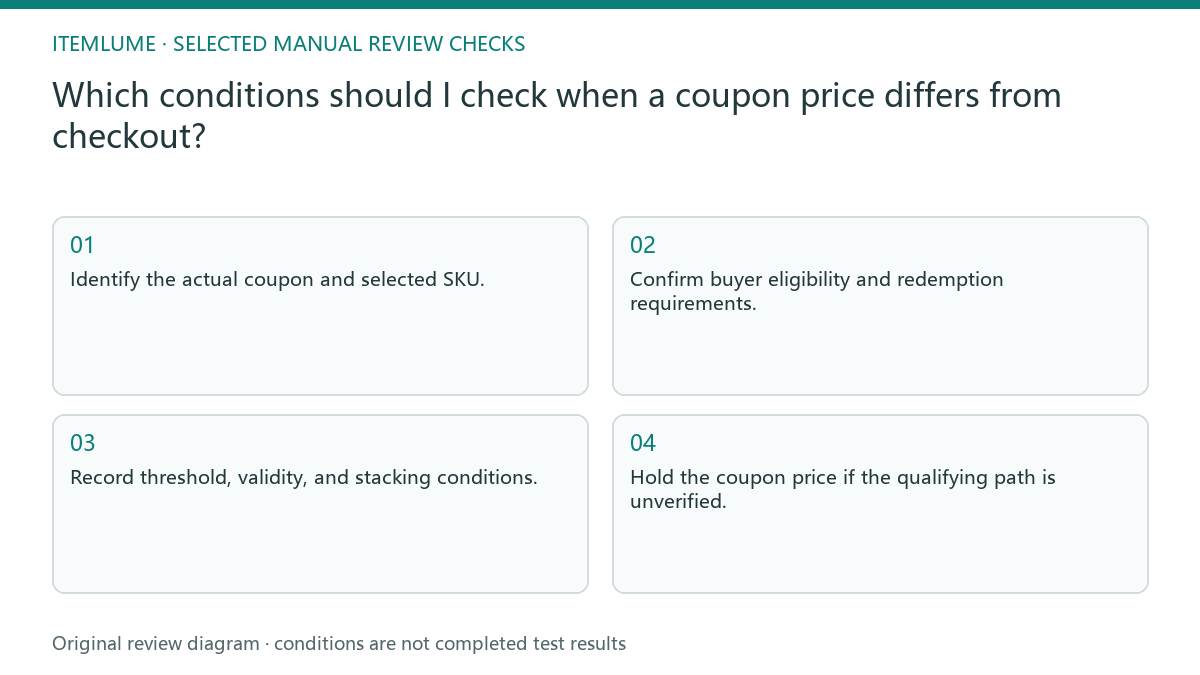
Identify the coupon and the buyer condition
Record the coupon’s actual name or identifier, applicable product, market, and eligible customer group. A new-customer coupon and a general product coupon are different offers. The same displayed artwork can mislead returning buyers if it implies the discount is universal. Ask the merchant for the real conditions.
Also distinguish a product-specific reduction from an order-wide offer. A threshold may depend on cart contents or qualifying items, not only the pictured product. Do not calculate the campaign price from a coupon value without understanding which base price and offer scope it actually applies to.
Trace the order from visible claim to conditions
Check redemption, threshold, validity window, selected variant, and stacking rules in the actual seller workflow. Use a record from the store owner rather than an old promotional screenshot. A checkout difference can occur while every currency value is written correctly, because eligibility is the missing variable.
Public publishing guidance can help frame the need for consistent product information, but it does not establish your coupon configuration or a universal stacking rule. Record the actual account rules and current preview. Do not place a real order just to produce an example, and do not assume a logged-in preview represents every buyer.
- Identify the actual coupon and selected SKU.
- Confirm buyer eligibility and redemption requirements.
- Record threshold, validity, and stacking conditions.
- Compare artwork with an authorized current offer preview.
- Hold the coupon price if the qualifying path is unverified.
A fictional returning-customer mismatch
Fictional exercise: a product image claims a coupon price, but the source coupon is available only to new customers. A returning buyer sees the regular price. The review records this as an eligibility mismatch, not a currency or arithmetic fault. No payment or actual customer account was tested.
The merchant revises the campaign explanation or uses a general offer supported by the actual configuration. If a second coupon cannot be combined, the draft must not subtract both. Stop when stacking rules are unavailable; a lower hypothetical total does not establish a purchasable price.
Check discount class and sequence before calculating the artwork price
Shopify distinguishes product, order and shipping discounts, and combination eligibility/settings matter. Its documented calculation applies product reductions before order discounts on the revised subtotal. Multiple percentage order discounts use a different calculation basis. Do not apply one generic stacking formula to every coupon.
Fictional illustration, only if both discounts are eligible and configured to combine: starting from 100, a 10% product reduction leaves 90, then a 10% order reduction leaves 81. Two 10% order-percentage discounts calculated on the same 100 subtotal instead leave 80 under the documented Shopify rule. These are invented merchandise-subtotal examples, not a live offer or a final total with shipping and tax.
Keep discount IDs/classes, eligible customer and items, application order, time window, and actual preview result in the record. If the two offers cannot combine, neither hypothetical stacked figure belongs in the artwork. Other platforms and custom discount applications need their own current configuration check.
Update fixed-price artwork when the offer changes
Keep coupon details and the approved creative together. When the validity window, eligibility, or price changes, revisit images with baked-in coupon figures. Text on the live page may update while a saved campaign image remains stale. Mark the final review date and responsible merchant.
CartVisual can help organize confirmed conditions and prepare artwork. It does not connect to coupon engines, verify customer eligibility, or synchronize checkout. Stop publication of an unconditional figure when the merchant can confirm only a conditional offer. The buyer needs a clear qualifying path, not a mathematically attractive number.
Coupon-price condition card
| Condition | Evidence | What copy must preserve |
|---|---|---|
| Eligible buyer | Current customer-group rule | Who can receive the offer |
| Threshold and scope | Actual qualifying-order settings | What must be purchased |
| Validity window | Current start and end record | When the price applies |
| Stacking | Merchant combination rule | No unverified combined discount |
Use this matrix as a manual review record and add your own real evidence. Its conditions are not completed test results.
Sources and further reading
Recorded source-review dates are listed individually below. An undated source does not inherit the article’s publication date. Software and platform rules can change; check the current original before acting.
- CartVisual: editorial policy and product scope · Review date not separately recorded
- 商品信息发布规范(抖音电商学习中心官方索引) · Review date not separately recorded
- Shopify: Combining discounts · Reviewed
Frequently asked questions
Can I subtract every available coupon?
Only use combinations the actual merchant configuration supports. Do not infer stacking from the existence of separate coupons.
Does one account’s preview prove everyone qualifies?
No. It may reflect that account’s eligibility or redeemed offers.
Can AI fix the final checkout price?
No. It can help express confirmed conditions, but the merchant’s actual offer configuration determines the price.
PREPARE ASSETS FOR YOUR NEXT STEP
Create supporting product assets in CartVisual.
Create new product creative assets in the workspace, then continue in your chosen tools. Third-party software procedures described in this guide take place in those applications; this workspace link does not imply an integration. Check current capabilities, account access and credit quotes.
Explore asset creation tools Check pricing and credits