 CartVisual
Logo studio / PRACTICAL ANSWER
Why does my black logo appear on every printing separation?
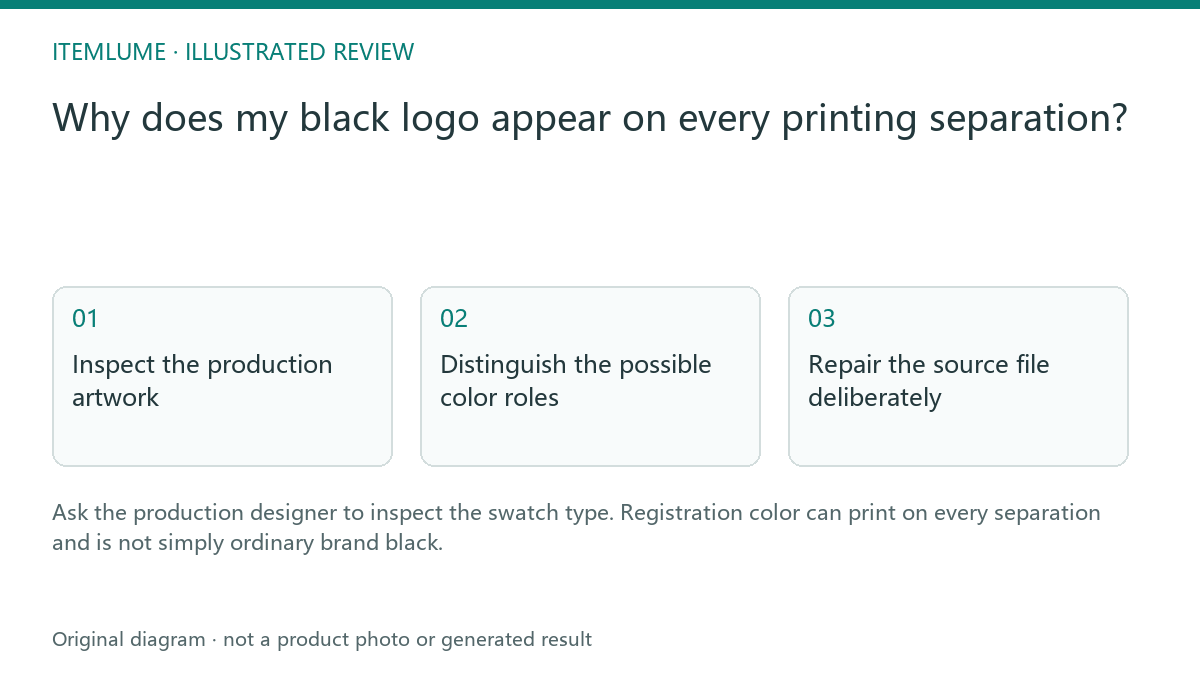
Ask the production designer to inspect the swatch type. Registration color can print on every separation and is not simply ordinary brand black.
Inspect the production artwork
A fictional stationery brand approves a black wordmark. In the printer’s separation preview, that wordmark appears on several plates. The screen mockup alone cannot explain the cause. Ask the designer to inspect the actual object color and swatch type, rather than regenerating a darker logo concept.
Adobe documents the special registration swatch. This is a production-file diagnosis, not a claim that every multicolor black object is necessarily using registration color.
Adobe describes Registration as a built-in swatch whose filled or stroked objects print on every separation from a PostScript printer. That is the specific documented behavior. Several active plates can also come from a mixed process-color black, another object or export settings. The preview symptom alone does not establish which cause applies.
Distinguish the possible color roles
| Role | Intended purpose | Review |
|---|---|---|
| Agreed process black | Specified production artwork | Check actual channels |
| Agreed spot ink | Specified separate ink | Confirm supplier naming |
| Registration swatch | Alignment marks across separations | Do not use casually for brand artwork |
The supplier must confirm the intended print method and color specification. Do not substitute arbitrary numerical ink values from another job. Keep legitimate printer marks separate from the logo artwork.
Repair the source file deliberately
Have the production designer change the inappropriate object color to the agreed specification and export a new reviewed file. Compare separations again. A corrected screen preview is insufficient if the wrong color definition remains in the exported PDF. Retain the earlier file with a rejected status to avoid reuse.
Review the wordmark and symbol together; imported groups may contain mixed color definitions. Do not flatten everything merely to hide the separation problem if editable artwork is required.
| Production inspection | Record the actual result | Next action |
|---|---|---|
| Select the wordmark fill and stroke | Swatch identity/type and any separate appearance fills | Correct only the inappropriate definition |
| Inspect grouped/imported artwork | Which components use process, spot or Registration | Keep intended marks and logo objects distinct |
| Inspect the exported PDF separations | Which intended objects appear on each relevant plate | Resolve export or conversion differences |
| Confirm with the printer | Approved ink role and exact file revision | Release only that reviewed file |
This is a manual designer/printer record, not an automatic PDF preflight. Do not prescribe one CMYK recipe for every substrate or print method. For an intended finish area, use the separate finishing-mask handoff; for another physical mark, check the engraving sample brief.
Approve the supplier proof
Confirm the revised file, intended ink role and proof with the printer. CartVisual’s generated logo image does not create print separations or select registration swatches; this issue arises during external artwork preparation. The useful next step is a file-level correction and supplier confirmation, not another prompt asking for “pure black.”
Sources and further reading
Recorded source-review dates are listed individually below. An undated source does not inherit the article’s publication date. Software and platform rules can change; check the current original before acting.
- CartVisual: editorial scope and evidence · Review date not separately recorded
- Adobe: process, spot and registration swatches · Review date not separately recorded
- Adobe: Illustrator swatch types · Reviewed
Frequently asked questions
Is registration color ordinary black?
No. It has a special separation role.
Can every multi-plate object be diagnosed from a preview?
Inspect the actual swatches and production settings.
Will regenerating the concept fix the PDF swatch?
The production artwork needs external correction.
PREPARE ASSETS FOR YOUR NEXT STEP
Create supporting product assets in CartVisual.
Create new product creative assets in the workspace, then continue in your chosen tools. Third-party software procedures described in this guide take place in those applications; this workspace link does not imply an integration. Check current capabilities, account access and credit quotes.
Explore asset creation tools Check pricing and credits