 CartVisual
AI models / PRACTICAL ANSWER
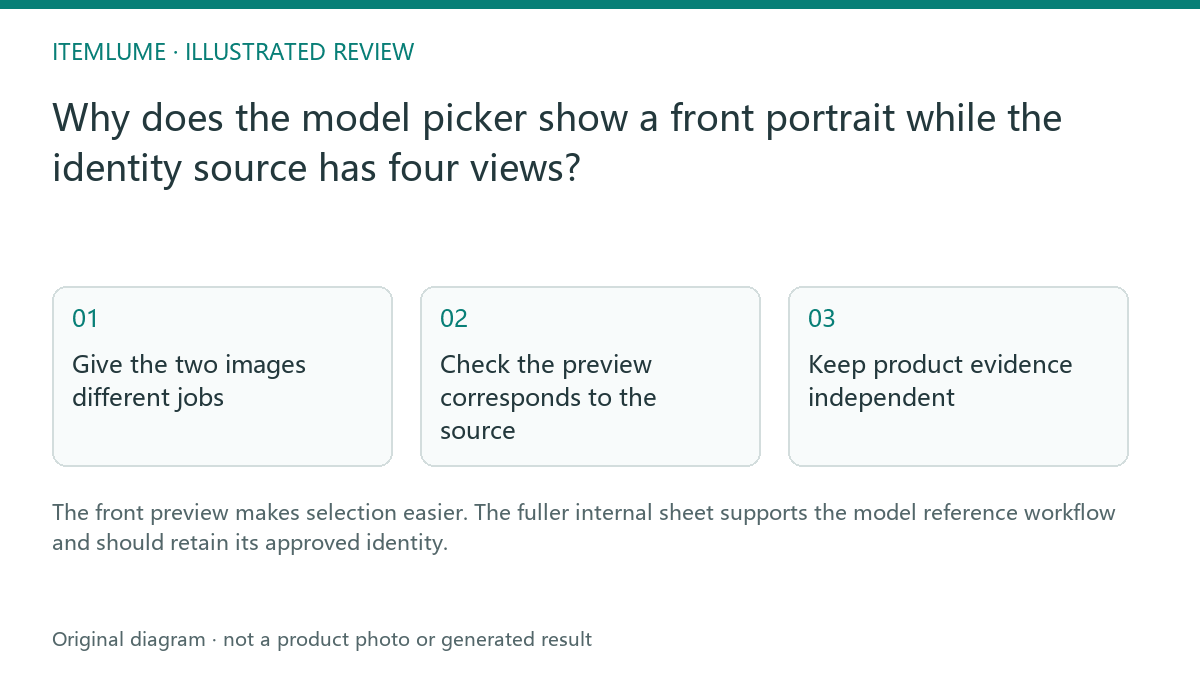
Why does the model picker show a front portrait while the identity source has four views?
The front preview makes selection easier. The fuller internal sheet supports the model reference workflow and should retain its approved identity.
Give the two images different jobs
A fictional accessories team wants users to choose a model quickly. A large four-view collage makes every face tiny in a picker, while a front-facing preview is easy to recognize. Keeping that preview separate from the internal approved sheet solves a presentation problem without discarding the side and back references.
The current CartVisual interface follows this separation. A visible front image is not evidence that the system has generated a new person for that thumbnail. For a declared four-view reference it is a derived crop of the front-body column, not a promise of a newly generated portrait or a headshot-only composition. Creating that preview keeps the underlying reference separate; it does not prove cross-view identity quality.
Check the preview corresponds to the source
| Asset/action | Current role | What it does not establish |
|---|---|---|
| Complete saved reference | Source for declared identity/reference use. | Automatic approval of body proportions, every hidden view, or real-person identity. |
| Picker front preview | Derived front-body view for selecting the saved model. | A separately created person or all four views visible to the reviewer. |
| Front-view download | Downloads that displayed front view for four-view models. | A complete four-view source export. |
| Preview unavailable | Loading/cropping error requiring resolution. | Permission to fall back to exposing the full internal sheet or select an unreviewed different identity. |
Check the displayed front before choosing. If it appears to be another person or the preview cannot load, stop selection and resolve the source/preview relationship. The current interface blocks relevant use/download actions while that front preview is unavailable; it does not repair identity by generating a substitute person. Retain your own authorized source separately if a full-view review is required.
For the distinct side/back review task, use the full-sheet evidence checklist. A front-only review must not be relabelled “all views approved.”
Keep product evidence independent
The model’s saved reference outfit is not proof of the merchandise being advertised. Supply the real product reference and describe its role separately. A correct front portrait cannot establish how a garment fits, how a bag is held or how an unseen clasp works. Review the generated campaign output against both the model and product evidence.
For accessories, choose a pose that permits the product to be seen without confusing a decorative reference item with an included item.
Use the current adapter boundary
Planning and scene construction may use role-labeled references, while the current H3 clip submission uses the approved independent scene frame. Do not assume the front picker or internal sheet is directly submitted to every downstream provider. Keep the approved scene review as a separate step. The preview improves selection; it is not a guarantee of unchanged identity throughout motion.
Sources and further reading
Sources for this page were checked on . Platform rules can change; verify the current source before publishing. Prompt examples and workflow recommendations are CartVisual editorial guidance, not independently measured results.
Frequently asked questions
Should the picker display the whole four-view collage?
The current picker shows a derived front-facing view; the four-view download action also provides that front view, not a full-sheet export. If the preview is unavailable, resolve it before selecting the reference.
Is reference clothing necessarily the sold product?
No. Supply and identify the actual merchandise separately.
Is the sheet directly sent to every video provider?
Do not assume that; the current H3 path uses the scene first frame.
PREPARE ASSETS FOR YOUR NEXT STEP
Create supporting product assets in CartVisual.
Create new product creative assets in the workspace, then continue in your chosen tools. Third-party software procedures described in this guide take place in those applications; this workspace link does not imply an integration. Check current capabilities, account access and credit quotes.
Explore asset creation tools Check pricing and credits