 CartVisual
PRACTICAL ANSWER / AI models
Why are the feet and shoes inconsistent across my AI model images?
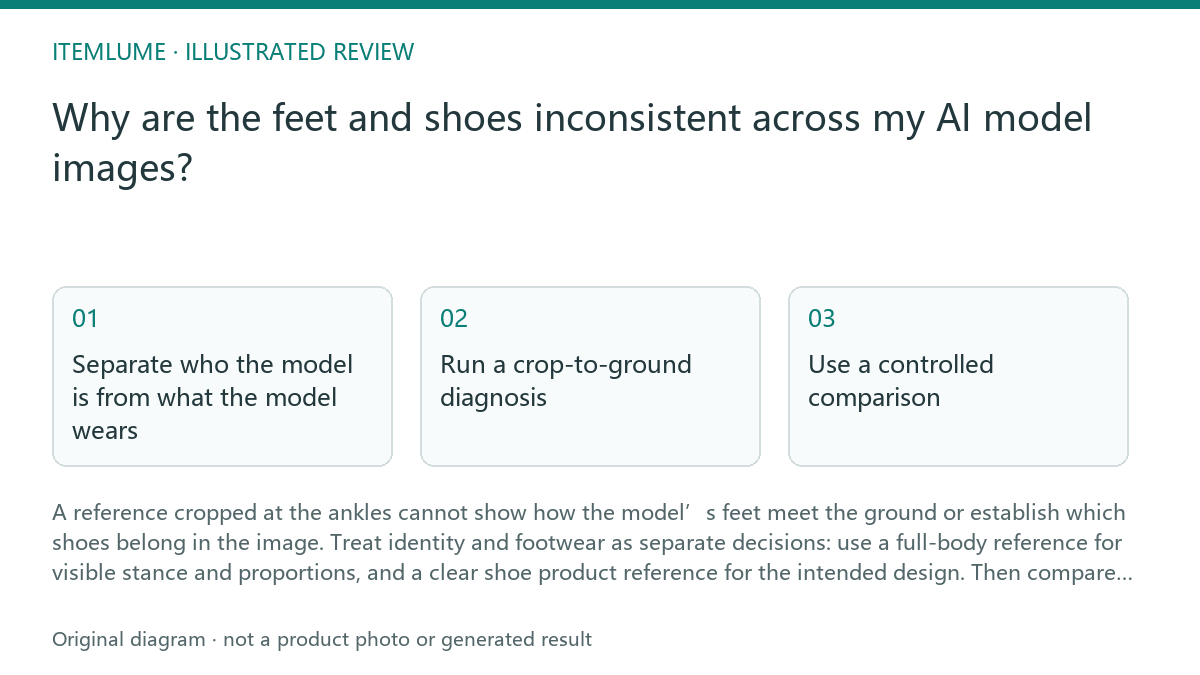
A reference cropped at the ankles cannot show how the model’s feet meet the ground or establish which shoes belong in the image. Treat identity and footwear as separate decisions: use a full-body reference for visible stance and proportions, and a clear shoe product reference for the intended design. Then compare images at the same scale and framing.
Separate who the model is from what the model wears
A face or portrait can help anchor facial identity, but it is not evidence for shoes, foot shape, stance or floor contact. A full-body image can provide visible body proportions and pose cues. Neither reference necessarily specifies the footwear product you want to show.
When a particular shoe is advertised, keep a clear product reference separate from the approved identity reference in the production record. Use the reference roles and number of inputs the actual tool supports; this is not a promise that every generator accepts separate controls. In CartVisual’s current image workflow, product and selected model references can inform an image. The video workflow uses the approved image as its first frame rather than directly accepting an independent model reference. Check toe shape, color and sole against the real shoe afterward; inputs guide generation rather than locking pixels.
Run a crop-to-ground diagnosis
Compare like with like before changing the prompt. A shoe can appear different because one frame hides the heel, another crops the toe, or the foot is viewed from a different angle. A reference ending at the ankles leaves those relationships unresolved.
Use this short sequence on one representative image pair:
- Check the model reference crop. If it ends above the feet, mark stance, shoe shape and ground contact as unspecified.
- Check the shoe reference separately. Confirm the intended left and right shoes, visible color and silhouette are clear.
- Compare camera angle, distance and lower-frame crop. Match these before judging whether the shoe changed.
- Inspect the floor boundary and shadows. Look for a plausible contact point under each visible shoe, not a floating gap or fused sole.
- Only then revise the instruction or reference set, changing one cause at a time.
Use a controlled comparison
Keep the model identity reference and shoe product reference fixed while you compare outputs. Change only one variable, such as the crop or camera angle, so you can tell whether the issue follows missing evidence or the composition. This is a practical review method; it is not a documented promise of deterministic generation.
For example, in a fictional exercise, suppose a campaign set has three images: two show black low-top shoes, while a third shows a pale high-top. The model reference is cropped at the ankles, and only the first two frames show the shoe reference clearly. First align the framing, then provide a clear shoe reference for all three and inspect the ankle-to-ground area again. Do not infer that the third shoe is a product variation unless the product source confirms it.
Set a review threshold before continuing
Decide which details must match before generating more images. For a footwear campaign, that may include shoe category, dominant color, toe silhouette and visible contact with the ground. Mark hidden details as not assessable rather than guessing from a cropped frame.
Stop and replace or clarify the references when the required shoe cannot be identified, the feet are cut off in every review frame, or repeated comparisons still show conflicting footwear. Do not use an image as product evidence when its shoe details are obscured or inconsistent. A review checklist can flag uncertainty; it cannot prove fit, comfort or product performance.
Footwear consistency review
| Observation | Next check | Pass condition |
|---|---|---|
| Reference ends at the ankles | Find a full-body view that includes feet and floor | Visible stance and ground boundary can be assessed |
| Shoe color or silhouette changes | Compare each image with the separate shoe product reference | Visible design matches the approved product reference |
| Shoe appears detached from the floor | Inspect the sole edge, shadow and ground line | Each visible shoe has a plausible contact point |
| One frame hides the toe or heel | Compare at matched angle and lower-frame crop | Required shoe details remain visible for review |
If a reference contains competing visual roles, use What should I check when one model sheet contains a face close-up and three full-body views? to separate what each input actually supports.
Sources and further reading
Sources for this page were checked on . Platform rules can change; verify the current source before publishing. Prompt examples and workflow recommendations are CartVisual editorial guidance, not independently measured results.
Frequently asked questions
Can a face close-up keep shoes consistent?
No. It can support facial identity, but it contains no evidence for footwear or ground contact.
Should I use the model photo as the shoe reference?
Use a model photograph only for cues it actually shows. When the actual image tool supports multiple reference roles, provide a separate product reference for the shoe and inspect the output. In CartVisual, the resulting approved image can then serve as the video first frame; the video request does not directly accept an independent model reference.
When should I stop reviewing a generated image?
Stop when required shoe details are hidden, references conflict, or visible footwear does not match the product source.
PREPARE ASSETS FOR YOUR NEXT STEP
Create supporting product assets in CartVisual.
Create new product creative assets in the workspace, then continue in your chosen tools. Third-party software procedures described in this guide take place in those applications; this workspace link does not imply an integration. Check current capabilities, account access and credit quotes.
Explore asset creation tools Check pricing and credits