 CartVisual
DIAGNOSTIC GUIDE / A+ product pages
Can my ad say from $25 when the pictured variant costs $39?
A from-price and the price of the pictured variant are different facts. If the image shows a $39 version, do not let $25 appear to be that version’s actual price. Identify the cheapest qualifying SKU, label the depicted version accurately, and check the selected landing offer. This is a consistency review, not legal clearance or a promise that a platform will approve the advertisement.
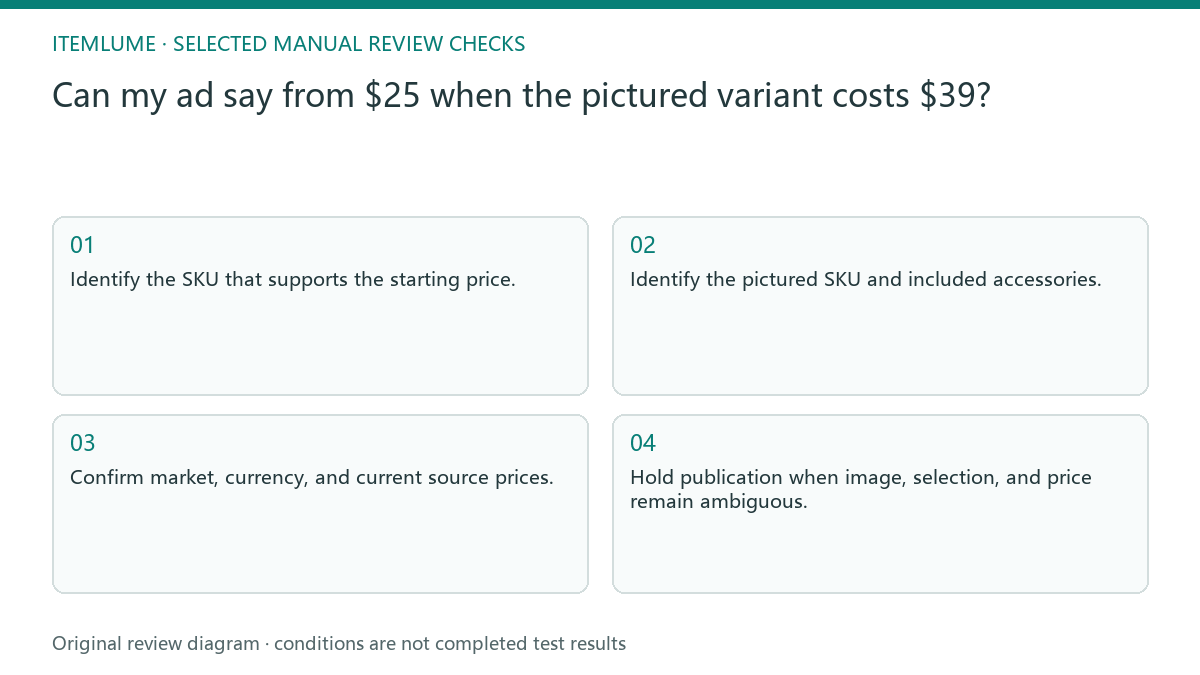
Name both offers before writing the headline
Create two records: the offer that supports the starting price and the offer actually shown. Include variant name, included components, quantity, currency, market, and current price source. If those records refer to different products, the creative needs to communicate the distinction rather than quietly borrowing the cheaper number.
A pictured accessory can change the apparent offer even when the base model name is identical. Do not compare an empty package, base unit, and complete bundle as if buyers receive the same thing. Review image content alongside price copy, not as an independent decorative layer.
Check the selected landing variant
Google Merchant Center price guidance emphasizes consistency between product data, the relevant landing offer, and checkout. For this task, check the exact variant selected by the destination link. A landing page displaying a range does not prove that the pictured version costs the bottom of that range.
Use actual merchant records and a reviewed page state. This guide does not require a purchase or provide universal approval wording. When a prominent starting price could be read as the depicted version’s price, revise the creative so the real version and its price remain clear, then seek the actual publisher’s requirements.
- Identify the SKU that supports the starting price.
- Identify the pictured SKU and included accessories.
- Confirm market, currency, and current source prices.
- Open the destination and inspect its selected variant.
- Hold publication when image, selection, and price remain ambiguous.
A fictional lamp campaign
Fictional exercise: a basic lamp costs $25 and a pictured brass-finish version costs $39. The creative currently shows only “from $25” beside the brass model. The seller records both offers and prepares a clearer layout naming the depicted version. These hypothetical prices are not current merchant data or an CartVisual pricing claim.
The next check inspects the destination’s preselected version and the displayed offer. If the link selects the basic lamp while the picture continues to imply brass, the handoff still needs clarification. Stop when the qualifying offer cannot be found or the price is no longer current; do not keep an attractive old figure.
Separate a product-family headline from a variant feed item
For the fictional two-lamp family, a possible visible layout is “Basic lamp $25; brass-finish version shown $39.” This illustrates the identity distinction; it is not legal clearance or a claim that any platform approves that layout. Keep the qualifying conditions and currency clear.
For a Merchant Center item advertising the brass variant, Google’s mismatch guidance says its submitted price and preselected landing variant should correspond to that version. The existence of a cheaper base SKU does not by itself justify giving the brass feed item the base price. Google separately discusses pages showing a price range; that does not remove the need to identify the actual item being submitted.
Record the feed item ID, pictured SKU, price source/time, exact variant URL, fresh landing selection and checkout price without completing a purchase. Test whether a remembered selection changes the landing state; a review session left on brass does not prove the published URL opens on brass for a new shopper. Stop if the exact qualifying offer cannot be reproduced.
Keep a price-to-image approval trail
Retain the reviewed creative, the SKU records, and the destination state together. If the merchant changes variant prices, revisit artwork containing baked-in prices and starting-price statements. Updating the catalogue alone does not update text already drawn into a campaign image.
CartVisual can help write copy from confirmed prices but does not verify checkout or synchronize store offers. Its output is not advertising-law advice or a guarantee of platform acceptance. Approve the facts only after the merchant has resolved which product each visible price describes and how the customer reaches that offer.
Starting-price and pictured-offer match
| Item | Evidence | Approval condition |
|---|---|---|
| Starting-price SKU | Current qualifying offer | Actually available as described |
| Pictured version | Variant and accessory list | Image corresponds to that offer |
| Landing selection | Reviewed selected variant | Price matches selected version |
| Baked-in artwork price | Creative and merchant record | Current figure used consistently |
Use this matrix as a manual review record and add your own real evidence. Its conditions are not completed test results.
Sources and further reading
Recorded source-review dates are listed individually below. An undated source does not inherit the article’s publication date. Software and platform rules can change; check the current original before acting.
- CartVisual: editorial policy and product scope · Review date not separately recorded
- Google Merchant Center: Inaccurate price status · Review date not separately recorded
- Google Price Mismatch · Reviewed
Frequently asked questions
Is a price range enough?
Not if the image makes a particular version appear to cost the lowest figure. Review the depicted and selected offers separately.
Can AI infer the price from the photo?
No. Prices and qualifying conditions must come from current merchant records.
Does this wording guarantee approval?
No. It is a factual consistency process. Check the actual publisher’s current rules and seek appropriate review where needed.
PREPARE ASSETS FOR YOUR NEXT STEP
Create supporting product assets in CartVisual.
Create new product creative assets in the workspace, then continue in your chosen tools. Third-party software procedures described in this guide take place in those applications; this workspace link does not imply an integration. Check current capabilities, account access and credit quotes.
Explore asset creation tools Check pricing and credits