 CartVisual
DIAGNOSTIC GUIDE / A+ product pages
Should my product copy say preorder or backorder?
Choose the wording from the real product’s release and stock status, not from the fact that orders are open. A not-yet-released product and an already-released item awaiting replenishment communicate different expectations. Google Merchant Center defines availability values for its own feed; your visible copy must also match the store’s actual order and fulfillment information. Do not infer a shipping date from the label alone.
Separate release, stock and order acceptance
Record whether the item has been released, whether the selected SKU is in stock, and whether the store accepts orders. These are independent fields. A sold-out color can have a different state from an available color on the same product page.
Ask the commerce owner for the approved fulfillment expectation and what event starts it. Avoid inventing a replenishment date because a supplier says “soon.” If the record is incomplete, use a held editorial status and obtain facts before producing urgency-led artwork.
Translate status into a buyer expectation
Use language that explains what buyers can do now and what remains pending. For a future release, say which release facts are confirmed. For replenishment, identify the selected item and approved waiting expectation. Do not use the two labels interchangeably merely to make a headline shorter.
If you maintain a Merchant Center feed, have its owner verify the current field definitions and related requirements directly. The feed, visible page and checkout should describe the same offer. CartVisual can assist drafting from confirmed facts, but it does not update inventory or synchronize feed status.
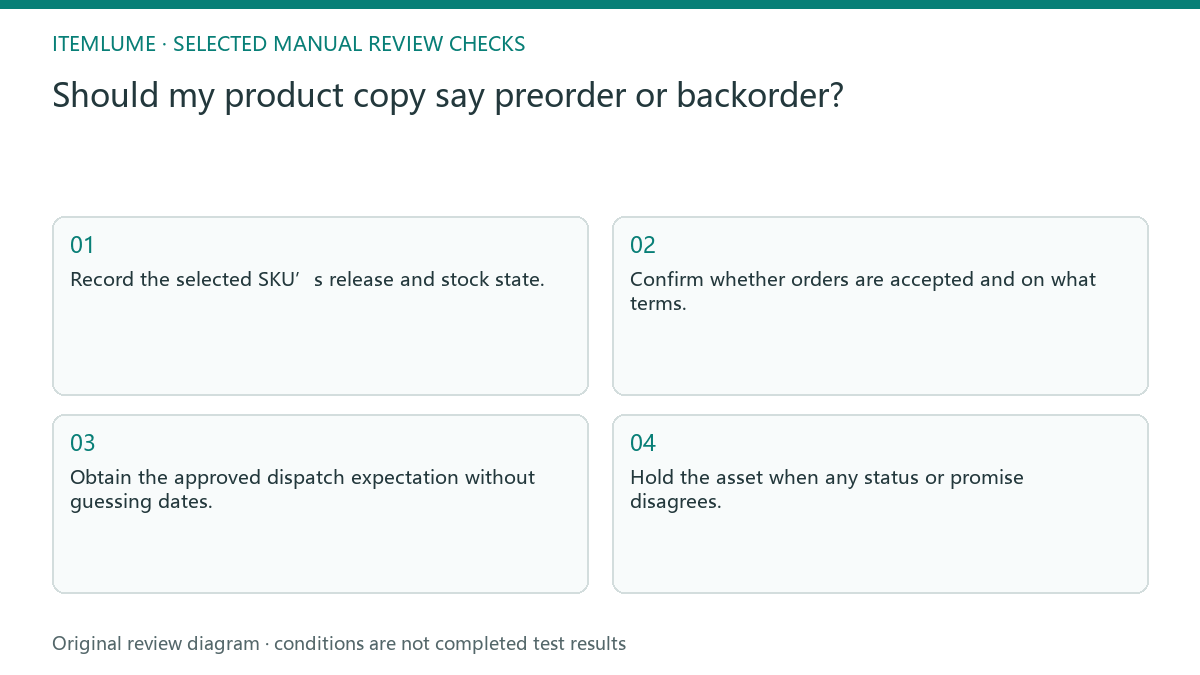
- Record the selected SKU’s release and stock state.
- Confirm whether orders are accepted and on what terms.
- Obtain the approved dispatch expectation without guessing dates.
- Compare headline, product page, checkout and any feed.
- Hold the asset when any status or promise disagrees.
Check the date requirement before using a Google feed status
For Merchant Center, both preorder and backorder require availability_date and corresponding visible availability/shipping information on the landing page. The field concerns when the product can be shipped; it does not establish arrival at the customer. Google permits a supported estimated date to be updated as the schedule becomes confirmed. An editor must obtain that estimate from the merchant rather than invent it.
In the fictional notebook exercise, an unknown restock date is not solved by putting backorder into a feed without the required date. Hold that feed change until its owner can supply the required schedule, or have the owner resolve the real order-acceptance state. A temporarily unavailable item for which orders are not accepted is a different status case. Keep the visible copy, selected variant and feed decision together.
For the full date and timezone distinction, continue with why an availability date can appear a day earlier in another country.
Fictional exercise: a launch and a replenishment
This fictional exercise compares a new notebook not yet released with an existing blue notebook awaiting stock. Both accept orders, but the underlying states differ. The example is invented; it is not evidence of any merchant’s availability or a guaranteed dispatch schedule.
The team first obtains each owner-approved state and only then drafts separate explanations. If the blue notebook’s replenishment timing is unconfirmed, the copy does not supply a date. The stopping condition is agreement across the offer records, not the presence of a fashionable preorder badge.
Recheck status when publishing
Attach the status timestamp and responsible owner to the approved copy. Inventory and release plans can change after an image is generated. Check the selected SKU again before manually publishing a static headline, especially when the picture contains a date or availability badge. The publication record must identify the selected variant and its state at that time. A collection-level stock label cannot override a different waiting condition on the option the buyer actually selects.
Stop when the buyer-facing message and actual offer agree, or withdraw the unsupported asset. A status guide is not a delivery guarantee. Do not treat a feed acceptance, a generated caption or a generic product record as proof that every variant can be fulfilled under the same expectation.
Offer-state decision record
| Observation | Manual check | Stop or approve |
|---|---|---|
| Not released | Confirm release facts | Use approved future-release message |
| Released, no stock | Confirm replenishment expectation | Explain selected SKU wait |
| Another color available | Check selected SKU | Do not generalize stock |
| Date unconfirmed | Ask offer owner | Hold dated artwork |
Use this matrix as a manual review record and add your own real evidence. Its conditions are not completed test results.
Sources and further reading
Recorded source-review dates are listed individually below. An undated source does not inherit the article’s publication date. Software and platform rules can change; check the current original before acting.
- CartVisual: editorial policy and product scope · Review date not separately recorded
- Google Merchant Center: Availability · Reviewed
- Google Availability Date · Reviewed
Frequently asked questions
Does accepting orders mean in stock?
No. Check the actual SKU’s stock and fulfillment records separately.
Can AI choose the dispatch date?
No. It needs an owner-approved operational date, or the date remains unconfirmed.
Is Google’s field definition a universal store rule?
No. It applies to that feed; verify other destinations independently.
PREPARE ASSETS FOR YOUR NEXT STEP
Create supporting product assets in CartVisual.
Create new product creative assets in the workspace, then continue in your chosen tools. Third-party software procedures described in this guide take place in those applications; this workspace link does not imply an integration. Check current capabilities, account access and credit quotes.
Explore asset creation tools Check pricing and credits