 CartVisual
PRACTICAL ANSWER / A+ product pages
Which weight belongs in a product description: the item or the packed parcel?
Use the product description for the unpacked item or sold set. In shipping data, distinguish the product-weight field, packaging weight, and measured complete parcel: enter each only where that quantity is requested. A fictional 350 g lamp plus 550 g of packaging forms a 900 g parcel; do not add the packaging twice.
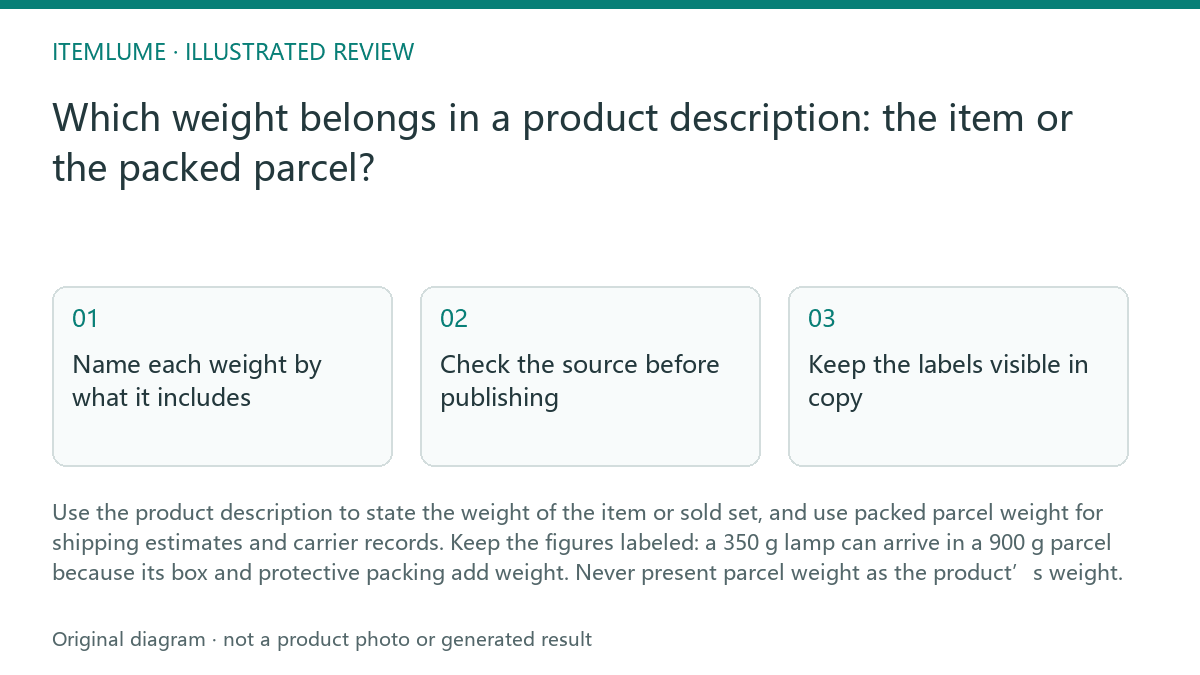
Name each weight by what it includes
Net weight is the weight of the product itself, excluding shipping packaging. If you sell a set, state whether the figure applies to one item or to all items in the set. A single-item figure should not quietly become a bundle total.
Packed shipping weight is the product plus its shipping box, inserts and protective materials. It belongs in shipping calculations and fulfillment records, not as an unlabeled product specification. Where relevant, distinguish the retail box from the outer parcel and keep those measurements tied to their actual purpose.
Check the source before publishing
Product copy, product data, and the final parcel record answer different questions. Verify the meaning of each destination field before copying a weight. In Shopify, the product Weight field holds product weight, while the saved/default package has its own weight. The official package guidance explains when that package weight is added to the products for rate calculation; do not enter an already packed total into the product field and then add the package again.
- Identify whether the sold unit is one item, a multipack, or a bundle.
- Record the unpacked sold product weight, its unit, and its exact included components.
- Measure the package and its packing materials separately; distinguish this tare weight from the complete packed parcel.
- Map each value to the field that actually requests it. A final carrier or label field may ask for total parcel weight; a product Weight field does not automatically mean that total.
- Compare a single-item test order and the final measured parcel. Check multi-item orders and packaging changes separately rather than assuming one calculation covers every shipment.
Keep the labels visible in copy
Put the item or set weight beside a clear label such as “Product weight” or “Set net weight.” Include a unit and avoid a bare number that could be mistaken for shipping weight. If the product’s weight varies by configuration, identify the relevant version rather than implying one figure covers every option.
Do not promise that the parcel will weigh exactly the product weight, or imply a particular delivery cost from product weight alone. Packaging and shipping rules can affect the final parcel figure. Keep delivery estimates tied to the packed shipment data used by your shipping process.
Work through one fictional example
Fictional single-item exercise: an unpacked lamp weighs 350 g. Its box and packing materials weigh 550 g, so the physical parcel totals 900 g. The customer-facing specification says “Lamp weight: 350 g.” In a Shopify setup that adds this package weight separately, the product Weight is 350 g and the package weight is 550 g; a field explicitly requesting the complete parcel receives 900 g.
Entering 900 g as product weight and then adding the same 550 g packaging would count that packaging twice. Verify the actual package/rate configuration before changing live fields. Check the final measured parcel again if the box, quantity, or inserts change. These are fictional measurements and a field-mapping exercise, not a live checkout test, shipping-price quote, or universal carrier rule.
Weight field review
| Record | Fictional value | Meaning to verify |
|---|---|---|
| Product specification / Shopify product Weight | 350 g | Unpacked sold lamp; confirm included components |
| Package tare record | 550 g | Box and packing materials; not the lamp |
| Physically weighed complete parcel | 900 g | Lamp plus its actual package, counted once |
| Rate or label input | Read the field definition | Do not paste 900 g into a product field that will add package weight again |
Sources and further reading
Recorded source-review dates are listed individually below. An undated source does not inherit the article’s publication date. Software and platform rules can change; check the current original before acting.
- CartVisual: editorial scope and evidence · Reviewed
- Shopify: AI-written product description review · Reviewed
- Shopify: product details and product Weight · Reviewed
- Shopify: saved/default package weight and rate calculation · Reviewed
Frequently asked questions
Can product weight and shipping weight be the same?
They can match, but only if both measurements are verified and packaging adds no weight that changes the parcel figure. Label each field by what it measures.
Should a bundle show weight per item or for the whole set?
State which one you mean. If both figures help buyers, label the per-item weight and set total separately.
Does product weight determine delivery cost?
Not by itself. Product weight, packaging, dimensions and the configured shipping service can affect the calculation. Keep product and package weights separate when the platform adds them; verify the complete parcel for fields that explicitly request it.
PREPARE ASSETS FOR YOUR NEXT STEP
Create supporting product assets in CartVisual.
Create new product creative assets in the workspace, then continue in your chosen tools. Third-party software procedures described in this guide take place in those applications; this workspace link does not imply an integration. Check current capabilities, account access and credit quotes.
Explore asset creation tools Check pricing and credits