 CartVisual
Product images / PRACTICAL ANSWER
Why does my product have doubled edges after combining exposure photographs?
Compare the merged image with its source exposures. Doubled contours may be a merge defect rather than a real product edge.
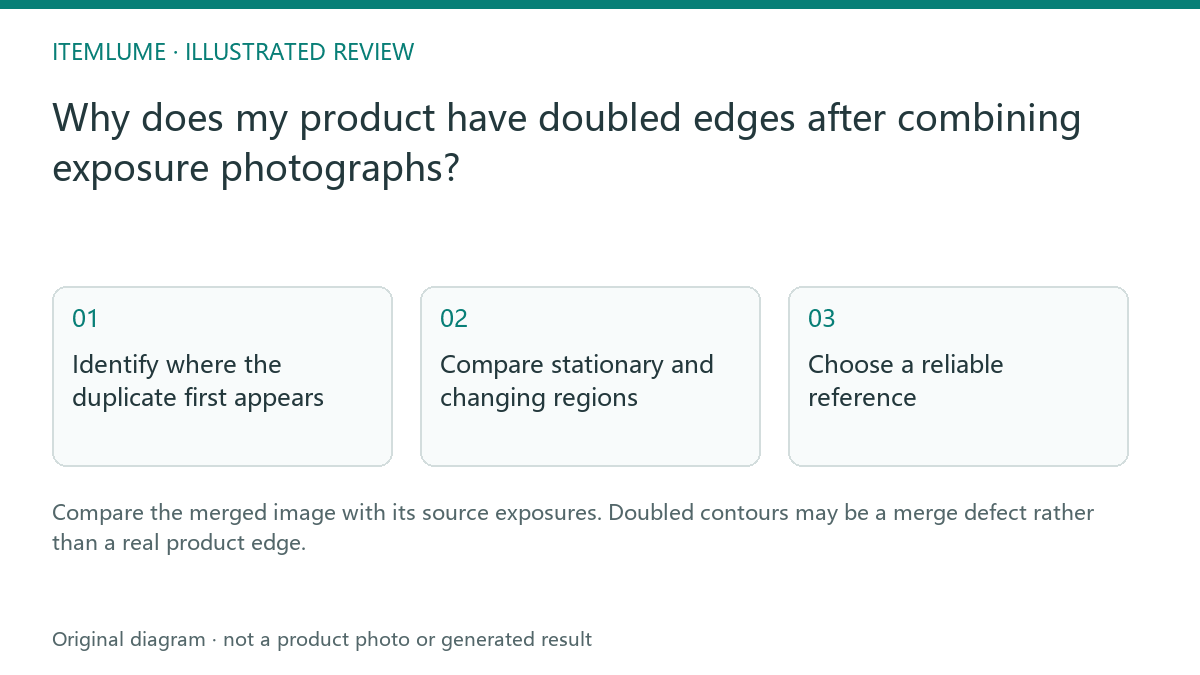
Identify where the duplicate first appears
A fictional metallic bottle is photographed at several exposures. The composite has a second cap outline and a bright seam absent from each selected original. If the seller uploads only that merge, an image model may preserve the extra geometry. Inspect the original exposures before blaming the later creative tool.
Adobe documents HDR merging from different exposures. Our review exercise focuses on the factual product reference, not on a universal recipe for a dramatic HDR look.
Compare stationary and changing regions
| Region | Source check | Potential defect |
|---|---|---|
| Cap edge | Same physical location across exposures | Misalignment |
| Bottle reflection | Light/reflection changed between captures | Ghosted highlight |
| Label | One clear source exposure | Composite text artifact |
Keep one approved product revision in the sequence. A different cap or label between captures is not an alignment issue. Moving hands, flexible packaging and shifting reflections also deserve special attention before the files are merged.
Choose a reliable reference
Keep four objects distinct: original exposure files, the saved merge, the exact file submitted for generation, and the returned output. In the fictional bottle exercise, mark the cap edge, label and a stationary body detail in each object. Use the same view and sensible comparison scale; arbitrary window sizes can create misleading alignment impressions.
| Observed pattern | What to check next | Release decision |
|---|---|---|
| Stationary details shift between source exposures | Capture movement/alignment and whether every file is the same product revision. | Do not adopt the merged contour until the source relationship is resolved. |
| Body geometry aligns but the bright reflection moves | Lighting or reflective content changed; inspect the affected merge region separately. | A ghosted highlight is not evidence of a luminous seam or extra component. |
| Merge is clean but the submitted derivative is not | Compare the actual prepared upload with the saved approved merge. | Correct the preparation stage before attributing the defect to generation. |
| Exact submitted reference is clean but output adds an edge | Retain the input, prompt and output for a bounded creative review. | Do not report the merge as the established cause without evidence. |
If one original exposure is adequate for this task, use that approved source rather than a defective merge. If merging is needed, have the editor compare alignment and any ghost correction against originals; do not smooth away a real seam or assume an automatic correction preserves every label. Adobe’s HDR overview discusses multi-exposure merging and ghosting controls. Specific controls vary by application/version; this is a diagnostic record, not a promise that one setting fixes the product.
No bottle sequence was photographed or merged for this exercise. Record the selected source and reason. For source markings that may also leak into output, see clean reference versus annotated review copy.
Check the generated output against the source
When reviewing a new scene, compare it to the approved reference and any relevant original exposure. If the doubled cap returns, determine whether it is in the submitted file or introduced during generation. CartVisual does not perform a dedicated exposure merge. Resolving the source defect first makes the later prompt simpler and prevents a capture artifact from becoming a repeated catalog feature.
Sources and further reading
Recorded source-review dates are listed individually below. An undated source does not inherit the article’s publication date. Software and platform rules can change; check the current original before acting.
- CartVisual: editorial scope and evidence · Review date not separately recorded
- Adobe: HDR merging and ghosting overview · Reviewed
Frequently asked questions
Does a doubled edge prove AI generation failed?
First check whether it exists in the submitted merge.
Is an HDR composite automatically better evidence?
No. Accuracy and merge quality need review.
Does CartVisual merge exposure sequences?
No dedicated exposure-merging workflow is provided.
PREPARE ASSETS FOR YOUR NEXT STEP
Create supporting product assets in CartVisual.
Create new product creative assets in the workspace, then continue in your chosen tools. Third-party software procedures described in this guide take place in those applications; this workspace link does not imply an integration. Check current capabilities, account access and credit quotes.
Explore asset creation tools Check pricing and credits