 CartVisual
A+ product pages / PRACTICAL ANSWER
How do I stop a replacement-part listing from looking like the complete product?
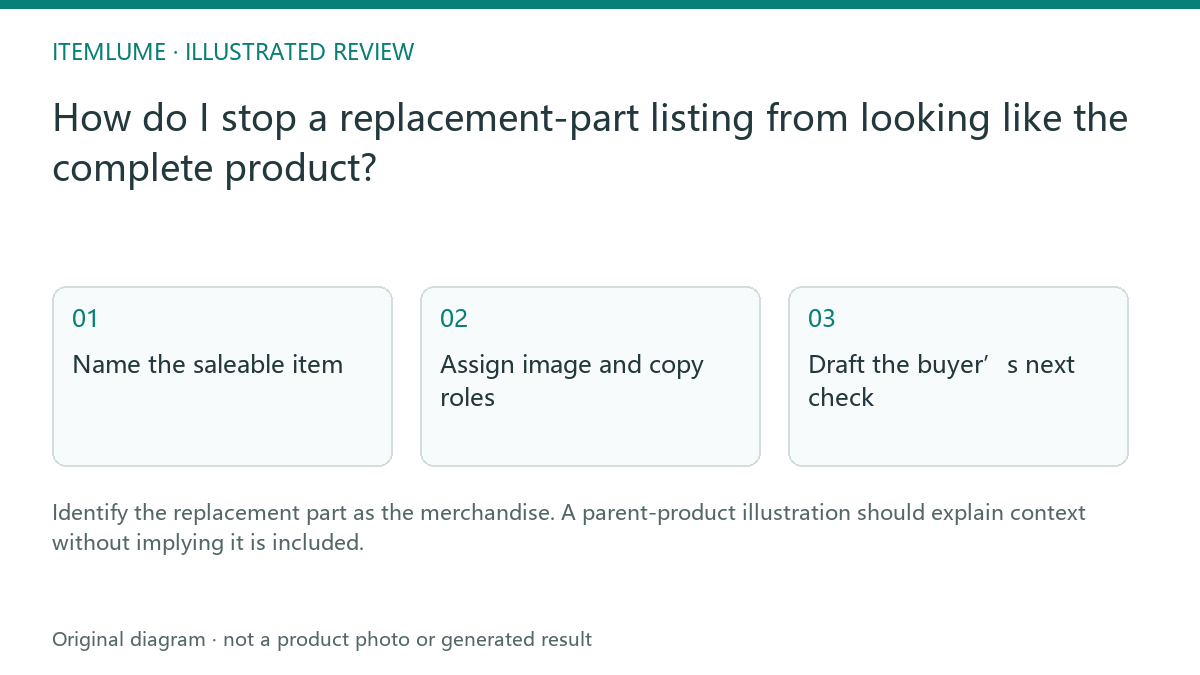
Identify the replacement part as the merchandise. A parent-product illustration should explain context without implying it is included.
Name the saleable item
A fictional shop sells a replacement vacuum filter. Its generated image shows a complete vacuum, and the draft headline says “refresh your home with this powerful vacuum.” Write a factual sale record: one filter, the verified compatible models and any confirmed included pieces. Keep the parent appliance as context rather than the product sold.
Compatibility must come from the supplier’s actual record. Similar appearance or a matching connector in an image cannot establish fit. Do not let a text model expand the compatible-model list.
Assign image and copy roles
| Element | Intended role | Review |
|---|---|---|
| Filter photograph | Sold merchandise | Accurate component |
| Vacuum illustration | Compatibility context | Clearly not included |
| Model list | Verified fit information | Exact supplier identifiers |
| Quantity | Actual package contents | No inferred multipack |
Use the same sale record across title, description, images and applicable catalog fields. A small disclaimer cannot fully resolve a dominant hero image that presents the whole appliance as the offer.
Draft the buyer’s next check
Fictional rewrite exercise, not a real fit test: the verified sale record says one filter F, compatible with appliance models A1 and A2; compatibility with A3 is unknown. No parent appliance or extra attachment is included. These invented identifiers must be replaced with actual supplier records before real use.
| Listing element | Evidence-bound draft for the exercise | Reject |
|---|---|---|
| Title | Replacement filter F — 1 filter — for documented models A1 and A2 | “Powerful vacuum” or “complete cleaning system.” |
| Contents near purchase choice | Includes one filter only. Appliance and other shown accessories are not included. | A dominant complete-appliance image qualified only by unreadable small print. |
| Compatibility | Check the exact model identifier against the supplier’s confirmed A1/A2 list; A3 compatibility is unconfirmed. | “Universal fit” inferred from similar shape or a generated installation. |
Use the business’s actual method for locating the appliance identifier. Do not invent a label location or instruct dismantling to find it. Keep a filter-led primary presentation, with any parent appliance clearly serving context and subject to the destination’s image rules.
Shopify’s AI-description guidance explains the merchant’s accuracy review; it does not confirm filter compatibility. For a complete product with optional extras, use included versus excluded accessories; this page’s sold object is the replacement component itself.
Review with a fresh reader
Show the listing without verbal explanation and ask what will arrive. If the reviewer says “a vacuum,” revise the primary presentation. CartVisual helps create the creative and copy; it does not test component fit or change your external catalog. Preserve the supplier evidence and update the listing when the compatible-model scope changes.
Sources and further reading
Recorded source-review dates are listed individually below. An undated source does not inherit the article’s publication date. Software and platform rules can change; check the current original before acting.
- CartVisual: editorial scope and evidence · Review date not separately recorded
- Shopify: review AI-generated description accuracy · Reviewed
Frequently asked questions
Can the parent product be shown?
As clear context without implying it is included.
Does a similar shape prove compatibility?
Use verified supplier model/fit evidence.
What is the first review question?
Ask what the buyer expects to receive.
PREPARE ASSETS FOR YOUR NEXT STEP
Create supporting product assets in CartVisual.
Create new product creative assets in the workspace, then continue in your chosen tools. Third-party software procedures described in this guide take place in those applications; this workspace link does not imply an integration. Check current capabilities, account access and credit quotes.
Explore asset creation tools Check pricing and credits