 CartVisual
DIAGNOSTIC GUIDE / Product videos
Why does background music cover the voiceover after I shorten the ad?
Recheck music automation after changing dialogue timing. Ducking decisions are tied to where speech is active; a shorter edit can leave old keyframes lowering music too early or raising it over a newly moved line. Fix the timeline relationship before replacing the voiceover. The revised speech timing, rather than the previous edit, determines the review interval.
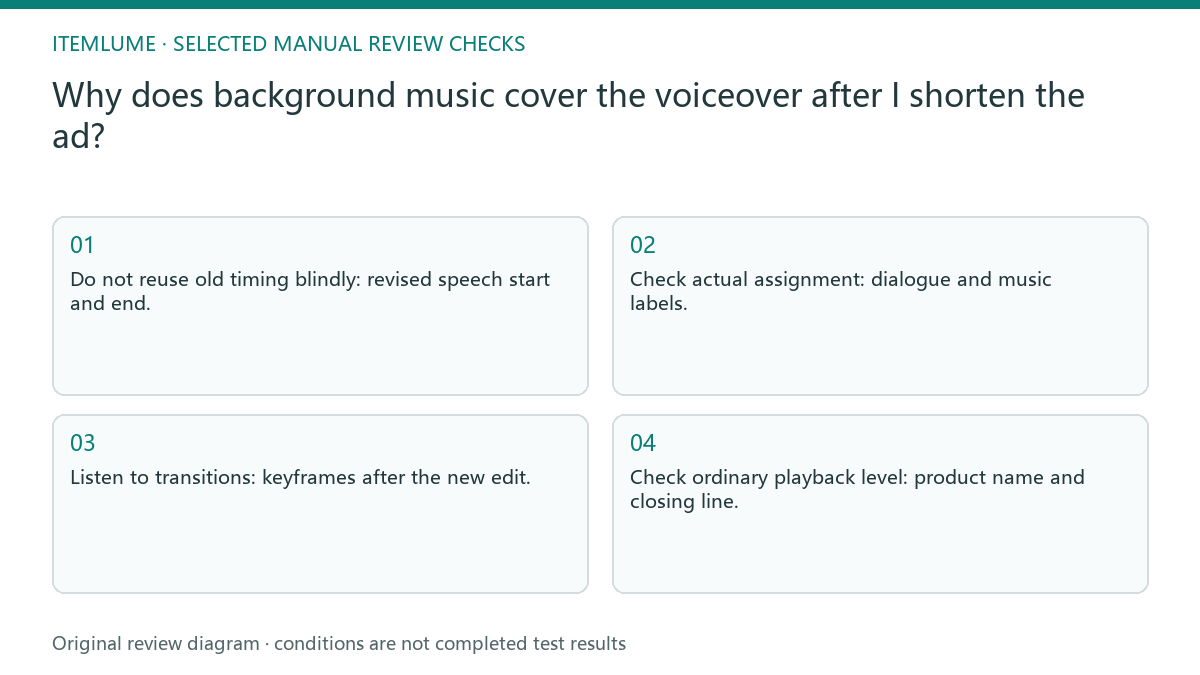
Edited dialogue changes the ducking target
Speech clarity is not guaranteed by a visible ducking label. Automation can depend on tag choices, sensitivity and generated keyframes, and those decisions may need refreshing after edits. A clean peak meter also does not prove that the words remain intelligible under the music.
Compare the current speech intervals with the music-volume curve. If the dialogue was trimmed, moved or replaced, a curve built against the previous edit may no longer match. Listen for both masked words and music that dips after the speaker has already stopped.
Recheck music around every spoken interval
Mark the actual dialogue starts, ends and meaningful pauses on the revised timeline. Check which clips are treated as dialogue and music in the editor, regenerate or adjust the relevant automation using its current controls, and listen to entrances and exits. Export a short test containing the newly moved line and review it at an ordinary listening level.
Before selecting Generate Keyframes, preserve a project copy and the affected manual transitions. Adobe warns that generating ducking keyframes again overwrites manual keyframe changes. Recheck clip roles and Duck Against selection against the current dialogue, then choose a controlled regeneration or manual repair for the affected material. Compare the moved line, music recovery and final export; do not reset the entire campaign merely because one product name is masked.
- Do not reuse old timing blindly: revised speech start and end.
- Check actual assignment: dialogue and music labels.
- Listen to transitions: keyframes after the new edit.
- Check ordinary playback level: product name and closing line.
A reordered product line leaves old keyframes
Fictional exercise: a lamp ad’s closing sentence moves earlier after shortening a beauty shot. The old music rise now covers the product name. The editor compares dialogue regions with keyframes, corrects that section and checks both the name and the silent end hold. No platform-wide loudness target is invented.
For this fictional lamp ad, inspect the moved line’s entrance, the following pause and the next sentence. Preserve any intentional music recovery while keeping the product name intelligible. The exercise does not establish one attenuation value for all voices and music, or claim that any actual mix was tested.
Judge the mix through the final export
Stop automatic adjustment when it removes an intentional pause, produces pumping or still masks the approved words. Use a deliberate manual transition and audition the full edit.
Export a short final mix and listen outside the editor. Unresolved words or abrupt volume pumping require another audio edit, not a new product-image prompt. A finishing editor handles dialogue tagging, music levels and automation. CartVisual’s silent assembled TVC does not include this external audio-mixing step.
Dialogue regions to export review: decision worksheet
| Check | Evidence to record | Review action |
|---|---|---|
| Dialogue regions | Revised speech start and end | Do not reuse old timing blindly |
| Clip roles | Dialogue and music labels | Check actual assignment |
| Automation | Keyframes after the new edit | Listen to transitions |
| Export review | Product name and closing line | Check ordinary playback level |
Use this matrix as a manual review record and add your own real evidence. Its conditions are not completed test results.
Sources and further reading
Recorded source-review dates are listed individually below. An undated source does not inherit the article’s publication date. Software and platform rules can change; check the current original before acting.
- CartVisual: editorial policy and product scope · Review date not separately recorded
- Adobe Premiere: Automatically duck audio · Reviewed
Frequently asked questions
Do ducking keyframes stay correct after trimming speech?
They need review against the revised speech. Preserve manual transitions before regenerating: Adobe states that Generate Keyframes overwrites manual keyframe changes. Choose a controlled regeneration or manual repair and listen to the final exported result.
Should every ad use the same music reduction?
No. Judge intelligibility and intended recovery for the actual voices and music.
Does CartVisual add this soundtrack automatically?
No. This is an external audio-editing handoff, not an automatic soundtrack capability.
PREPARE ASSETS FOR YOUR NEXT STEP
Create supporting product assets in CartVisual.
Create new product creative assets in the workspace, then continue in your chosen tools. Third-party software procedures described in this guide take place in those applications; this workspace link does not imply an integration. Check current capabilities, account access and credit quotes.
Explore asset creation tools Check pricing and credits