 CartVisual
DIAGNOSTIC GUIDE / Product videos
Why does a round bottle look oval after I import the clip into an editor?
An oval-looking bottle after import can be a display-interpretation problem rather than a new product deformation. Compare the original clip with the editor’s interpretation, sequence and export settings. Pixel aspect ratio describes pixel shape; frame aspect ratio describes the overall image. Check them separately before stretching the bottle or asking an image model to redesign the product.
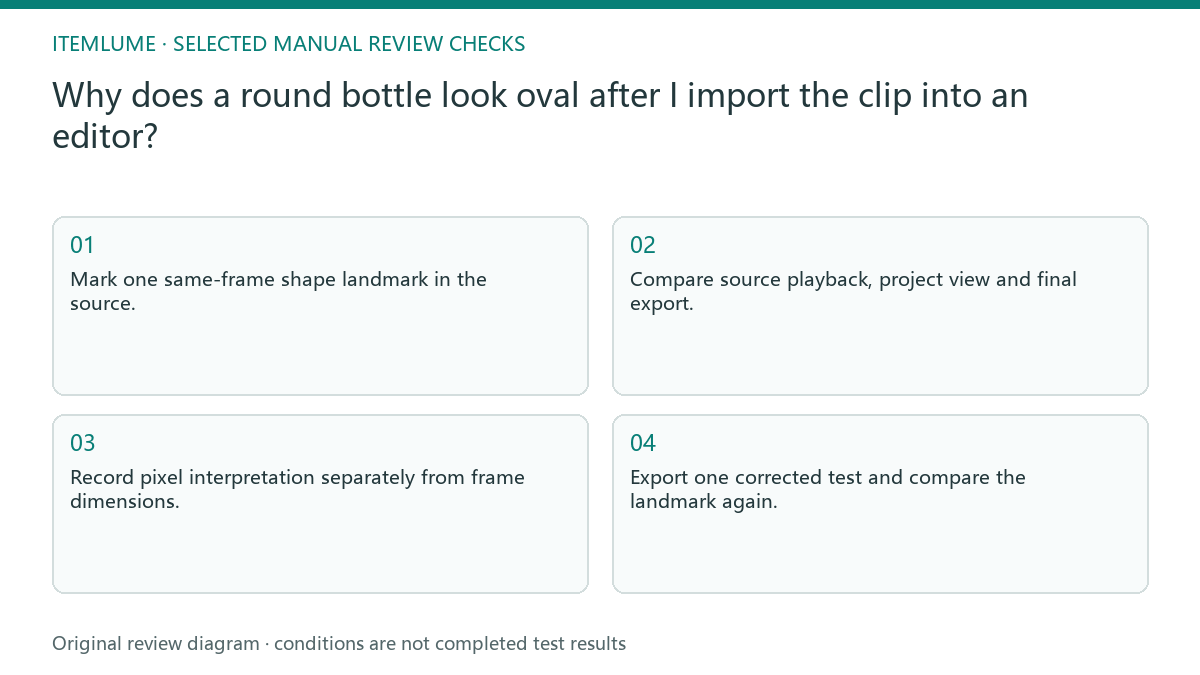
Find where the shape first changes
Choose a known circular feature visible in the source, such as a cap viewed sufficiently straight-on. Keep its camera angle consistent when comparing. A real perspective ellipse is not automatically a technical error, and a different frame cannot serve as a shape reference.
Play the exact source file outside the editor, then inspect it in the project and final export. Record the first stage where the chosen landmark changes. This narrows the problem to source evidence, interpretation, sequence handling or export instead of treating every oval as an AI failure.
Check pixel shape independently from framing
Adobe’s pixel-aspect documentation distinguishes this interpretation from the frame’s overall proportions. Inspect the actual file and project settings rather than applying a remembered value. Any correction should follow the source specification and intended delivery, not a universal platform assumption.
Review scaling, fit and stretch operations separately. A timeline can distort a correct source after interpretation if an operator manually stretches it to fill a frame. Preserve the crop decision and compare a test export before changing product geometry in a raster editor.
- Mark one same-frame shape landmark in the source.
- Compare source playback, project view and final export.
- Record pixel interpretation separately from frame dimensions.
- Check scaling or stretch operations in the external editor.
- Export one corrected test and compare the landmark again.
Record pixel shape alongside the frame dimensions
For an uncropped image, displayed width-to-height is the stored frame width divided by height, multiplied by pixel aspect ratio. Fictional illustration: a 100 × 100 pixel test graphic displayed with PAR 1:1 is square; interpret those same pixels as twice as wide and the display becomes 2:1. This is a geometry illustration, not a product measurement or a recommended export setting.
Record source frame dimensions and declared PAR, the editor’s interpreted PAR, sequence dimensions, any non-uniform scale, and the export’s dimensions/PAR in separate fields. This makes an interpretation change distinguishable from an actual stretch applied to the image. Cropping or a non-square aperture needs its own record.
In the documented Premiere workflow, an individual clip’s interpretation can be checked through Clip > Modify > Interpret Footage. Confirm that your version exposes that route and use the source specification rather than cycling values until a cap looks round. A real cap at an oblique angle need not look circular even with correct interpretation.
Fictional exercise: a cap widens on the timeline
In this fictional exercise, a bottle cap looks correct in the original clip but wide in the timeline. The editor finds an interpretation mismatch and leaves the shot’s camera framing unchanged while testing the repair. The invented setup does not establish a universal import bug.
The reviewer compares the same cap frame in the new export. If its proportions still disagree, the team inspects scaling rather than applying another arbitrary pixel ratio. They stop when the declared source and delivery interpretation preserve the approved shape, with any remaining perspective difference explained.
Approve the shape in the delivered file
Keep the source revision, chosen landmark, interpretation and export with the receipt. Inspect the selected delivery scale and player as well as the editing preview. A correction that looks right in one project but exports incorrectly has not completed the task.
This is external video editing, not an CartVisual geometry-repair capability. Stop when the actual delivered file preserves the referenced product proportions. If the source itself is wrong or lacks evidence of the relevant angle, seek a supported reference rather than claiming that a settings change reconstructs the real product.
Shape-change location check
| Observation | Manual check | Stop or approve |
|---|---|---|
| Source already oval | Check angle and real reference | Do not guess reconstruction |
| Only project widened | Check interpretation | Test exact correction |
| Timeline stretched | Inspect fit operation | Remove unsupported stretch |
| Export changed again | Inspect delivery settings | Hold until verified |
Use this matrix as a manual review record and add your own real evidence. Its conditions are not completed test results.
Sources and further reading
Recorded source-review dates are listed individually below. An undated source does not inherit the article’s publication date. Software and platform rules can change; check the current original before acting.
- CartVisual: editorial policy and product scope · Review date not separately recorded
- Adobe Premiere: Pixel aspect ratio · Review date not separately recorded
- Adobe Premiere: Basic video export settings · Reviewed
- Adobe Par · Reviewed
Frequently asked questions
Is a circular cap always circular on camera?
No. Perspective matters; compare the same frame and supported angle.
Can I fix it by stretching the bottle?
Diagnose interpretation and scaling first so you do not alter correct product geometry.
Is pixel aspect the image ratio?
They describe different things and need separate records in this check.
PREPARE ASSETS FOR YOUR NEXT STEP
Create supporting product assets in CartVisual.
Create new product creative assets in the workspace, then continue in your chosen tools. Third-party software procedures described in this guide take place in those applications; this workspace link does not imply an integration. Check current capabilities, account access and credit quotes.
Explore asset creation tools Check pricing and credits