 CartVisual
DIAGNOSTIC GUIDE / Product videos
Why does a single product shot suddenly cut to another angle?
First check whether the requested continuous shot contains contradictory events. A prompt asking for a static close-up, a reveal, a new setting and a hero ending can encourage a cut even if one sentence says “single shot.” Simplify one test instead of repeatedly generating the overloaded request. Test whether fewer conflicting events preserve continuous motion without changing the product itself.
A motion change is different from an unintended cut
Shot choice and event wording are different layers. Once a continuous shot is chosen, phrases about a second angle or a transition still suggest structural changes. The first frame also sets a visible scene. Reference prompting guidance can inform the rewrite, but it does not guarantee that a different provider’s model will never cut.
Count distinct events in the prompt: camera move, object action, scene transition and end state. Several incompatible events can compete even when the brief says “one shot.” Look for the exact moment of a hard visual discontinuity instead of treating every fast movement as a cut.
Locate the cut in the source clip or the assembled edit
Open the individual generated clip and the assembled advertisement separately. Record the source clip ID, source time, assembly time and the two adjacent frames around the change. A cut between two planned clips belongs to the assembly; a discontinuity inside one source clip is the generation issue considered here. Inspect the clip boundary before spending another generation on a prompt change.
Runway’s guide also discusses whether a requested sequence fits the selected duration. That is a Runway-specific diagnostic suggestion, not evidence of a duration control or guaranteed remedy in CartVisual’s H3 route. First reduce an overloaded brief to the supported shot. If you elect to compare another available duration, record that as a separate changed variable and review the quoted cost before starting it.
Keep a short retry record: one source reference, one requested scene, the intended camera path, the changed prompt phrase, and the first unintended cut time in the result. One seamless result does not establish a general cut-prevention success rate.
Simplify the single-shot instruction first
Write the intended camera path and one observable product event separately. Remove scene-change words from the single-shot test, retain the approved first frame, and identify the exact moment any unwanted cut begins. Compare a simpler request under the same product constraints before deciding whether an edited sequence is actually the better format.
Keep the reference, model, duration and framing constant for a diagnostic retry. Request one camera movement and one stable product state; remove the extra transformation or angle jump. This reduces simultaneous changes when comparing instruction complexity; one stochastic retry does not isolate a cause or guarantee the model will obey.
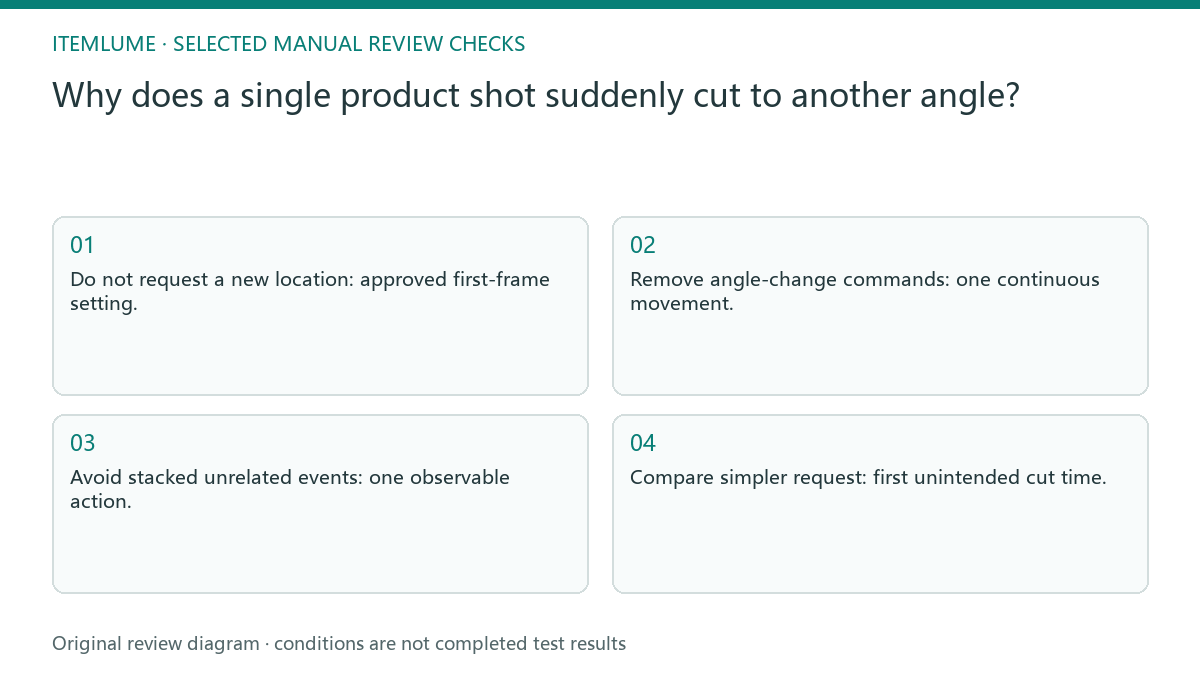
- Do not request a new location: approved first-frame setting.
- Remove angle-change commands: one continuous movement.
- Avoid stacked unrelated events: one observable action.
- Compare simpler request: first unintended cut time.
Compare one lamp reveal with competing actions
Fictional exercise: a lamp brief says “push toward the switch, reveal a bedroom, then finish on a studio hero.” The team wants one continuous desk shot. It removes the two setting changes, keeps the desk first frame and asks for one restrained push. The new request still requires a full-clip product review.
For the fictional lamp reveal, record whether the source stays visible continuously and whether the ending state is reached. A result that avoids a cut but changes the lamp’s controls still fails product review. Smoothness is only one acceptance dimension. If the apparent cut occurs only during a requested rotation, compare whether background, reference identity or camera position jumps. Log the transition time and remove only that rotation for the next diagnostic; do not replace the entire concept before identifying the discontinuity.
Escalate only after a controlled comparison
Stop rewriting when the story needs a different location or a genuinely separate evidence angle. Plan an edited sequence rather than disguising multiple shots as one command.
If a simple motion still produces hard discontinuities, preserve the failed result and consider another supported generation path. Do not hide the cut with unsupported product transformations in a longer prompt. CartVisual TVC planning can prepare and review scene candidates. Each generated shot must be checked; external prompting advice is not a verified guarantee of H3 behavior.
Single scene to cut log: decision worksheet
| Check | Evidence to record | Review action |
|---|---|---|
| Single scene | Approved first-frame setting | Do not request a new location |
| Camera path | One continuous movement | Remove angle-change commands |
| Product event | One observable action | Avoid stacked unrelated events |
| Cut log | First unintended cut time | Compare simpler request |
Use this matrix as a manual review record and add your own real evidence. Its conditions are not completed test results.
Sources and further reading
Recorded source-review dates are listed individually below. An undated source does not inherit the article’s publication date. Software and platform rules can change; check the current original before acting.
- CartVisual: editorial policy and product scope · Review date not separately recorded
- Runway: Image to Video Prompting Guide · Reviewed
Frequently asked questions
Will writing “no cuts” guarantee a continuous shot?
No. It is an instruction, not a guarantee. Reduce competing actions and review the actual clip.
Should I change every setting on the retry?
No. Keep the reference, model and duration fixed while testing one motion simplification.
Can a smooth but different product pass?
No. Continuous motion and product identity are separate checks, both required.
PREPARE ASSETS FOR YOUR NEXT STEP
Create supporting product assets in CartVisual.
Create new product creative assets in the workspace, then continue in your chosen tools. Third-party software procedures described in this guide take place in those applications; this workspace link does not imply an integration. Check current capabilities, account access and credit quotes.
Explore asset creation tools Check pricing and credits