 CartVisual
Credits & account / PRACTICAL ANSWER
When should I retake one TVC shot instead of regenerating the whole advertisement?
Retake one shot when the defect is local and the approved sequence remains valid. Replan when the product or story itself changes.
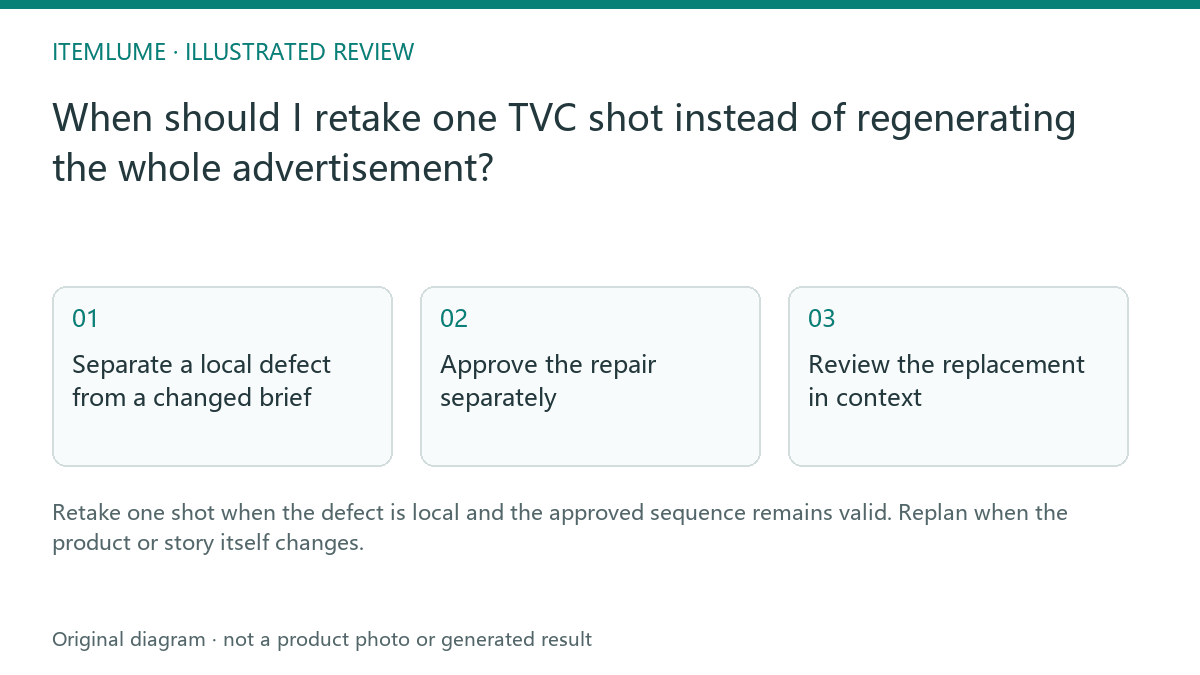
Separate a local defect from a changed brief
In a fictional nine-shot speaker advertisement, shot six adds a nonexistent button while the other eight show the correct speaker. That is a candidate for a local retake. If the seller discovers the entire campaign used an obsolete product revision, replacing only shot six would leave eight incorrect shots. Define the scope with the reference and script before approving another generation.
Write the defective shot number, visible error, required invariant and unchanged surroundings. “Make it better” gives the model no stable repair target. Also check whether the first frame already contains the nonexistent button; motion cannot reliably repair a wrong source image.
Approve the repair separately
| Record | Fictional speaker example | Purpose |
|---|---|---|
| Shot | 6 | Identify the affected source |
| Defect | Extra button on rear edge | Describe a visible change |
| Preserve | Color, grille and composition | Prevent a new redesign |
| Quote | Current independent retake quote | Approve the additional cost |
| Version | Old film and new revision | Keep comparison possible |
Current plans may use 9, 16 or 25 shots; identify the actual total and affected index. A local defect is an editorial reason to consider a retake, not proof that the operation is available. The current service requires the complete eligible source set, checks that its jobs succeeded and are inactive, and blocks conflicting active work. It also checks current model settings against the original film’s binding before quoting the one replacement. Follow the displayed eligibility and current quote; do not infer unlimited retakes from an earlier payment.
Review the replacement in context
Compare the new source clip with the old one, then watch the updated assembled film. A corrected button can coincide with a changed lighting direction that makes the cut distracting. Approving the repaired product detail and approving the revised sequence are separate checks. Retain the original film until the replacement passes both.
Use the manual TVC ledger to record why the original was rejected and which revision was accepted. The ledger is not connected to the task system and cannot reverse a charge.
- Save the original film/task identity, affected source and visible defect.
- Confirm the current retake is available and approve its separate current quote.
- Wait for that same request’s outcome; do not submit duplicates to poll progress.
- Compare the replacement source and new final-film revision, then record acceptance or rejection of both.
A technical success does not certify an accurate button or a smooth cut. If the retake fails, eligible restoration is a separate recovery decision. If the product brief changes, renew planning and approval.
Stop when the repair changes the problem
If repeated attempts trade one product defect for another, revise the first frame or use real footage for that shot. A local retake is appropriate only while the source and intended action remain credible. A successful technical job status is not evidence that the repair preserved the merchandise. Escalate a changed campaign brief to new planning rather than hiding it in a retake.
Sources and further reading
Sources for this page were checked on . Platform rules can change; verify the current source before publishing. Prompt examples and workflow recommendations are CartVisual editorial guidance, not independently measured results.
Frequently asked questions
Is one retake included automatically?
Check its separate current quote and approval.
Can I retake while source clips are still unfinished?
No. The current operation checks the complete eligible succeeded and inactive source set plus model binding and conflicting work. Follow the actual displayed state and quote.
Should I review only the changed clip?
Review it and the revised film in context.
PREPARE ASSETS FOR YOUR NEXT STEP
Create supporting product assets in CartVisual.
Create new product creative assets in the workspace, then continue in your chosen tools. Third-party software procedures described in this guide take place in those applications; this workspace link does not imply an integration. Check current capabilities, account access and credit quotes.
Explore asset creation tools Check pricing and credits