 CartVisual
Product videos / PRACTICAL ANSWER
Why should I review the cropped scene after approving the storyboard sheet?
Approving a design sheet does not approve every extracted frame. Inspect the actual frame that each clip will use.
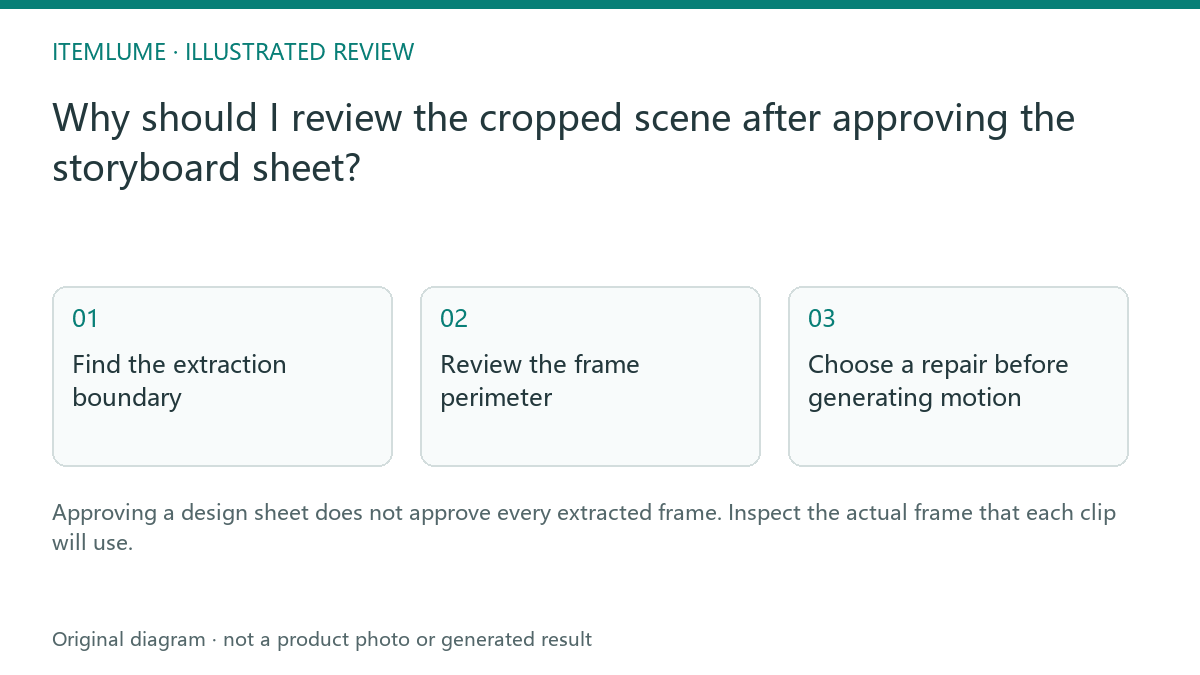
Find the extraction boundary
A fictional headset sheet looks correct at overview size, but the third cell places an ear cup close to its right border. The extracted frame removes a small portion of the cup and includes a pale strip from the gutter. The script is unchanged; the visible video input is not. This is an extraction and composition question rather than a product-generation error.
Compare the selected cell and isolated frame at equal visible size. Look for complete silhouette, meaningful contact points and unwanted borders. Do not use a tiny film thumbnail as the only approval surface. A cropped reference may appear convincing until motion exposes the missing edge.
The current CartVisual extractor supports 9, 16 or 25 panels. It checks the sheet layout, identifies near-white separators when detected, and crops each cell to the chosen video aspect ratio. A centered ratio crop can remove content close to a cell edge even when the overview looks complete. Review the actual isolated frame, not a hand-drawn rectangle over the full sheet.
Review the frame perimeter
| Area | Possible defect | Review action |
|---|---|---|
| Outer boundary | Gutter or neighboring scene | Reject the contaminated input |
| Product edge | Ear cup or strap cut off | Compare complete silhouette |
| Text area | Shot label inside image | Remove review markings |
| Contact area | Stand or hand partly removed | Confirm physical scene still makes sense |
Use a frame checklist rather than requiring an identical crop across unrelated scenes. A macro shot may intentionally exclude part of the product, but its description must make that intentional view clear. Accidental truncation and a deliberate detail crop are different decisions.
Choose a repair before generating motion
If the isolated input is contaminated, stop before approving motion. Review the selected sheet and the extracted frame together. Within the current TVC path, prepare and approve a suitable sheet again rather than assume an arbitrary manual crop control exists. An independently prepared first frame belongs to a separate supported single-shot workflow; it does not silently replace one panel in this TVC set. Do not stretch a cropped image to invent the missing edge. Increasing resolution enlarges the defect; it does not restore unseen geometry.
For the headset, preserve the selected product color and side before regenerating a scene. A corrected crop that switches to another headset variant solves the border problem while introducing an identity problem.
Record the approved input
Save the shot number and isolated frame approval beside the script. The current TVC workflow provides a panel-review stage before video approval; use that stage to inspect what will be submitted. This article describes the review, not an arbitrary manual crop editor inside CartVisual. Check the resulting clip for border persistence as a final confirmation.
| Record separately | What to inspect | Stop condition |
|---|---|---|
| Selected sheet and shot index | Actual 3×3, 4×4 or 5×5 layout and intended view | Wrong sheet, count or product variant |
| Actual isolated input | Pixel dimensions, perimeter and same-scale product detail | Missing necessary structure or retained adjacent scene |
| Supported repair decision | Revised sheet in TVC, or separate single-shot production | No reviewed input for the intended action |
The extractor does not upscale a small cell to invent detail. It keeps a native crop when the crop is below its target size and rejects crops below its minimum size. A high-resolution complete sheet therefore does not give every panel that same resolution. See the separate resolution checks before interpreting a quality label.
Sources and further reading
Sources for this page were checked on . Platform rules can change; verify the current source before publishing. Prompt examples and workflow recommendations are CartVisual editorial guidance, not independently measured results.
Frequently asked questions
Is sheet approval sufficient?
No. Inspect the actual isolated video input.
Can higher resolution fix a clipped product?
It cannot recover geometry absent from the approved image.
Does every shot need the whole product?
No. Intentional detail shots should match their script and product evidence.
Does a 4K sheet make each extracted frame 4K?
No. Each frame uses one cropped cell. Inspect its actual pixel dimensions; the extractor does not invent missing detail through upsampling.
PREPARE ASSETS FOR YOUR NEXT STEP
Create supporting product assets in CartVisual.
Create new product creative assets in the workspace, then continue in your chosen tools. Third-party software procedures described in this guide take place in those applications; this workspace link does not imply an integration. Check current capabilities, account access and credit quotes.
Explore asset creation tools Check pricing and credits