 CartVisual
Product videos / PRACTICAL ANSWER
Does a 4K storyboard mean my TVC will be a 4K video?
No. The storyboard image resolution does not set the video model’s native resolution or the assembled film’s delivery dimensions.
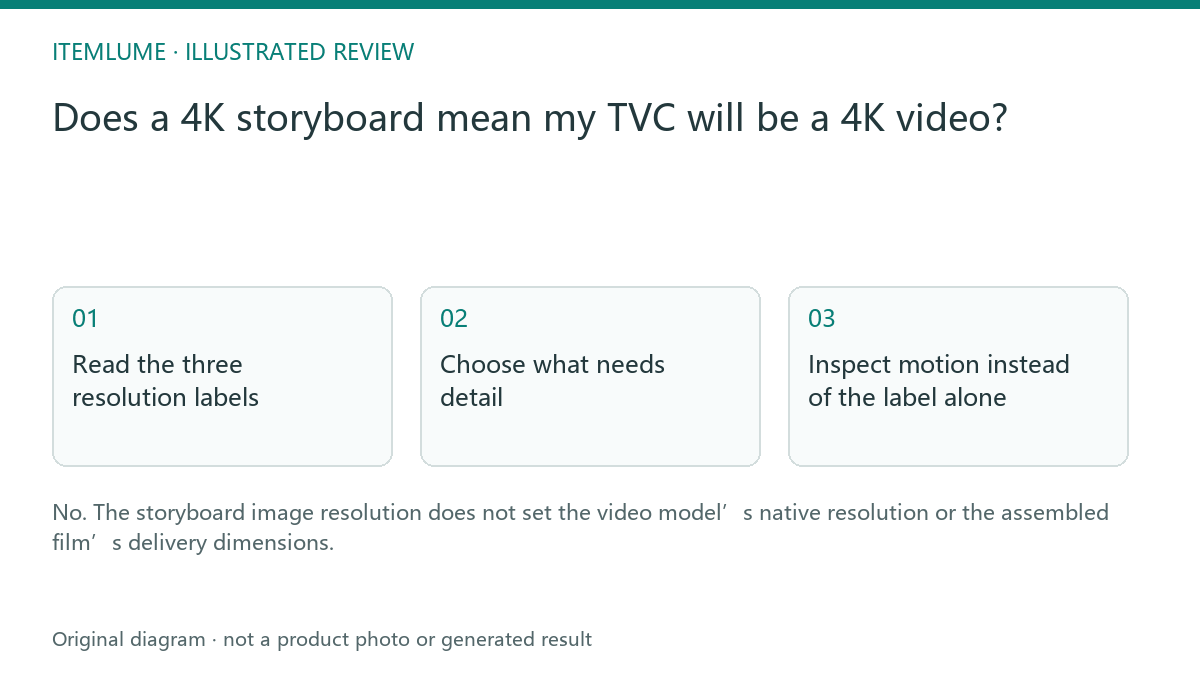
Read the three resolution labels
A fictional fragrance campaign uses a high-resolution design sheet because the reviewer needs to inspect the cap and label. Its video adapter generates native footage at a different supported size, and the current TVC assembler delivers a 720p film. The high-resolution sheet improves the planning input; it does not establish a native 4K moving image.
Write image size, source-video size and delivered-film size in separate columns. A visible “4K” next to image generation should not be copied into the film delivery brief. The current CartVisual video feature page states its delivery boundary; model availability and supported settings should also be checked in the authenticated workflow.
Choose what needs detail
| Asset or setting | What it establishes | What still needs checking |
|---|---|---|
| 4K storyboard sheet | Size of the entire design image | Actual sheet pixels and each isolated cell |
| Extracted reference frame | Cropped single-cell input | Actual width/height; no invented detail |
| Native video source | Provider clip output | Actual clip dimensions and visible motion |
| Current final TVC, 16:9 | 1280 × 720 output target | Actual completed file metadata |
| Current final TVC, 1:1 | 720 × 720 output target | Actual completed file metadata |
| Current final TVC, 9:16 | 720 × 1280 output target | Actual completed file metadata |
These are current assembly targets from the CartVisual implementation, not measurements of a user’s completed file. The interface’s 720p family includes square and portrait outputs; do not copy 1280 × 720 into every brief. Final-file verification remains necessary.
The 4K label applies to the whole storyboard sheet. Spreading that sheet over 9, 16 or 25 cells changes the pixels available per scene; separators and ratio crops can reduce them further. The extractor may downsize a sufficiently large crop, but keeps a smaller valid crop at its native size instead of upsampling it to claim a 720p reference. Inspect the actual cropped input.
Inspect motion instead of the label alone
Watch fine lettering over time. A sharp first frame may become unreadable during movement even if the file dimensions are correct. Compare source and assembled frames from the same shot. That comparison locates the first observable change. It does not by itself prove whether generation, assembly, delivery or a viewer caused the difference; compare the same moment and display scale before assigning a cause.
Do not promise that changing an image quality selector will fix video label flicker. Resolve the actual moving-image defect and use external editing or real footage when essential lettering cannot remain faithful.
Write an honest delivery specification
For the fictional campaign, approve “720p assembled film from reviewed source clips; no native 4K video claim.” Keep the high-resolution storyboard as a separate approval document. If future models add other resolutions, use their current verified settings. This guide describes the present workflow boundary, not a promise that every provider will always deliver the same size.
Record four actual values in the handoff: complete sheet pixels → isolated input pixels → native source pixels → final delivered pixels. Mark an unavailable value “not inspected.” Dimensions alone do not prove legible lettering, native detail, or correct merchandise. The external finishing brief should preserve these distinctions.
Sources and further reading
Sources for this page were checked on . Platform rules can change; verify the current source before publishing. Prompt examples and workflow recommendations are CartVisual editorial guidance, not independently measured results.
Frequently asked questions
Can I call the film 4K because the sheet is 4K?
No. Verify the actual moving-image dimensions.
Is upscaling the same as native generation?
No. It enlarges an existing result and needs its own quality review.
Where should I check final output?
Inspect the completed film metadata and view it at the intended display size.
PREPARE ASSETS FOR YOUR NEXT STEP
Create supporting product assets in CartVisual.
Create new product creative assets in the workspace, then continue in your chosen tools. Third-party software procedures described in this guide take place in those applications; this workspace link does not imply an integration. Check current capabilities, account access and credit quotes.
Explore asset creation tools Check pricing and credits